If you've been searching for a WhatsApp AI chatbot for your business, you've probably come across solutions like Wati, Respond.io, or Tidio — all of which require the WhatsApp Business API. That means monthly platform fees, per-conversation charges, BSP approval, and often a developer to set things up. For a small business or freelancer, that's a lot of cost and complexity before you send a single AI-powered reply.
But what if you could add a chatbot in WhatsApp — powered by ChatGPT, Gemini, or DeepSeek — without the WhatsApp Business API?
That's exactly what Lion CRM does. It's a WhatsApp CRM Chrome extension that adds an AI Bot feature directly inside WhatsApp Web. You install the extension, activate your Lion CRM license key (7-day free trial available), add your own AI provider API key (from ChatGPT, Gemini, or DeepSeek), configure your business context, and the AI handles customer conversations automatically — replying to messages, categorizing contacts into tabs, booking appointments, and even updating customer profiles.
Important to understand: Lion CRM's AI chatbot uses your own API key from your chosen AI provider. This means you need to get an API key from OpenAI (ChatGPT), Google (Gemini), or DeepSeek — each of them offers free tiers or very affordable pricing. Lion CRM acts as the bridge between WhatsApp Web and your AI provider. No WhatsApp Business API is involved at all.
Lion CRM's AI Bot does more than just auto-reply. It performs 4 automatic actions — Send Reply, Update Tabs, Create Appointments, and Update Profile. That means your WhatsApp AI chatbot handles customer conversations, organizes leads, books meetings, and saves contact data — all automatically, directly inside WhatsApp.
In this guide, you'll learn exactly how to set up a WhatsApp AI chatbot using Lion CRM, how to train it with your business information, which AI provider to choose, and how to configure it so it handles real customer conversations — professionally, accurately, and automatically.
What Is a WhatsApp AI Chatbot?
A WhatsApp AI chatbot is a tool that uses artificial intelligence — like ChatGPT, Gemini, or DeepSeek — to automatically respond to customer messages on WhatsApp. Unlike rule-based chatbots that follow pre-written scripts (if customer says X, reply Y), an AI chatbot actually understands the context of what the customer is asking and generates natural, human-like responses.
There are two main ways to run a chatbot in WhatsApp:
- WhatsApp Business API-based chatbots — platforms like Wati, Respond.io, and Tidio connect through Meta's official API. They require BSP approval, monthly fees, per-conversation billing, and often a developer to set up. Best for large enterprises sending millions of messages.
- Chrome extension-based chatbots — tools like Lion CRM add AI capabilities directly inside WhatsApp Web through a browser extension. No API approval needed, no per-message cost, no developer required. You install the extension from the Chrome Web Store, activate your Lion CRM license key, add your AI provider's API key, and start.
Lion CRM falls in the second category — a WhatsApp CRM Chrome extension with a built-in AI Bot that works on WhatsApp Web. Think of it as your own ChatGPT WhatsApp bot — the chatbot runs entirely through your browser, using your own ChatGPT, Gemini, or DeepSeek API key to power the AI responses.
What Can Lion CRM's AI Bot Do?
Lion CRM's AI Bot doesn't just send auto-replies — it performs 4 automatic actions that work together as a complete CRM workflow:
Send Reply
AI responds to customer messages automatically based on your business prompt. It understands context, maintains conversation flow, and gives accurate answers about your products, services, and pricing.
Update Tabs
AI categorizes customers into custom tabs based on conversation context. Customer says "I am interested"? AI moves them to the "Interested" tab automatically. No manual sorting needed.
Create Appointments
When a customer requests a meeting, AI schedules the appointment and sends a confirmation with your Google Meet or Zoom link — including the customer's name, date, time, and meeting link.
Update Profile
AI extracts customer information from the conversation — email, phone number, company name — and saves it to their CRM profile automatically. No manual data entry.
AI Bot + Full CRM Extension
With these 4 actions enabled, your WhatsApp AI chatbot isn't just answering questions — it's organizing your leads into tabs, scheduling meetings, and saving customer data to your CRM profile while you focus on other work. And the AI Bot is just one of Lion CRM's many features — the extension also includes Bulk Messaging, Kanban Board, Fluxo (Chatbot Flow Builder), Follow-Up Funnel, Scheduled Messages, Templates, Custom Tabs, Labels, Webhooks, and more.
Step 1: API Key Setup — ChatGPT, Gemini, or DeepSeek
Before your WhatsApp AI chatbot can work, you need an API key from your preferred AI provider. Lion CRM supports three:
- ChatGPT (OpenAI) — Get your API key from platform.openai.com/api-keys
- Gemini (Google AI) — Get your API key from aistudio.google.com/apikey
- DeepSeek — Get your API key from platform.deepseek.com/api_keys
Once you have your API key, here's how to set it up in Lion CRM:
Open Profile Settings
In WhatsApp Web, click on your profile icon in Lion CRM's toolbar and select Settings.
Choose Your AI Provider
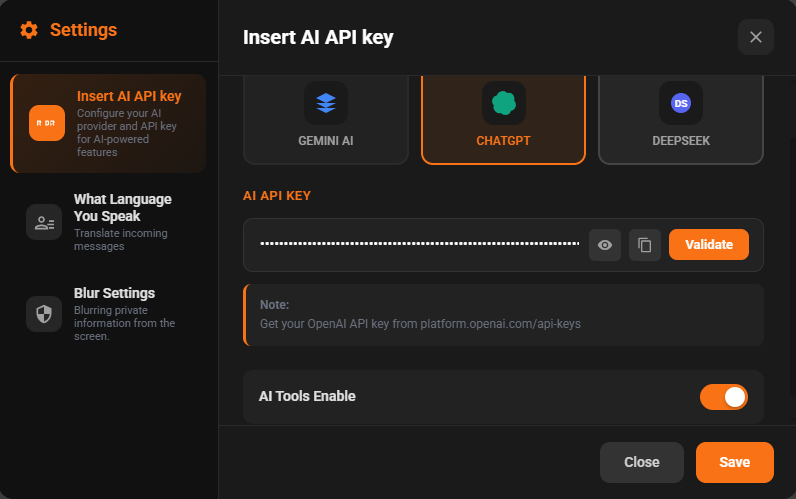
Under "Insert AI API Key", you'll see three options — Gemini AI, ChatGPT, and DeepSeek. Click on the one you have an API key for.
Paste and Validate Your Key
Paste your API key in the field and click the Validate button. Lion CRM will check if the key is valid. If it says "API key is valid" — you're good.
Enable AI Tools & Save
Toggle on "Enable AI Tools" and click Save. The AI Bot icon will now appear in your WhatsApp Web toolbar.
⚠️ Important: The AI API key comes from your AI provider (OpenAI, Google, or DeepSeek) — not from Lion CRM. Each provider has its own pricing for API usage. ChatGPT and DeepSeek have free tiers with limited usage. Gemini offers a generous free tier. Check your provider's pricing page for current rates.
Step 2: Enable AI Bot & Configure Settings
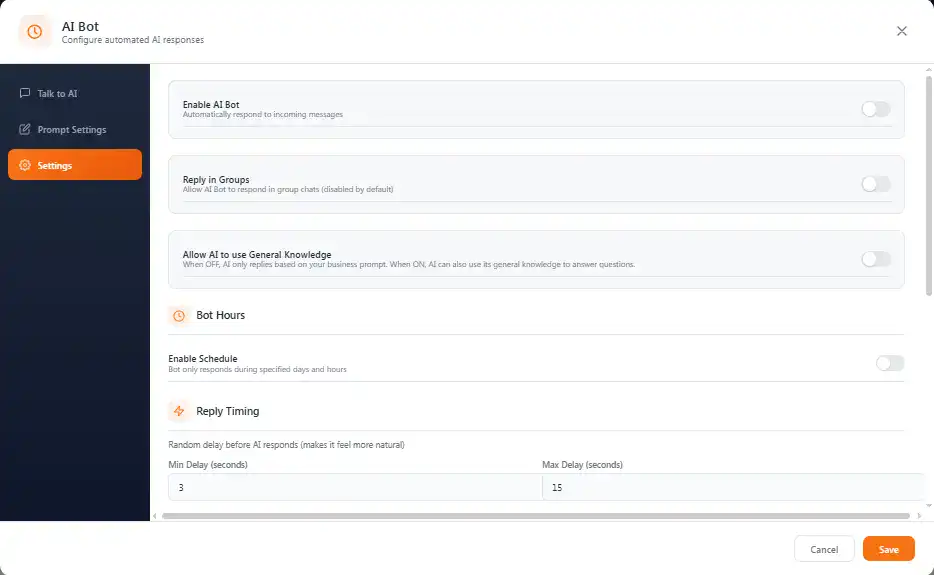
Once your API key is set, click the AI Bot icon in the WhatsApp Web toolbar. You'll see the AI Bot configuration panel with three tabs — Talk to AI, Prompt Settings, and Settings.
Go to Settings first. Here's what you'll configure:
Enable AI Bot
Toggle on "Enable AI Bot" — this is the master switch. When enabled, the chatbot in WhatsApp will automatically respond to incoming messages.
Reply in Groups
By default, the AI Bot only replies to individual chats. If you want it to also respond in WhatsApp group chats, toggle on "Reply in Groups". Keep this off if you don't want the AI answering every group message.
Allow AI to Use General Knowledge
When OFF, the AI only replies based on your business prompt — it won't answer questions outside your defined context. When ON, the AI can also use its general knowledge to answer questions. For most businesses, keeping this OFF is recommended so the AI stays focused on your business information.
Bot Hours — Schedule When AI Responds
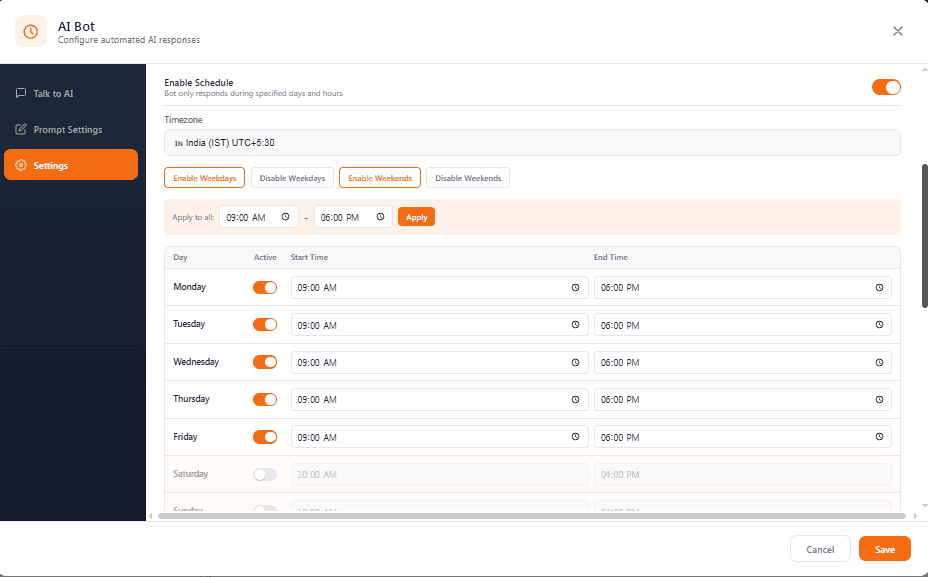
Toggle on "Enable Schedule" to set specific days and hours when the AI Bot should respond. Choose your time zone, then enable or disable each weekday. This is perfect for after-hours automation — let AI handle messages when your team is off, and take over during business hours.
Reply Timing — Human-Like Delays
Nobody likes instant robotic replies. Set a Min Delay and Max Delay (in seconds) and the AI will wait a random time between those values before responding. For example, set 3 to 15 seconds — the AI will pause randomly, making the conversation feel natural and human-like.
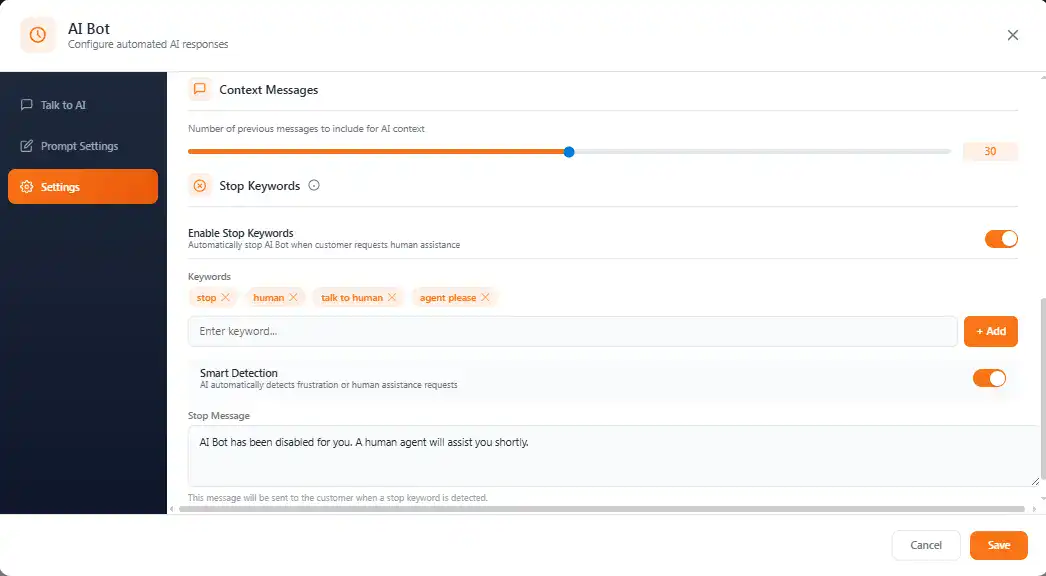
Context Messages — Smart, Contextual Responses
This slider controls how many previous messages the AI reads before responding. Set it to 30, and the AI will read the last 30 messages in the conversation to understand context. This means the WhatsApp AI chatbot won't give repetitive or generic answers — it understands what was discussed earlier and responds accordingly.
Step 3: Train Your AI with a Business Prompt
This is the most important step. The Business Prompt is where you train your WhatsApp AI chatbot to understand your business. Go to Prompt Settings in the AI Bot panel.
Business Prompt
Write a detailed prompt that tells the AI who you are, what you sell, how to respond, and what tone to use. The better your prompt, the more accurate your chatbot responses will be.
Example prompt:
"You are an AI Business Assistant for [Your Business Name]. You help customers with inquiries about our products, pricing, and services. Our main services include [list services]. Our working hours are 9 AM to 7 PM IST. Be professional, helpful, and concise. If a customer asks about pricing, share our pricing details. If they want to schedule a meeting, book an appointment. Never make up information you don't know — use the fallback reply instead."
Fallback Reply
When the AI doesn't have information in your business prompt to answer a question, it sends this fallback reply instead of making up answers. This prevents your chatbot from giving incorrect information.
Example: "Thank you for your question! I don't have specific information about that right now. Our team will get back to you shortly."
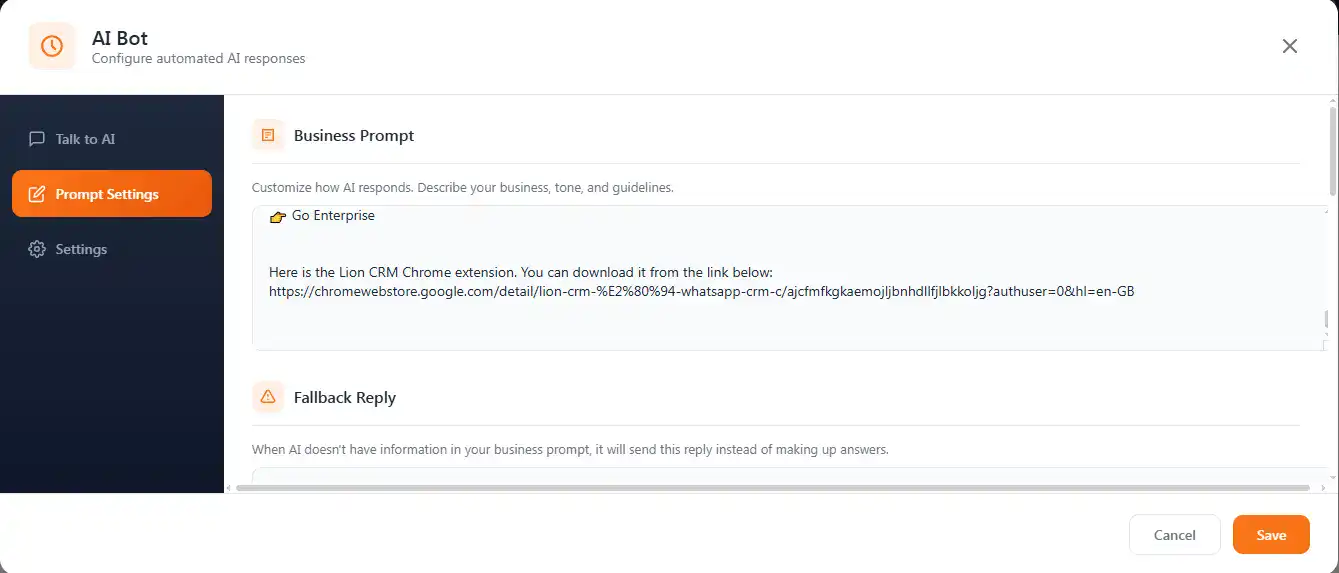
💡 Pro Tip: The more detailed your business prompt, the better your WhatsApp AI chatbot performs. Include your product names, price ranges, FAQs, service areas, working hours, and any specific instructions (like "always suggest a call for orders above ₹50,000"). Treat the prompt like training a new employee.
How to Configure the 4 Automatic Actions
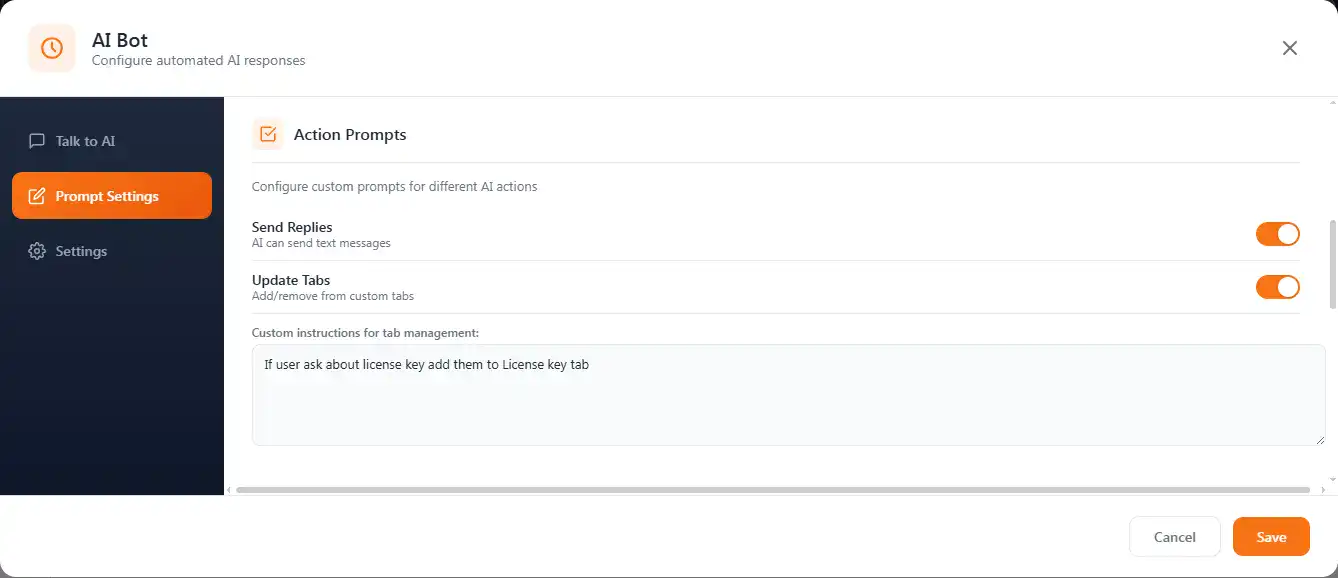
Below the Business Prompt, you'll find Action Prompts — this is where the real power of Lion CRM's WhatsApp AI chatbot lives. Each action can be toggled on or off independently:
Action 1: Send Replies
The core chatbot function. When enabled, the AI reads incoming messages and sends replies automatically based on your business prompt. Toggle this off and the AI Bot stops replying entirely.
Action 2: Update Tabs
When enabled, the AI analyzes conversations and automatically adds or removes customers from custom tabs. You can write custom instructions for tab management — for example: "If a customer asks about SEO services, add them to the 'SEO Leads' tab. If they ask about website design, add them to the 'Web Design' tab."
The AI understands intent. When a customer says "I am interested in your SEO service", the AI creates or finds the relevant tab and adds the customer to it — no manual sorting required.
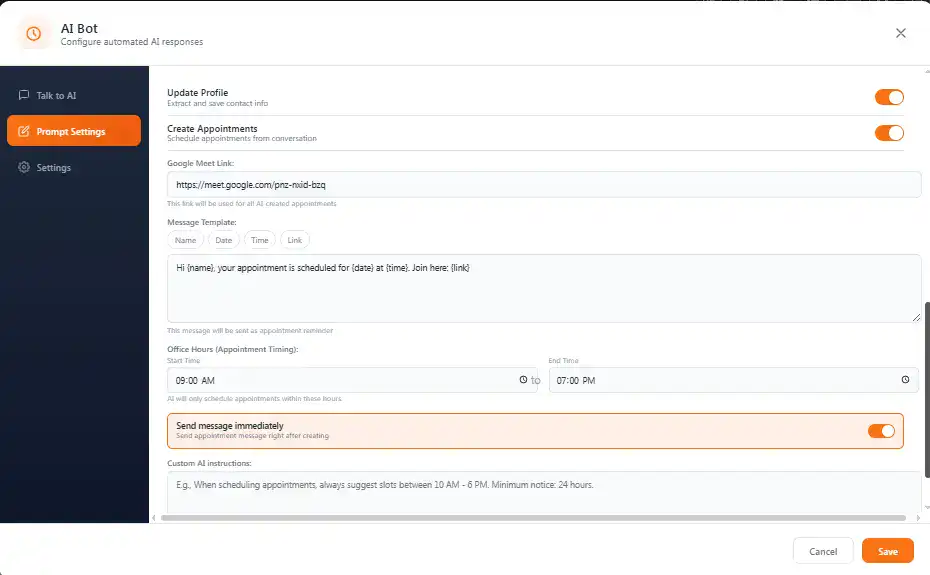
Action 3: Create Appointments
When a customer requests a meeting, the AI automatically schedules an appointment and sends a confirmation message. Here's how to set it up:
- Paste your Google Meet or Zoom link
- Set the Message Template using variables: {name}, {date}, {time}, {link}
- Define Office Hours (e.g., 9:00 AM to 7:00 PM) — the AI only books within these hours
- Toggle "Send message immediately" to auto-send the confirmation right after booking
Template example: "Hi {name}, your appointment is scheduled for {date} at {time}. Join here: {link}"
Action 4: Update Profile
When enabled, the AI extracts customer information from the conversation and updates their CRM profile. If a customer says "My email is john@example.com", the AI saves that email to their profile instantly. Same for phone numbers, company names, and other details. No manual data entry needed.
Stop Keywords — Let Customers Talk to a Human
No matter how good your WhatsApp AI chatbot is, some customers will want to talk to a real person. Lion CRM handles this with Stop Keywords and Smart Detection.
How It Works
- Enable Stop Keywords — toggle this on to automatically stop the AI Bot when a customer uses specific words.
- Keywords — pre-set keywords include "stop", "human", "talk to human", and "agent please". You can add your own custom keywords too.
- Smart Detection — when enabled, the AI automatically detects frustration or human assistance requests — even if the customer doesn't use the exact stop keywords. For example, if a customer says "I need to speak with a real person", Smart Detection picks that up.
- Stop Message — when a stop keyword is detected, the AI sends a customizable message like: "AI Bot has been disabled for you. A human agent will assist you shortly."
💡 This is important for customer trust. Customers appreciate knowing they can reach a real human when they need to. The Stop Keywords feature ensures your WhatsApp AI chatbot never traps a customer in an endless AI loop.
Talk to AI — Test Before Going Live
Before you let your chatbot in WhatsApp handle real customer conversations, test it. Lion CRM has a built-in "Talk to AI" testing environment right inside the AI Bot panel.
Click on the "Talk to AI" tab. You'll see a chat interface where you can:
- Type test messages and see how the AI responds
- Switch between "AI Bot Prompt" mode (uses your business prompt) and "Global ChatGPT" mode (uses general AI knowledge)
- Start a New Chat to test different scenarios
- Review chat history — your test conversations are saved (up to 10 chats)
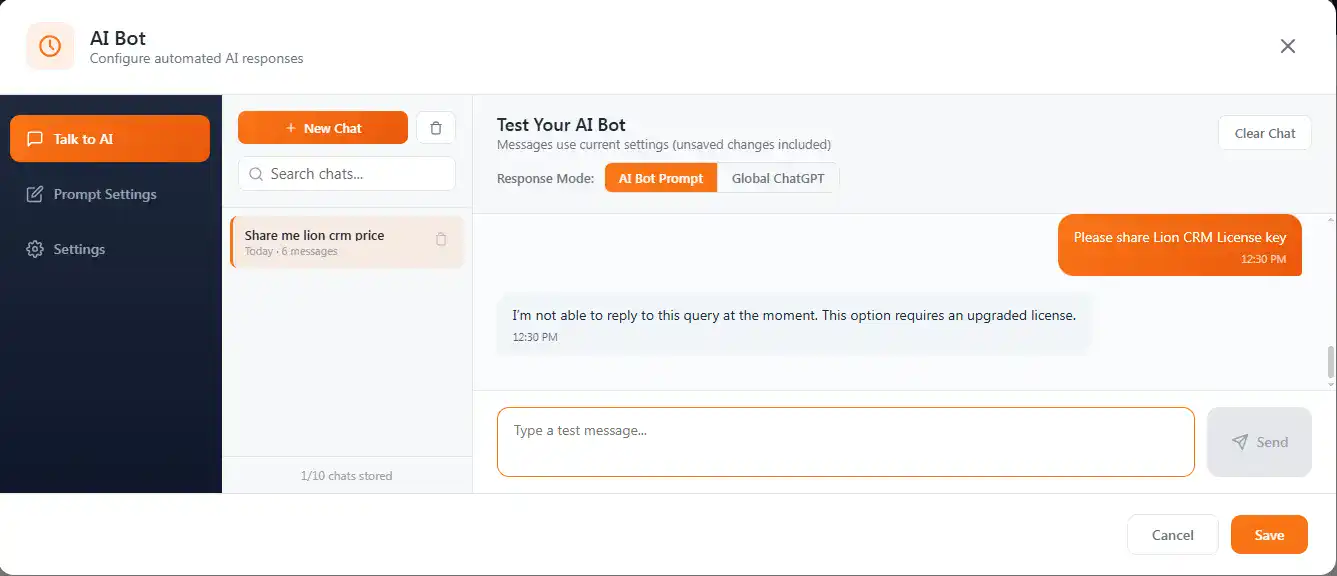
Test with real questions your customers ask — "What's the price?", "Can I schedule a demo?", "What services do you offer?" — and refine your business prompt until the AI gives accurate, professional responses.
ChatGPT vs Gemini vs DeepSeek — Which AI Is Best?
Lion CRM supports three AI providers for your WhatsApp AI chatbot. Here's how they compare:
| Feature | ChatGPT (OpenAI) | Gemini (Google) | DeepSeek |
|---|---|---|---|
| Response Quality | Excellent — most widely tested | Very good — strong reasoning | Very good — improving fast |
| Free Tier | Limited free usage | Generous free tier | Very affordable |
| API Cost | Moderate | Low | Lowest cost |
| Multilingual | 90+ languages | 100+ languages | Strong in multiple languages |
| Speed | Fast | Very fast | Fast |
| Best For | Highest quality conversations | Budget-conscious businesses | Lowest-cost AI chatbot |
Our Recommendation
Start with Gemini or DeepSeek if you're cost-conscious — both offer generous free tiers or very low pricing. Switch to ChatGPT if you need the highest conversational quality for complex customer queries. The best part? Lion CRM lets you switch between providers anytime — just change the API key in settings. Try all three and pick what works best for your business.
Who Needs a WhatsApp AI Chatbot?
If you use WhatsApp for business communication and want to automate customer responses, a chatbot in WhatsApp powered by AI can transform your workflow. Here's who benefits most:
E-Commerce & D2C Brands
Answer product queries, share pricing, process return requests, and handle order status questions — 24/7, without hiring extra support staff.
Sales Teams & Agencies
Qualify leads automatically. AI asks the right questions, categorizes prospects into tabs, and books demo calls — all while your team focuses on closing.
Coaches & Course Creators
Answer student queries about courses, schedules, fees, and enrollment. AI handles the repetitive questions so you can focus on teaching.
Doctors & Clinics
Handle appointment requests, answer FAQs about services and timing, and send appointment confirmations — all through the WhatsApp AI chatbot.
Real Estate Agents
Share property details, answer pricing questions, schedule site visits, and automatically capture lead information to your CRM profile.
Freelancers & Consultants
Handle initial client inquiries, share your services and rates, and book consultation calls — all automated through WhatsApp.
Insurance & Finance
Answer policy queries, share plan details, handle renewal inquiries, and book meetings with agents — AI does the first interaction.
Whitelabel Resellers
If you resell WhatsApp CRM tools, Lion CRM's whitelabel license lets you offer AI chatbot functionality under your own brand to your clients.
Chrome Extension vs WhatsApp Business API
This is the question everyone asks: should I use a Chrome extension like Lion CRM or go with a WhatsApp Business API platform? Here's an honest comparison:
| Feature | WhatsApp Business API Platforms | Lion CRM (Chrome Extension) |
|---|---|---|
| AI Chatbot | ✓ Built-in (platform-provided) | ✓ Bring your own AI key (ChatGPT/Gemini/DeepSeek) |
| Setup Complexity | Complex — BSP approval, developer needed | Easy — install extension, add API key, done |
| Per-Message Cost | Yes — per-conversation billing | No per-message cost from Lion CRM (AI provider charges apply) |
| Green Tick Verification | ✓ Available | ✗ Not available |
| Works Without PC Running | ✓ Cloud-based | ✗ Requires PC + Chrome running |
| CRM Actions (Tabs, Kanban, Profile) | Depends on platform | ✓ 4 automatic AI actions built-in |
| Appointment Booking via AI | Depends on platform | ✓ Built-in with Google Meet/Zoom |
| Best For | Large enterprises, high-volume messaging | Small/medium businesses, freelancers, agencies |
The honest answer: If you're a large enterprise sending millions of messages and need green tick verification or deep CRM integrations (Salesforce, HubSpot), the WhatsApp Business API is the right choice. But if you're a small business, freelancer, startup, or agency that wants a powerful WhatsApp AI chatbot without the cost and complexity of the API — a Chrome extension like Lion CRM is the smarter starting point.
Ready to Set Up Your WhatsApp AI Chatbot?
Install Lion CRM, add your ChatGPT, Gemini, or DeepSeek API key, and let AI handle your WhatsApp conversations.
7-day free trial • No WhatsApp Business API needed • No credit card required
Install Lion CRM — Free Trial →Need help setting up? Contact our team:
Kuldeep — +91 74260-38448 | Rakshit — +91 92149-96678
Watch: WhatsApp AI Chatbot Setup — Full Walkthrough
See exactly how to set up and configure Lion CRM's AI Bot feature in this complete video tutorial:
Frequently Asked Questions
Do I need the WhatsApp Business API to use a WhatsApp AI chatbot?
Is the AI API key free?
Can the WhatsApp AI chatbot reply to group messages?
What happens if the AI chatbot cannot answer a question?
Does the AI chatbot work when my computer is off?
Can customers request to talk to a human instead of the AI?
Which AI provider is best for a WhatsApp chatbot — ChatGPT, Gemini, or DeepSeek?
Can the AI chatbot book appointments automatically?
Can I use the AI chatbot with both personal and business WhatsApp numbers?
What other features does Lion CRM offer besides the AI chatbot?
More Lion CRM Guides
- How to Set Up WhatsApp Auto Reply Without API — Fluxo chatbot flow builder (no AI key needed)
- How to Schedule WhatsApp Messages — one-time and repeated scheduling with zero per-message cost
- How to Send Bulk WhatsApp Messages Without Getting Banned — safe bulk messaging practices
- Explore All Lion CRM Features — AI Chatbot, Kanban Board, Fluxo, and more