Every business on WhatsApp faces the same problem: customers message at all hours, expect instant replies, and move to a competitor if they don't hear back quickly. Setting up WhatsApp auto reply is no longer optional — it's essential for any business that handles customer conversations on WhatsApp. But the default WhatsApp Business app gives you a greeting message and an away message — that's it. For anything beyond basic WhatsApp auto reply, every guide on the internet tells you the same thing: "Get the WhatsApp Business API."
The API route means monthly subscriptions ($49–$200+/month), per-conversation charges from Meta, business verification processes, and developer-level setup. For a small business, freelancer, or agency that just wants a working WhatsApp auto reply bot, that's overkill.
There's a third option nobody talks about. You can set up full WhatsApp auto reply flows — with keyword triggers, branching conversations, smart delays, and input validation — using a Chrome extension that works directly on WhatsApp Web. No API. No coding. No per-message cost.
That tool is Lion CRM's Chatbot Flow Builder (internally called Fluxo). In this WhatsApp auto reply guide, you'll learn exactly how it works, step by step — from setting your first keyword trigger to building complete chatbot conversation flows.
Who is this guide for? Small business owners, freelancers, digital marketing agencies, real estate agents, coaching institutes, e-commerce sellers, and anyone who handles customer conversations on WhatsApp and wants to automate replies without the complexity and cost of the WhatsApp Business API. Also known as resposta automática WhatsApp in Brazil and Latin America — this guide covers the same concept for a global audience.
3 Ways to Set Up WhatsApp Auto Reply — Compared
Before jumping into the setup, it helps to understand the three WhatsApp auto reply approaches available today and where each one falls short or excels.
| Feature | WhatsApp Business App | WhatsApp Business API | Lion CRM (Chrome Extension) |
|---|---|---|---|
| Auto Reply Type | Greeting + Away message only | Full chatbot flows, keyword triggers | Full chatbot flows, keyword triggers |
| Keyword-Based Replies | ✗ Not available | ✓ Available | ✓ Available |
| Branching Conversations | ✗ Not available | ✓ Available | ✓ Drag-and-drop builder |
| Input Validation | ✗ Not available | Depends on provider | ✓ Phone, Email, URL, Date, Number |
| Per-Message Cost | ✓ Free | ✗ $0.03–0.08 per conversation | ✓ Zero — no message charges |
| Monthly Subscription | ✓ Free | ✗ $49–$200+/month | ✓ ₹1,500–₹3,000 user license |
| Meta Business Verification | Not required | ✗ Required | ✓ Not required |
| Coding Required | No | Yes — needs developer or paid platform ($49–$200+/mo) | ✓ No — visual drag-and-drop builder |
| Works On | Mobile app | Cloud-hosted servers | Any Chromium browser (Chrome, Brave, Edge) + WhatsApp Web |
| Green Tick Badge | ✗ No | ✓ Yes (verified businesses) | ✗ No |
The honest picture: If you're a large enterprise that needs the green tick badge, deep CRM integrations at scale, and 24/7 cloud availability, the WhatsApp Business API is the right choice for WhatsApp auto reply. But if you're a small-to-medium business that wants powerful WhatsApp auto reply flows without paying per-message fees and without any technical setup — Lion CRM's Chatbot Flow Builder gives you API-level automation at a fraction of the cost.
Important: Lion CRM is a Chrome extension. The Chatbot Flow Builder works when your computer is ON, WhatsApp Web is open in your browser, and the Lion CRM extension is enabled. It works on any Chromium-based browser — Chrome, Brave, Edge, and others. This is not a cloud-based service — it's a key difference from API solutions. For businesses that operate during fixed hours, this works perfectly. For 24/7 availability, you'd need a dedicated device running.
What is the Chatbot Flow Builder (Fluxo)?
Fluxo is Lion CRM's rule-based chatbot flow builder — the engine behind WhatsApp auto reply without API. Think of it as a visual canvas where you drag-and-drop conversation blocks, connect them with lines, and set conditions for when and how the WhatsApp auto reply bot responds to customers.
Unlike AI chatbots that require an API key from ChatGPT or Gemini, Fluxo is entirely rule-based. You define exactly what happens when a customer sends a specific keyword, selects a list option, or provides input. The WhatsApp auto reply messages are predictable, consistent, and require no AI provider key — making it the most reliable way to automate WhatsApp responses for business.
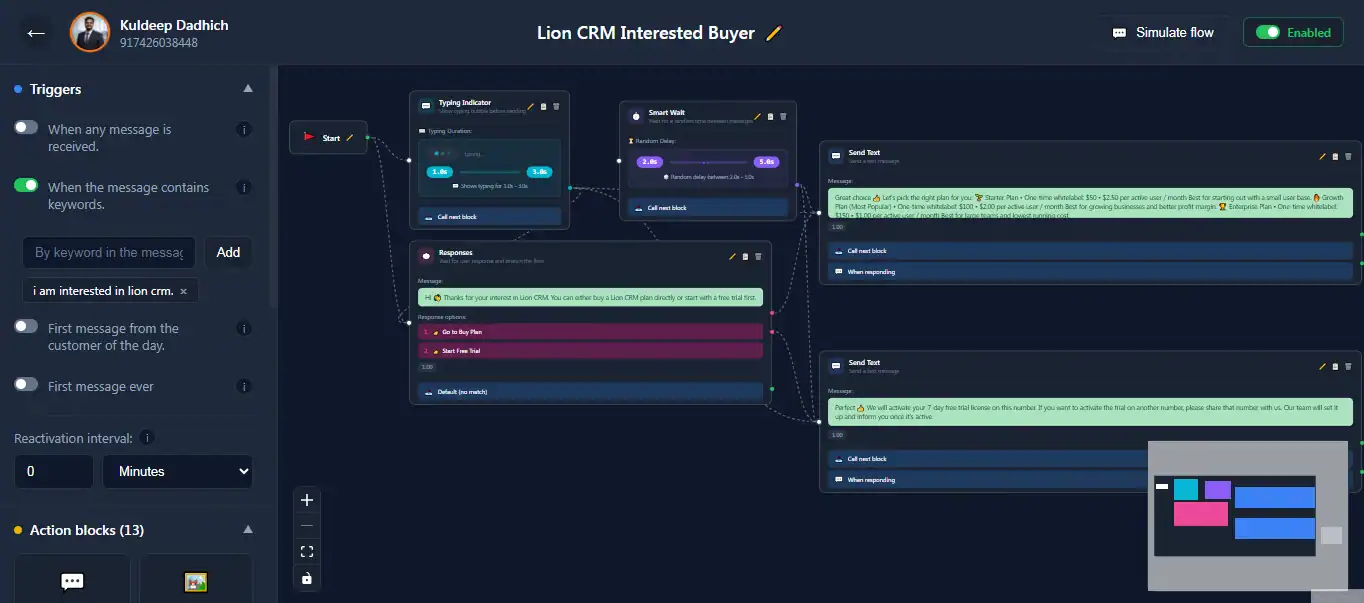
The Fluxo canvas — drag action blocks, connect them, and build conversation flows visually
Here's what you can build with Fluxo:
- Welcome flows — Greet new customers with a menu of options (services, pricing, support) the moment they message you
- FAQ auto replies — Trigger specific answers when customers type keywords like "pricing", "hours", or "location"
- Lead qualification — Ask customers for their name, phone number, and requirement, then auto-assign them to a CRM stage or label
- Product catalogs — Send list-based menus where customers choose from your products or services
- Appointment booking flows — Collect date, time, and contact details through validated input fields
- Support routing — Automatically move conversations to specific tabs or labels based on customer selections
This is the feature known as chatbot WhatsApp sem API (chatbot without API) in Brazil and bot de WhatsApp sin API in Spanish-speaking markets — a growing demand from businesses worldwide that want automation without the API overhead.
How to Set Up WhatsApp Auto Reply with Lion CRM — Step by Step
Follow these steps to create your first WhatsApp auto reply chatbot flow. The entire setup process takes under 15 minutes — and by the end, you'll have a fully working WhatsApp auto reply bot responding to customers based on keywords.
Install Lion CRM and Activate
Download the Lion CRM Chrome extension from the Chrome Web Store and add it to your browser. Open WhatsApp Web — you'll see the Lion CRM interface load automatically. Enter your license key to activate all features. The Chatbot Flow Builder (Fluxo) is built inside Lion CRM — there's no separate installation. All features (auto reply, bulk messaging, Kanban, follow-ups, and more) come bundled in a single extension.
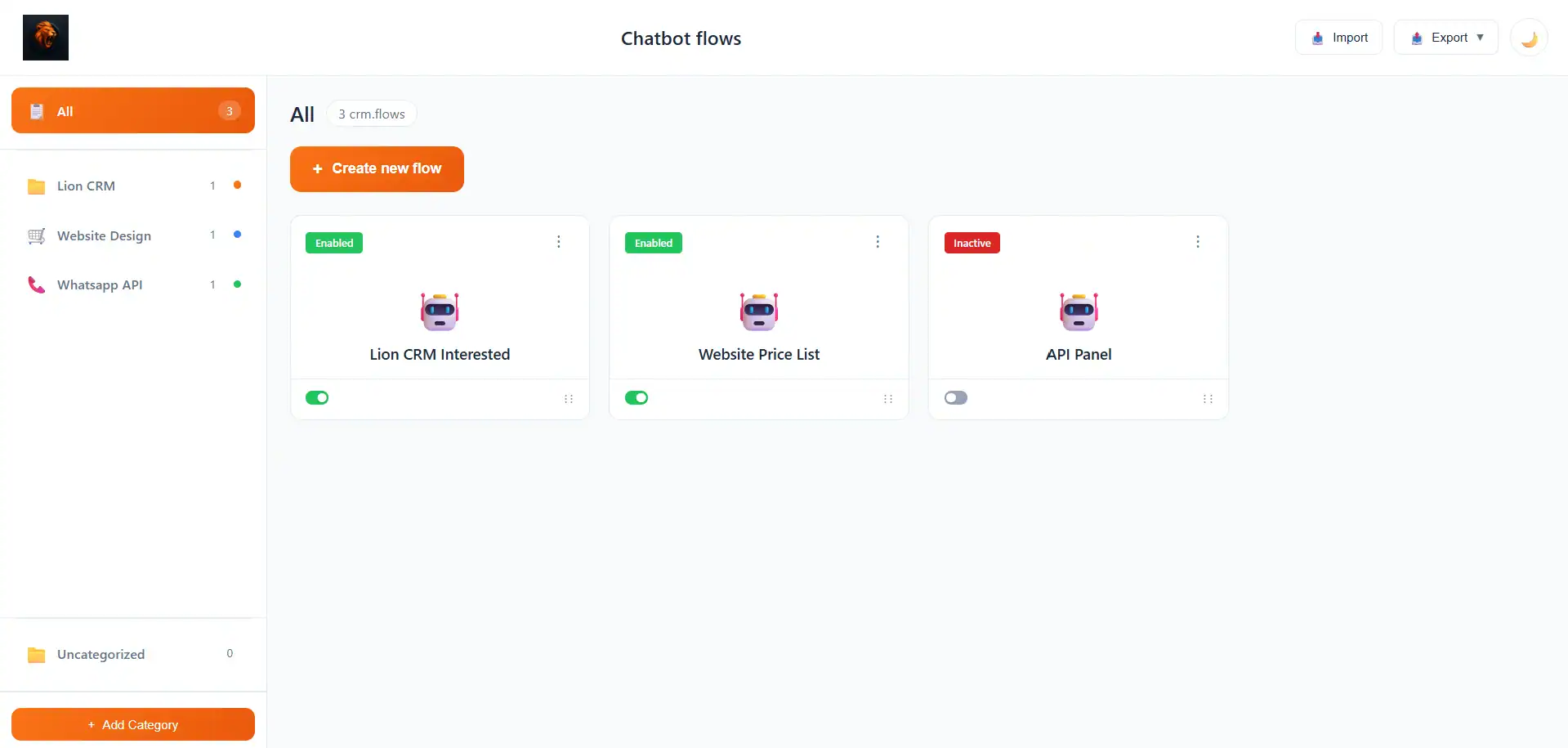
In the Lion CRM header bar, click on "Chatbot Flow Builder" (the Fluxo icon). You'll see the Chatbot Flows dashboard — this is where all your flows are listed, organized by categories. Click the orange "+ Create new flow" button to start building.
Choose Your Trigger
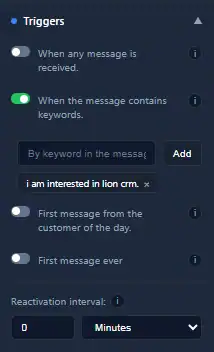
Every WhatsApp auto reply flow starts with a trigger — the condition that activates the chatbot. Lion CRM gives you four trigger options for your WhatsApp auto reply setup:
- When any message is received — the flow activates on every incoming message
- When the message contains keywords — you define specific keywords (like "hello", "pricing", "support") and the flow only activates when a customer types one of them
- First message from the customer of the day — triggers once per day per customer, great for daily greetings
- First message ever — triggers only the very first time a customer messages you, ideal for onboarding flows
For most businesses, keyword-based triggers are the most powerful because they let you create multiple flows for different purposes — one for "pricing", another for "support", another for "catalog".
You can also set a Reactivation Interval — this controls how long to wait before the same flow can trigger again for the same contact (in minutes).
Add Action Blocks to Build the Conversation
This is where the magic happens — where you build the actual WhatsApp auto reply conversation. On the left side panel, you'll see 15 action blocks that you can drag onto the canvas and connect to your trigger. Each block performs a different action in your WhatsApp auto reply flow:
Here's how you'd use them to build a typical welcome flow:
- Drag a Typing Indicator block and connect it to the Start node — this shows the typing animation so the auto reply looks human-like, not robotic
- Add a Smart Wait block with a random delay of 2–5 seconds — this adds a natural pause before the message appears
- Drag a Send List block — create a menu with options like "Our Services", "Get Pricing", "Talk to Support"
- For each option, drag a Send Text block with the relevant response and connect it to the corresponding list item
- Optionally add a Tab Action or Label Action to automatically categorize the customer based on their selection
The Add Fluxo block is especially powerful — it lets you chain multiple flows together. For example, your welcome flow can redirect to a separate "Product Inquiry" flow or a "Support Ticket" flow, keeping each flow clean and organized.
Configure Rules
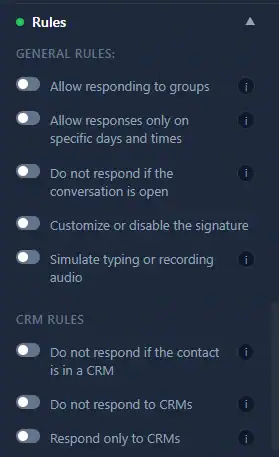
Rules control when and for whom the WhatsApp auto reply flow should respond. This is what separates a professional WhatsApp auto reply setup from a basic one — you can target specific customer segments, exclude contacts already being helped, and set business hours. Lion CRM provides four categories of rules:
General Rules
- Allow responding to groups — enable if you want the chatbot to reply in WhatsApp group chats
- Allow responses only on specific days and times — set business hours so the bot only replies during your working schedule (e.g., Monday–Saturday, 9 AM–7 PM)
- Do not respond if the conversation is open — if you're actively chatting with a customer, the bot stays silent and doesn't interrupt
- Simulate typing or recording audio — makes the auto reply appear as if a human is typing, creating a natural experience
- Customize or disable the signature — control whether your WhatsApp signature appears with bot replies
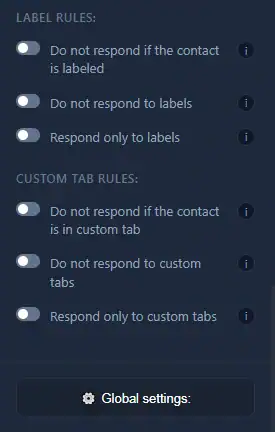
CRM, Label, and Custom Tab Rules
These rules let you target or exclude specific contacts based on their CRM stage, label, or custom tab:
- Do not respond if the contact is in a CRM / labeled / in custom tab — exclude contacts who are already being handled by your team
- Respond only to specific CRMs / labels / tabs — target auto replies to specific customer segments only
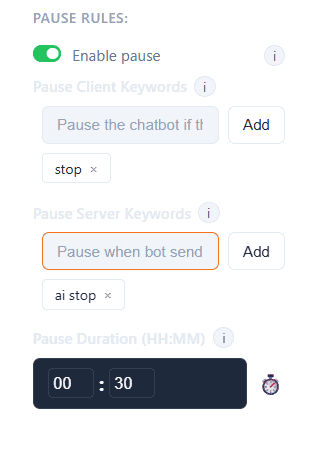
Pause Rules
Pause rules let customers and agents control when the chatbot should stop replying:
- Pause Client Keywords — if a customer types a word like "stop" or "human", the chatbot pauses for that conversation
- Pause Server Keywords — when a team member sends a keyword like "ai stop" from the business side, the bot pauses
- Pause Duration — set how long the pause lasts (e.g., 30 minutes) before the chatbot reactivates
Set Global Settings
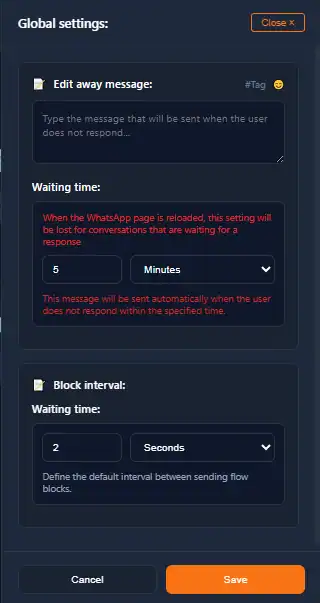
Global settings apply to all your chatbot flows and control two important behaviors:
- Away Message — a fallback message sent when a customer doesn't respond within the specified waiting time. For example: "We haven't heard from you. Feel free to message us anytime!"
- Block Interval — the default delay between sending consecutive action blocks. Setting this to 2 seconds creates a natural conversation pace.
Test with Chat Simulator
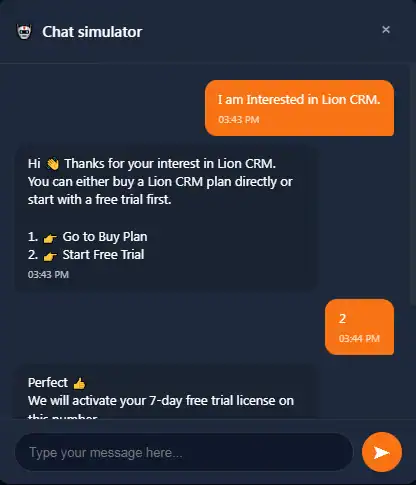
Before going live, always test your auto reply flow using the built-in Chat Simulator. Click "Simulate Flow" in the top-right corner of the flow builder. Type a test message or keyword and watch the entire conversation play out exactly as a real customer would experience it.
This lets you catch errors in branching, fix typos in messages, and verify that all action blocks are connected correctly — before any real customer sees it.
Activate the Flow
Toggle the Active/Inactive switch in the top-right corner of the flow editor. Once active, the flow will start responding to customers based on the trigger you configured. You can create multiple flows for different keywords and they'll work simultaneously.
To organize your flows, use the Categories feature on the dashboard — drag flows into categories like "Welcome", "Support", "Sales" to keep everything tidy as you build more automations.
Wait for Input — Smart Conversations with Validation
With Lion CRM v3.1, the Chatbot Flow Builder introduced the Wait for Input action block — the feature that transforms simple WhatsApp auto reply messages into actual two-way conversational flows.
Here's how it works: the WhatsApp auto reply bot sends a question (like "Please enter your phone number"), then waits for the customer to respond. Once the customer replies, the input is validated against the format you specified. If the input is invalid, an error message is sent and the customer is asked to try again. If valid, the reply is saved to a variable and used in the next WhatsApp auto reply message.
6 Validation Types Available
- Text — accepts any text input
- Phone Number — validates phone number format
- Number — accepts only numeric values
- Email — validates email address format
- URL — validates website URL format
- Date & Time — validates date/time entries
Example: You create a lead qualification flow. The chatbot asks "What's your phone number?" → waits for input → validates it's a real phone number → if invalid, sends "Invalid input, please try again" → if valid, sends "Thanks for sharing your phone number {phone_number}! Our team will contact you shortly." The variable {phone_number} dynamically inserts whatever the customer typed.
You can also set a timeout — if the customer doesn't respond within a specified time (e.g., 5 minutes), a timeout message is sent automatically.
Real Use Cases for WhatsApp Auto Reply Without API
Here are practical examples of how different businesses use Lion CRM's WhatsApp auto reply features to handle customer conversations automatically:
Real Estate Agents
When a prospect messages "property" or "flat", the chatbot sends a list of available locations. When they select a location, it sends property details with images. Then the Wait for Input block asks for their phone number, and the contact is auto-labeled as "Interested Lead" using the Label Action block.
Coaching Institutes
Students message "courses" and get a list of available programs. Each selection sends a brochure (using Send Document). The flow asks for the student's name and phone number, adds them to a "New Inquiry" custom tab, and sends a follow-up message with the next batch schedule.
E-Commerce Stores
Customers type "order" to check order status. The bot asks for their order ID (validated as a number), sends the tracking information, and offers a menu: "Need help with something else?" — routing to refund, exchange, or support flows using the Add Fluxo block to chain flows together.
Digital Marketing Agencies
Agencies managing multiple clients use Fluxo to create separate welcome flows for each client. When a lead messages the client's WhatsApp number, they get a branded welcome message with service options. The CRM Action block assigns leads to the correct pipeline stage. Agencies can even whitelabel Lion CRM with their own branding.
Freelancers and Consultants
A simple keyword flow: "hi" triggers a welcome message with working hours and a service menu. "Pricing" triggers a detailed service breakdown. "Book" triggers a date/time collection flow using Wait for Input. All automated, all running while you're focused on client work.
Managing Your Chatbot Flows
As your WhatsApp auto reply setup grows with more flows for different keywords and use cases, Lion CRM gives you tools to keep everything organized:
- Categories — create folders (like "Welcome", "Support", "Sales") and drag-and-drop flows into them
- Import/Export — export any flow as a backup file, import it on another device, or share it with a team member
- Multiple Simultaneous Flows — run different flows for different keywords at the same time; there's no limit on how many flows you can create
- Active/Inactive Toggle — quickly enable or disable flows without deleting them
Video Tutorials — Watch It in Action
Complete Chatbot Flow Builder Tutorial
This step-by-step video walks you through creating your first WhatsApp auto reply flow from scratch — setting keyword triggers, adding action blocks, configuring rules, testing with the simulator, and activating your WhatsApp auto reply bot.
Wait for Input, Smart Validation & Custom Menu (v3.1 Update)
See the Wait for Input action in action — asking for phone numbers, validating input, handling errors, and using variables in personalized replies.
Fluxo vs AI Chatbot — What's the Difference?
Lion CRM actually has two separate chatbot features — and understanding the difference is critical for choosing the right WhatsApp auto reply approach for your business:
| Aspect | Fluxo (Chatbot Flow Builder) | AI Chatbot (Smart Bar) |
|---|---|---|
| Type | Rule-based, drag-and-drop | AI-powered (ChatGPT, Gemini, DeepSeek) |
| API Key Needed? | ✓ No API key needed | Requires your own AI provider API key |
| Response Style | Predefined, consistent, predictable | Dynamic, contextual, natural language |
| Best For | Menus, FAQs, lead qualification, routing | Open-ended questions, natural conversations |
| Running Cost | Zero per-message | AI provider charges per API call |
| Setup Difficulty | Drag-and-drop, no coding | API key + prompt configuration |
You can use both together — Fluxo handles structured conversations (menus, forms, routing) while the AI Chatbot handles open-ended questions that need natural language understanding. Read the full AI Chatbot setup guide here.
Tips for Better WhatsApp Auto Reply Flows
Building a WhatsApp auto reply flow is easy — building one that feels professional and converts customers is where these tips come in:
- Keep messages short — WhatsApp is a chat platform, not email. Limit each WhatsApp auto reply message to 2–3 lines maximum.
- Use the Typing Indicator — always add a Typing Indicator block before responses. It makes the WhatsApp auto reply look human, not robotic.
- Add Smart Wait delays — a 2–5 second random delay between messages mimics natural conversation pace. Without it, instant multi-message replies feel automated.
- Set business hours — use the "specific days and times" rule to only run auto replies during your working hours. Off-hours messages can go to a separate "away message" flow.
- Enable pause keywords — always configure "stop" or "human" as a pause keyword so customers can opt out of the chatbot when they need a real person.
- Test before going live — use the Chat Simulator every single time before activating. A broken flow is worse than no flow at all.
- Organize with categories — as you create more flows, use categories to keep them manageable. Name flows clearly: "Welcome Flow", "Pricing FAQ", "Support Routing".
More Lion CRM Guides
- How to Schedule WhatsApp Messages — No Per-Message Cost, No API
- How to Send Bulk WhatsApp Messages Without Getting Banned
- Best WhatsApp CRM Extensions for Chrome — Which One Can You Rebrand & Sell?
Frequently Asked Questions
Yes. Lion CRM's Chatbot Flow Builder (Fluxo) works directly on WhatsApp Web as a Chrome extension. You can create keyword-triggered auto reply flows, branching conversations, list menus, and input validation — all without the WhatsApp Business API. No Meta verification, no per-message charges, no developer setup required.
No. Fluxo is a rule-based chatbot builder — you define exactly what the bot says using drag-and-drop blocks. No ChatGPT, Gemini, or any AI API key is needed. Lion CRM does have a separate AI Chatbot feature that requires an API key, but Fluxo works independently without any external API.
Lion CRM is a Chrome extension, not a cloud service. The chatbot works when your computer is ON, WhatsApp Web is open in your browser, and the Lion CRM extension is enabled. It works on any Chromium-based browser (Chrome, Brave, Edge). For businesses with fixed hours, this is not an issue. If you need 24/7 coverage, you can run it on a dedicated device that stays on around the clock.
Yes. You can create unlimited chatbot flows, each triggered by different keywords. For example, one flow for "pricing", another for "support", another for "catalog" — all running simultaneously. You can organize them into categories for easy management.
Yes. There's a specific rule called "Allow responding to groups" that you can enable. When turned on, the chatbot will respond to keyword triggers in group chats as well.
You can set up Pause Client Keywords (like "stop" or "human"). When a customer types that keyword, the chatbot automatically pauses for a set duration (e.g., 30 minutes), and the conversation is handed over to a human agent. You can also use the "Do not respond if the conversation is open" rule so the bot stays silent when you're actively chatting.
Lion CRM is a paid tool with a 7-day free trial available. Indian pricing starts from ₹1,500. User License and Whitelabel License options are available — contact us on WhatsApp for current plans and pricing.
Yes. Lion CRM lets you export any chatbot flow as a backup file and import it on another device or share it with team members. This is especially useful for agencies managing multiple clients — you can create a template flow and deploy it across all client accounts.
Ready to Set Up WhatsApp Auto Reply?
Install Lion CRM, build your first WhatsApp auto reply flow in under 15 minutes, and start responding to customers automatically — no API, no coding, no per-message charges.
Start 7-Day Free Trial on WhatsAppJoin Our WhatsApp Channel
Get tips, feature updates, and WhatsApp automation tricks — directly on WhatsApp.
Follow Lion CRM on WhatsApp