
If you're using the WhatsApp Business API to schedule messages, you already know the pain — every single message costs money. Send 500 scheduled follow-ups this month? You're paying for each one. Send birthday wishes to 1,000 clients? That's 1,000 charges on your bill. The per-message cost adds up fast, and for small businesses, freelancers, and agencies managing multiple clients, it becomes a serious expense.
But here's what most people don't know: you can schedule WhatsApp messages without paying a single rupee per message.
With a Chrome extension like Lion CRM, message scheduling works directly on WhatsApp Web — and there are zero per-message charges. No API setup, no developer needed, no BSP approval, no per-conversation billing. You pay a flat license fee and get access to not just scheduling, but a full WhatsApp CRM — AI Chatbot, Bulk Messaging, Kanban Board, Fluxo (Chatbot Flow Builder), Follow-Up Funnel, and more.
That said, the WhatsApp Business API does have its place. If you're a large enterprise sending millions of messages through automated systems, need official green tick verification, or require deep integration with platforms like Salesforce or HubSpot — the API is the right choice. But if you're a small business, freelancer, startup, or agency that's just getting started and doesn't have the budget for per-message costs and developer fees, a Chrome extension is the smarter starting point.
Also important to note: scheduling doesn't mean you can send unlimited messages without consequences. WhatsApp monitors messaging patterns, and sending too many messages too fast — whether through the API or an extension — can get your account flagged or banned. We'll cover safe scheduling practices later in this guide.
In this guide, you'll learn exactly how to schedule WhatsApp messages for one-time or repeated delivery using Lion CRM, who this feature is most useful for, and how it compares to API-based solutions — so you can decide which approach saves you the most money and time.
Why Schedule WhatsApp Messages?
WhatsApp has over 3 billion monthly active users. It's the number one messaging app in India, Brazil, and most of Latin America, Europe, and Africa. For businesses, WhatsApp isn't just a chat app — it's the primary channel for sales, support, and customer relationships.
But here's the challenge: the best time to send a message isn't always when you're available to type it. Timing matters for open rates, response rates, and conversions. When you schedule WhatsApp messages, you solve this by:
- Send messages in your customer's time zone — not yours. If you're in India and your customer is in Brazil, you schedule it for their morning.
- Automate repetitive follow-ups — auto send WhatsApp messages for weekly reminders, monthly payment alerts, or daily check-ins without lifting a finger.
- Never forget important messages — birthday wishes, meeting reminders, renewal notifications — schedule it once, it sends on time, every time.
- Maintain consistent communication — build trust by showing up reliably in your customer's inbox at the same time every week.
- Save hours of manual work — your team focuses on closing deals instead of sending repetitive messages.
Who Needs WhatsApp Message Scheduling?
If you use WhatsApp for anything beyond personal chatting, the ability to schedule WhatsApp messages will change the way you work. Here are the people who benefit the most:
Small Business Owners
Schedule WhatsApp messages for payment reminders, order confirmations, delivery updates, and promotional offers — all sent at the right time, automatically.
Sales Teams
Schedule WhatsApp messages for follow-ups with leads after meetings. Never lose a deal because someone forgot to send a message on Monday morning.
Coaches & Educators
Schedule WhatsApp messages for batch-wise class reminders, weekly study material, motivational messages, and exam schedules to WhatsApp groups automatically.
Doctors & Clinics
Schedule WhatsApp messages for appointment reminders a day before. Send recurring medication reminders to patients on a daily or weekly basis.
Real Estate Agents
Schedule WhatsApp messages for property follow-ups, site visit reminders, and EMI due alerts for customers on specific dates and times.
Marketing Agencies
Manage multiple client communications. Schedule WhatsApp messages for campaign updates, report reminders, and client check-ins across time zones.
Freelancers & Consultants
Schedule WhatsApp messages for invoices, project updates, and recurring status reports to clients without manually remembering every due date.
Finance & Insurance Agents
Schedule WhatsApp messages for policy renewal reminders, EMI due dates, SIP reminders, and yearly premium alerts for every client.
3 Ways to Schedule WhatsApp Messages (Compared)
Before we dive into the how-to, let's compare your options. There are essentially three approaches to scheduling WhatsApp messages, and they differ dramatically in cost, complexity, and features:
| Feature | WhatsApp Business App | WhatsApp Business API | Lion CRM (Chrome Extension) |
|---|---|---|---|
| Message Scheduling | ✗ Not available | ✓ Via third-party platforms | ✓ Built-in scheduler |
| Repeated Scheduling | ✗ No | ✓ Depends on platform | ✓ Minute / Hour / Daily / Weekly / Monthly / Yearly |
| Personalization Variables | ✗ No | ✓ Yes | ✓ @firstname, @lastname, @contactname, @whatsappname, @variable1 |
| Setup Complexity | Easy (but no scheduling) | Complex (needs developer, BSP approval) | Easy (install extension, done) |
| Per-Message Cost | Free (but no scheduling) | Yes — you pay for every message sent | Zero — no per-message charges |
| Pricing Model | Free | Monthly platform fee + per-message fee | User License & White Label available |
| Coding Required | No | Yes | No |
| Group Scheduling | ✗ No | ✗ API doesn't support groups natively | ✓ Yes — contacts & groups |
| Post-Send Actions | ✗ No | Depends on platform | ✓ Labels, Kanban, Custom Tabs, Group Actions |
The WhatsApp Business App doesn't offer scheduling at all. The WhatsApp Business API can schedule messages, but you pay for every single message sent — marketing messages being the most expensive. With Lion CRM, you get full scheduling (one-time + repeated) through a Chrome extension on WhatsApp Web — and there is zero per-message cost. No API, no coding, no per-conversation billing. However, remember that WhatsApp still monitors your messaging behavior — sending responsibly is important regardless of which tool you use.
How Lion CRM's Message Scheduler Works
Lion CRM is a Chrome extension that installs on your browser and adds CRM features directly inside WhatsApp Web. One of its most powerful features is the built-in WhatsApp message scheduler — a tool that lets you schedule WhatsApp messages to any contact or group for a specific date and time, with options for one-time or repeated delivery.
Here's what you need to know before we get into the step-by-step:
- It's a Chrome extension — you download Lion CRM from the Chrome Web Store, and it automatically loads inside your browser. When you open WhatsApp Web, the extension's features appear alongside your chats. All features work once you activate your license key.
- Requires PC + Chrome running — since it's a Chrome extension (not cloud-based), your computer and Chrome browser must be open with WhatsApp Web active for scheduled messages to go out.
- Two scheduling modes — "Once" for one-time messages, and "Repeated" for recurring messages.
- Supports personalization — insert @firstname, @lastname, @contactname, @whatsappname, or @variable1 into your message, and Lion CRM replaces them with each contact's actual details.
- Post-send actions — automatically apply labels, move contacts on Kanban board, add to custom tabs, or trigger group actions after a scheduled message is sent.
⚠️ Important: To schedule WhatsApp messages successfully, your PC and Chrome browser must be running with WhatsApp Web open. If your computer is off or Chrome is closed at the scheduled time, the message will not be sent. This is because Lion CRM is a Chrome extension, not a cloud-based server.
One-Time Scheduled Messages — Step by Step
Use the "Once" mode when you want to schedule WhatsApp messages for a one-time delivery — a birthday wish, a meeting reminder, a payment follow-up, or a promotional announcement.
Open Scheduled Messages
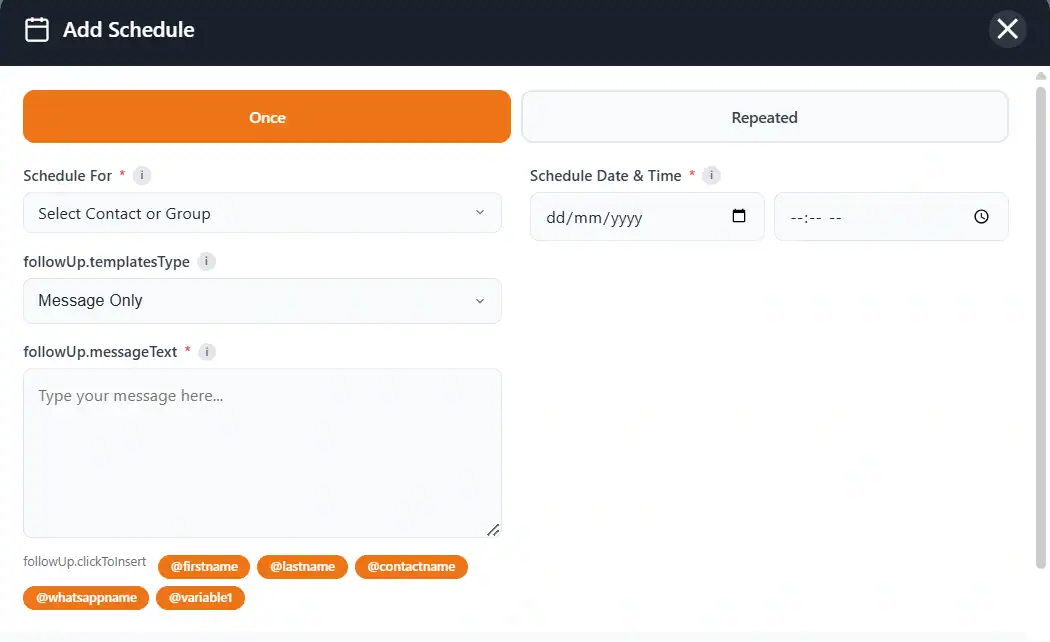
In WhatsApp Web, click on the Lion CRM menu and select "Scheduled Messages". The "Add Schedule" panel will open.
Select "Once" Tab
You'll see two tabs at the top — Once and Repeated. Make sure "Once" is selected (it's the default, highlighted in orange).
Choose the Recipient
In the "Schedule For" dropdown, select the contact or WhatsApp group you want to send the message to.
Set Date & Time
Pick the exact date and time you want to schedule WhatsApp messages. The scheduler uses your local system time.
Choose Template Type
Under "followUp.templatesType", choose what type of message you want to schedule. Available options: Message Only, Image/Video, Message + Documents, Message + Audio, Message + Contacts, Message + Poll, Message + List, Message + Products, or Fluxo (chatbot flow). This means you can schedule not just text — but media, documents, polls, and even automated chatbot flows.
Write Your Message
Type your message in the "followUp.messageText" field. You can use personalization variables like @firstname, @lastname, @contactname, @whatsappname, or @variable1 — just click on them to insert.
Save the Schedule
Click Save. Lion CRM will now schedule WhatsApp messages and auto send them at the selected date and time.
Repeated Scheduled Messages — Daily, Weekly, Monthly, Yearly
This is where Lion CRM's scheduler becomes truly powerful. The "Repeated" mode lets you schedule WhatsApp messages that go out automatically on a recurring basis — perfect for follow-ups, reminders, check-ins, and any communication that happens on a regular cycle.
Setting Up a Repeated Schedule
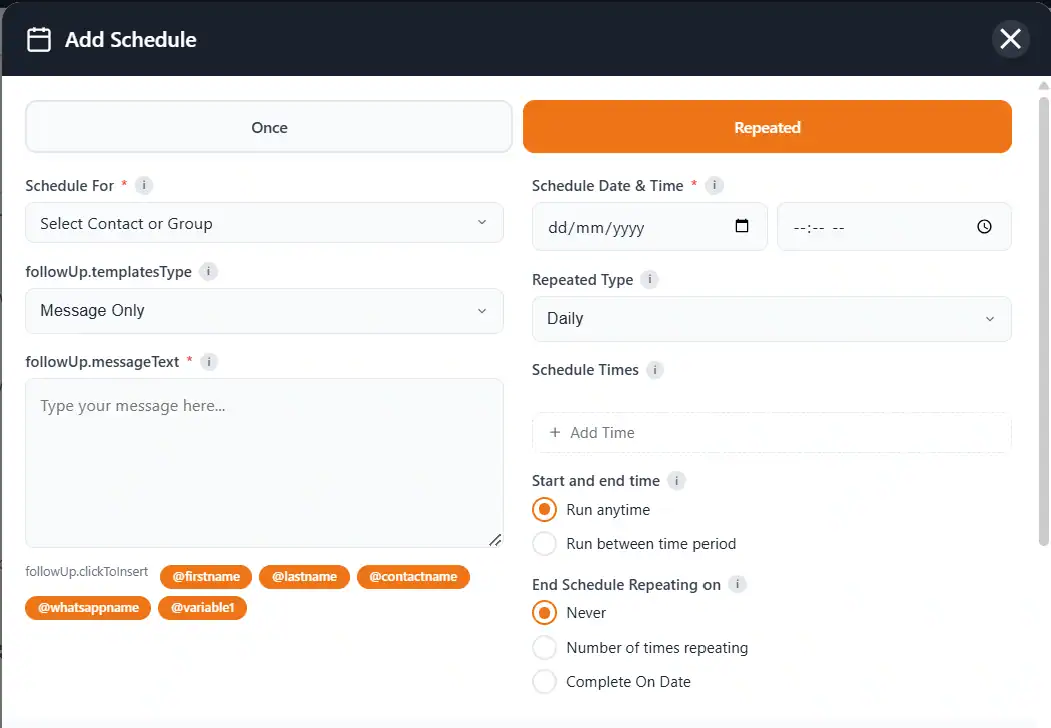
Switch to the "Repeated" tab in the Add Schedule panel. You'll see the same contact selection, date/time, and message fields — plus these additional controls:
Repeated Type — 6 Intervals
Choose how often your message repeats:
- Minute — sends every X minutes (useful for testing or very time-sensitive alerts)
- Hour — sends every X hours
- Daily — sends once every day at the same time
- Weekly — sends once a week on the same day and time
- Monthly — sends once a month on the same date
- Yearly — sends once a year (perfect for birthday wishes, policy renewals, anniversary messages)
Schedule Times
Click "+ Add Time" to set the specific time(s) the message should be sent. You can add multiple time slots if you want the message to go out more than once within each interval.
Start and End Time Window
Control when the schedule is active:
- Run anytime — the schedule runs 24/7 with no time restriction.
- Run between time period — set a start and end time window. For example, only send messages between 9 AM and 6 PM so you don't disturb contacts outside business hours.
End Schedule Repeating
Decide when the repeated schedule should stop:
- Never — runs indefinitely until you manually stop it.
- Number of times repeating — set it to stop after a specific number of sends (e.g., send 10 times then stop).
- Complete On Date — set a specific end date for the schedule.
💡 Pro Tip: For sales follow-ups, set "Repeated Type" to Weekly and "End Schedule Repeating" to 4 times. This means the contact receives a follow-up every week for a month — and if they don't respond, the sequence stops automatically. No spamming, no manual tracking.
Repeated Scheduling Use Cases
- Weekly sales follow-up — "Hi @firstname, just checking in on the proposal we discussed. Let me know if you have any questions!" — every Monday at 10 AM for 4 weeks.
- Daily class reminder — "Reminder: Your batch starts at 7 PM today. Don't miss it!" — every day at 5 PM to the coaching group.
- Monthly EMI reminder — "Hi @contactname, your monthly payment of ₹X is due on the 5th. Please clear it to avoid late fees." — every month on the 3rd.
- Yearly birthday wish — "Happy Birthday @firstname! 🎂 Wishing you a wonderful year ahead from [Your Business Name]." — yearly on the contact's birthday.
- Hourly flash sale update — "⏰ FLASH SALE UPDATE: Only 2 hours left! Use code SAVE20 for 20% off." — every hour during a 6-hour sale window.
Automated Actions After Sending
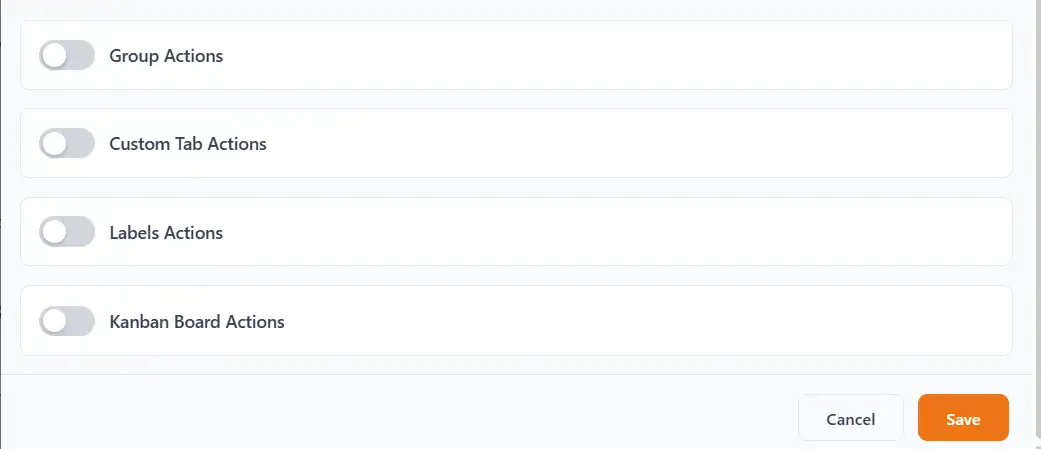
When you schedule WhatsApp messages with Lion CRM, it doesn't just send them — it can trigger automated actions after the message is sent. This turns simple scheduling into a CRM workflow. Scroll down in the scheduler panel and you'll find these toggle switches:
- Group Actions — automatically perform actions related to WhatsApp groups (like adding/removing from groups).
- Custom Tab Actions — move the contact to a specific custom tab in your Lion CRM dashboard after the message is sent.
- Labels Actions — automatically apply or change labels on the contact. For example, after sending a follow-up, automatically change the label from "New Lead" to "Follow-Up Sent".
- Kanban Board Actions — move the contact's card to a different stage on your Kanban board. For example, after sending a payment reminder, move them from "Invoice Sent" to "Payment Reminder Sent".
🔥 Why This Matters
Most tools that schedule WhatsApp messages only handle the sending part. Lion CRM goes further — it updates your CRM pipeline automatically. Your Kanban board stays accurate, your labels stay organized, and your contacts move through your sales pipeline without any manual work. This is what separates a simple scheduler from a real CRM workflow.
Personalize Every Scheduled Message
Nobody likes receiving a generic mass message. When you schedule WhatsApp messages with Lion CRM, you can use personalization variables that automatically replace placeholders with each contact's real information. You'll see these click-to-insert buttons below the message field:
- @firstname — inserts the contact's first name
- @lastname — inserts the contact's last name
- @contactname — inserts the full contact name as saved in your phone
- @whatsappname — inserts the name the contact has set on their WhatsApp profile
- @variable1 — a custom variable you can set per contact for things like invoice numbers, order IDs, city names, or any custom field
Example message:
"Hi @firstname, this is a friendly reminder that your subscription with us renews on the 15th. Reply YES to confirm or call us at +91 74260-38448 for any questions."
When this message is sent to a contact named "Priya Sharma", it becomes:
"Hi Priya, this is a friendly reminder that your subscription with us renews on the 15th. Reply YES to confirm or call us at +91 74260-38448 for any questions."
💡 Personalization increases response rates by 2x–3x. When you schedule WhatsApp messages, always use at least @firstname or @whatsappname. A personalized message feels like a one-on-one conversation, not a broadcast.
Bonus: Follow-Up Funnel — Advanced Scheduling
The Message Scheduler is great for individual scheduled messages. But what if you need a multi-step follow-up sequence that runs automatically over days or weeks?
That's where Lion CRM's Follow-Up Funnel comes in. It's a more advanced automation tool with its own scheduling system — and it goes even further than the basic scheduler.
What's Different About the Follow-Up Funnel?
- Schedule follow-ups on specific days — choose Daily, Weekly, Monthly, or Yearly scheduling. In Weekly mode, you can pick exact weekdays (e.g., Monday, Tuesday, Wednesday, and Friday).
- Same or different messages per day — choose to keep the same message for all scheduled days, or set up different messages for each day. For example, send a different follow-up on Monday vs. Wednesday.
- Post actions after each message — automatically add contacts to groups, move them to custom tabs, apply labels, or update their Kanban board position — all triggered after the follow-up message is sent.
- Share leads with team members — quickly assign leads to team members (like Kuldeep, Hardik, or Kamlesh) with one click, including department info and pre-set templates.
📊 Scheduler vs. Follow-Up Funnel — When to Use What?
Use the Message Scheduler when you need to schedule WhatsApp messages — once or repeated — to a specific contact or group at a specific time.
Use the Follow-Up Funnel when you need to build a multi-step automated sequence with CRM actions at each step — like a drip campaign for lead nurturing, onboarding sequences, or multi-touch sales follow-ups.
Watch: Follow-Up Funnel with Auto Schedule in Action
See exactly how the Follow-Up Funnel's advanced scheduling works in this video (starts at 0:20 — Auto Follow-Up Scheduler):
5 Tips for Scheduling WhatsApp Messages Safely
The ability to schedule WhatsApp messages is powerful, but with great power comes the responsibility to not get your WhatsApp account banned. Follow these tips to stay safe:
Respect Business Hours
Use the "Run between time period" option to only send messages during business hours (9 AM – 8 PM). Nobody appreciates a message at 3 AM, and it can get you reported.
Don't Over-Schedule
Sending too many messages too frequently triggers WhatsApp's spam detection. Space out your scheduled messages with reasonable intervals. A weekly follow-up is fine; an hourly message to the same person is not.
Always Personalize
Generic messages look like spam to WhatsApp's algorithm. Use @firstname or @whatsappname in every scheduled message. This makes each message unique, which is safer and gets better responses.
Keep Your PC & Chrome Running
Since Lion CRM is a Chrome extension, your computer must be on and Chrome must have WhatsApp Web open at the scheduled time. Set your PC power settings to prevent sleep mode if you have messages scheduled for late hours.
Use the "Number of Times" Limit
For repeated schedules, always set an end condition — either a specific number of repeats or an end date. This prevents schedules from running forever and accidentally bombarding contacts with old, irrelevant messages.
Ready to Schedule Your First WhatsApp Message?
Install Lion CRM and auto send WhatsApp messages in under 2 minutes. One-time, repeated, personalized — all from WhatsApp Web.
7-day free trial • No API needed • No credit card required
Install Lion CRM — Free Trial →Need help setting up? Contact our team:
Kuldeep — +91 74260-38448 | Rakshit — +91 92149-96678
Frequently Asked Questions
Can I schedule WhatsApp messages without WhatsApp Business API?
Does the scheduled message send automatically even if I close Chrome?
Can I schedule repeated WhatsApp messages?
Can I personalize scheduled WhatsApp messages with the contact's name?
Is WhatsApp message scheduling free?
Can I schedule messages to WhatsApp groups?
What is the difference between the Message Scheduler and the Follow-Up Funnel?
How many messages can I schedule at once?
Does Lion CRM work on WhatsApp personal number or only Business number?
Can I edit or delete a scheduled message after creating it?
More Guides to Help You Schedule WhatsApp Messages Better
- How to Send Bulk WhatsApp Messages Without Getting Banned — learn safe messaging practices
- Explore All Lion CRM Features — AI Chatbot, Kanban Board, Fluxo, Scheduled Messages, and more
- Best WhatsApp CRM Extensions for Chrome — compare your options and find the right one