
AI Bot
Lion CRM's AI Bot turns WhatsApp Web into an intelligent customer service agent. Train it with your business knowledge, configure how it behaves, and enable it with one toggle — it handles customer conversations automatically while your browser is open.
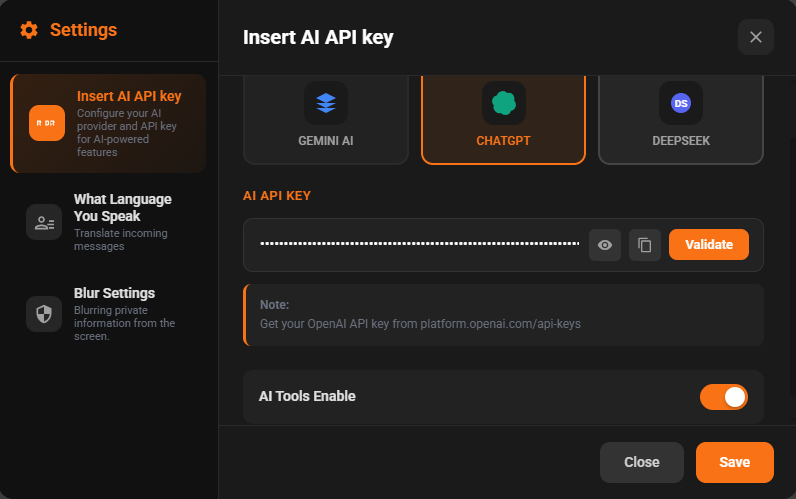
Add Your AI API Key
Go to Settings → AI Integration to connect your AI provider. Paste your API key and save — the AI Bot icon instantly appears in your WhatsApp Web toolbar.
- 3 AI Providers — Gemini, ChatGPT (OpenAI), or DeepSeek
- Use your own API key — full control, no hidden costs
- Switch AI provider or model anytime from AI Behavior settings
Explore All Features
8 sections inside the AI Bot panel — click a tab or use ◀ ▶ arrows
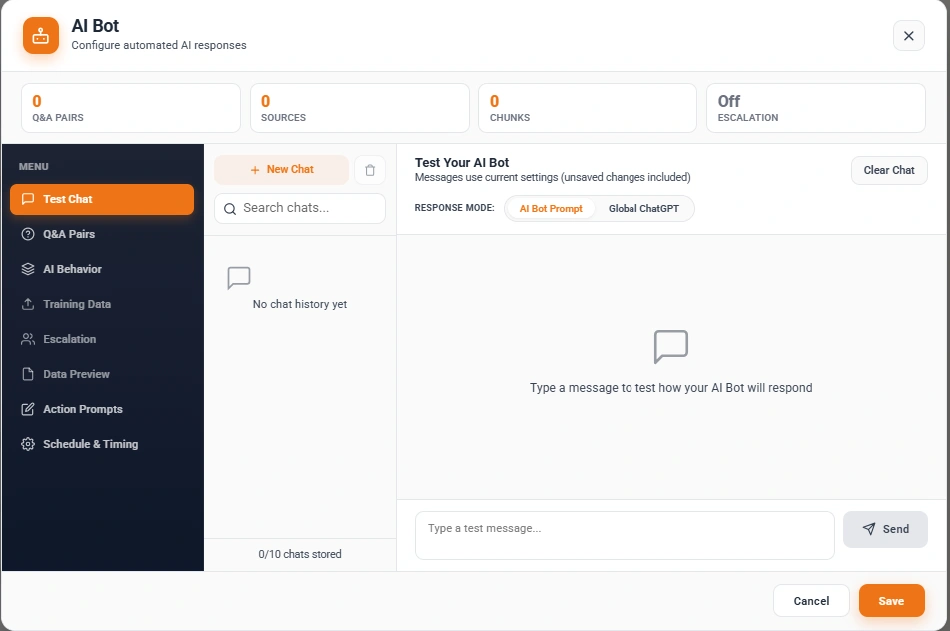
- Test your AI before going live — type any message and see exactly how it responds
- Two modes: AI Bot Prompt (your training data) or Global ChatGPT (general AI)
- Uses current settings including unsaved changes for accurate testing
- Up to 10 test chats stored — history clears automatically
1 / 12
Chatbot Flow
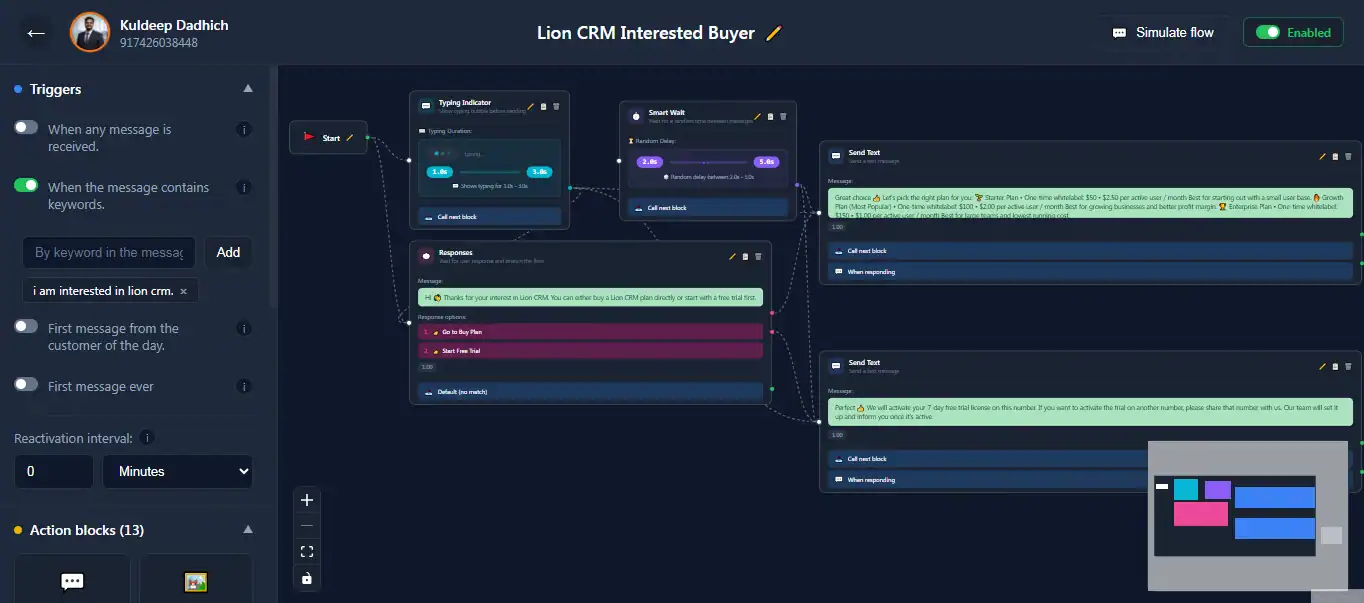
Build powerful WhatsApp auto reply sequences without any coding! Create rule-based automation flows with triggers, conditions, and actions — the ultimate WhatsApp flow builder for your business.
Rule-Based Automation
Unlike AI Bot which uses artificial intelligence, Chatbot Flow lets you create custom automation rules based on specific triggers and conditions. Perfect for WhatsApp keyword auto reply, label-based actions, and CRM automation. Set it once, let it run forever!
Powerful Flow Features
Flow Triggers
Define when your WhatsApp automation flow should activate.
Action Blocks
Choose what happens when a flow triggers in your WhatsApp automation.
General Rules
Control response behavior with smart rules for groups and timing.
CRM Rules
Filter responses based on CRM contact status.
Label Rules
Filter responses based on contact labels.
Custom Tab Rules
Filter responses based on custom tabs.
Global Settings
Configure away message, waiting time, and block intervals for your flows.
This message will be sent automatically when the user does not respond within the specified time.
Import, Export & Quick Theme
Save your WhatsApp automation flows and reuse them anytime! Export your configured flows as backup, or import pre-built flows to get started instantly. Plus, switch between Dark & Light theme directly from here — no need to open settings!
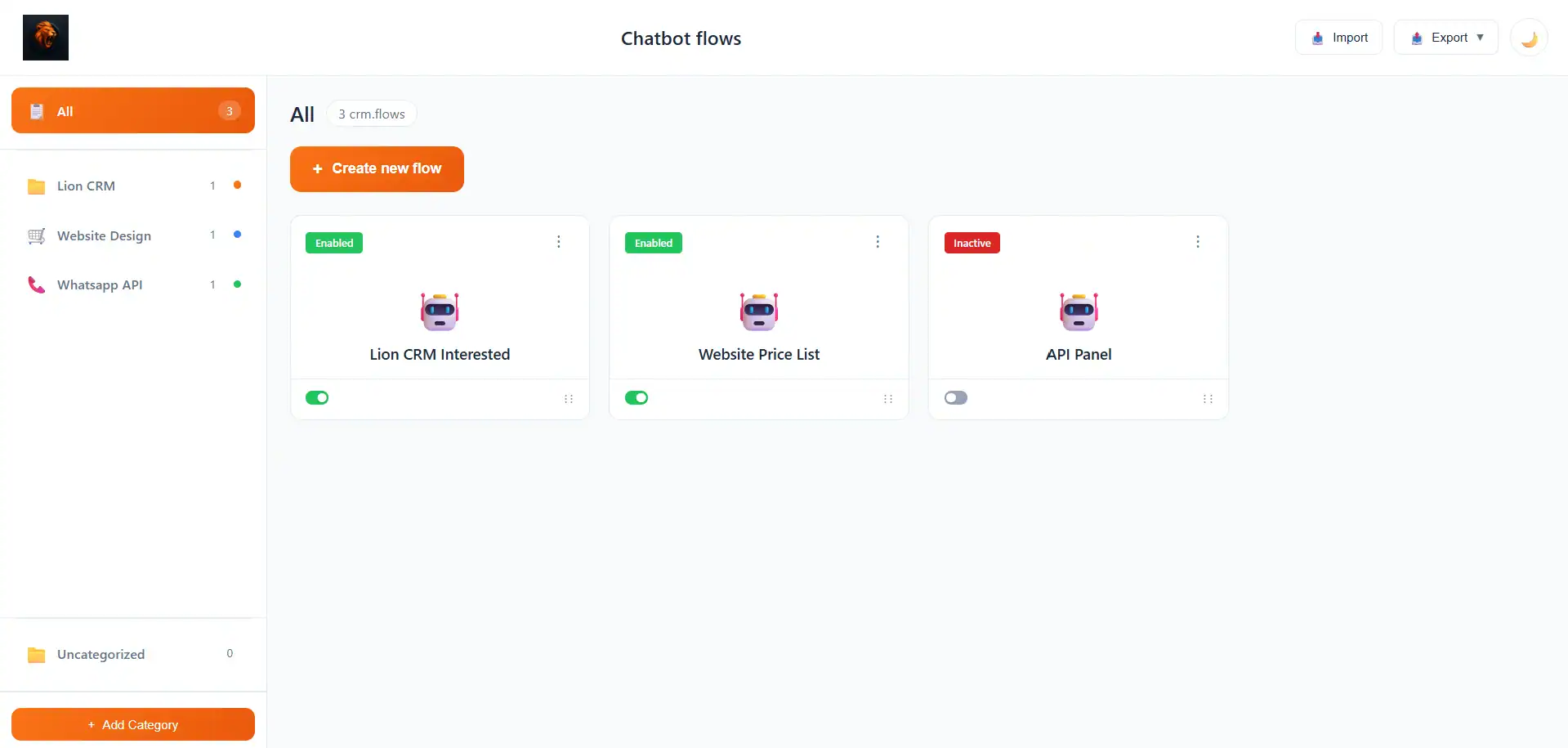
Flow Categories
Organize your Fluxo (chatbot flows) into custom categories for better management. Create folders like Sales, Support, Onboarding — keep your automation structured as you scale. Each flow shows its status, category, and can be activated, paused, or deleted directly from the dashboard.
Chat Simulator
Don't guess — test your chatbot flow before it goes live! The built-in simulator lets you preview exactly how your automation will respond to different messages.
How It Works
Bulk Messaging
Lion CRM's Bulk Messaging lets you send personalized WhatsApp messages to thousands of contacts in minutes. Import from CSV, groups, tabs, labels or Kanban boards — compose with dynamic variables, set smart sending delays, schedule broadcasts, and review everything before launch.
Explore All Steps
8 screens inside campaign creation — click a tab or use ◀ ▶ arrows
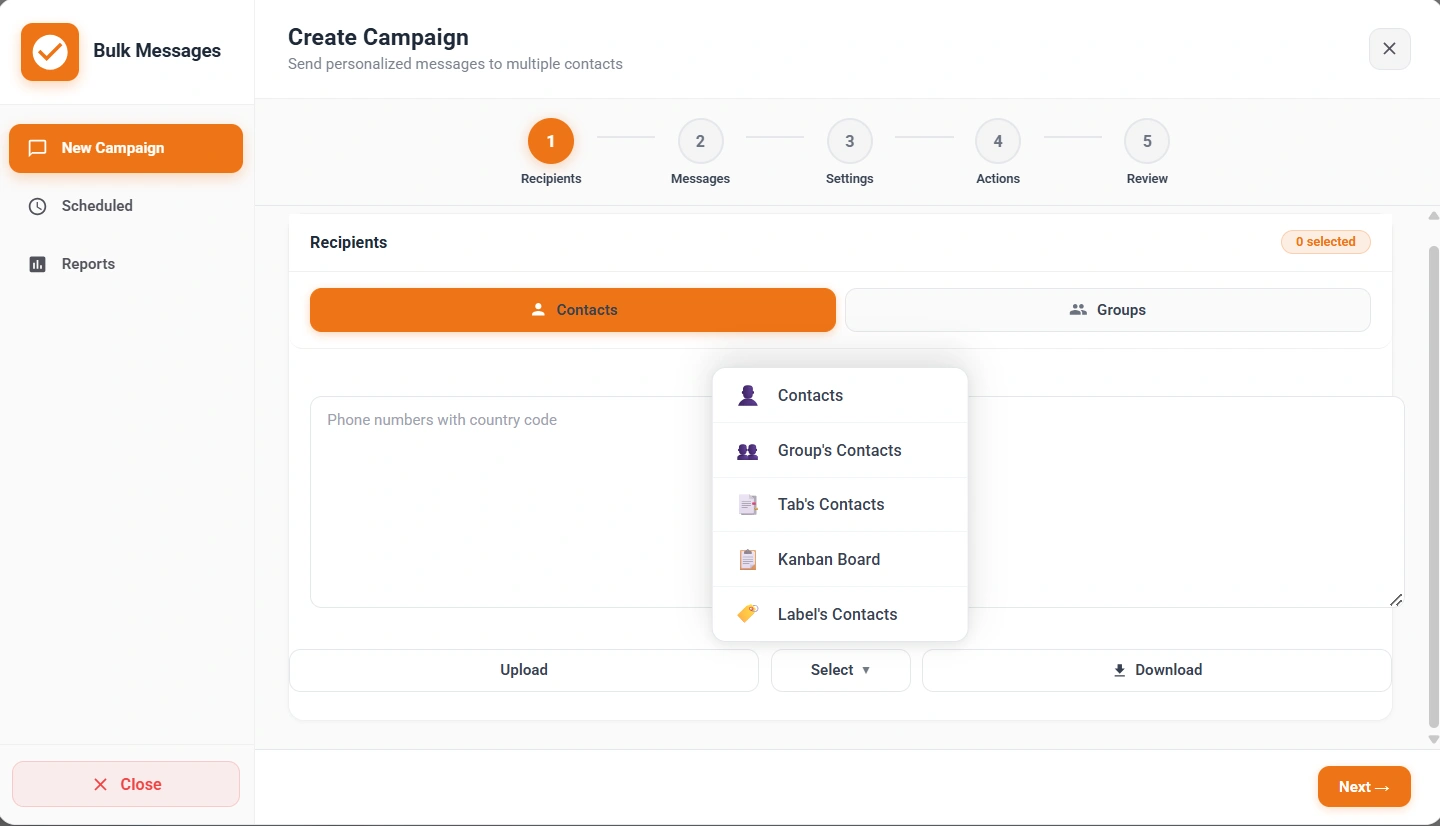
- Select from Contacts, Group's Contacts, Tab's Contacts, Kanban Board or Label's Contacts
- Upload a CSV with phone numbers or type them directly with country code
- Download sample CSV format to see the required column structure
- Badge shows "0 selected" — updates live as you add contacts
1 / 8
⚡ Important: Use At Your Own Risk
Bulk messaging is powerful but comes with risks. WhatsApp may block or ban your number if you violate their guidelines. Always follow WhatsApp's Terms of Service to stay safe.
- Set Proper Delays: Use 30–60 second intervals between messages
- Start Small: Begin with 50–100 messages/day, increase gradually
- Avoid Spam: Only message contacts who know you or opted in
- Use Aged Numbers: New numbers get blocked faster than older ones
- Quality Over Quantity: Personalized messages get better results and fewer reports!
Custom Tabs
Organize your WhatsApp conversations like never before with Lion CRM's Tabs feature. Create custom tabs to categorize and manage your chats effortlessly. Add individual chats, entire groups, or labeled contacts directly into any tab for seamless organization. Whether you're managing leads, support queries, or VIP clients—100% of your contacts will be added without any limits. Stay organized, stay productive.
- Custom Categories
- Group Management
- 100% Contact Sync
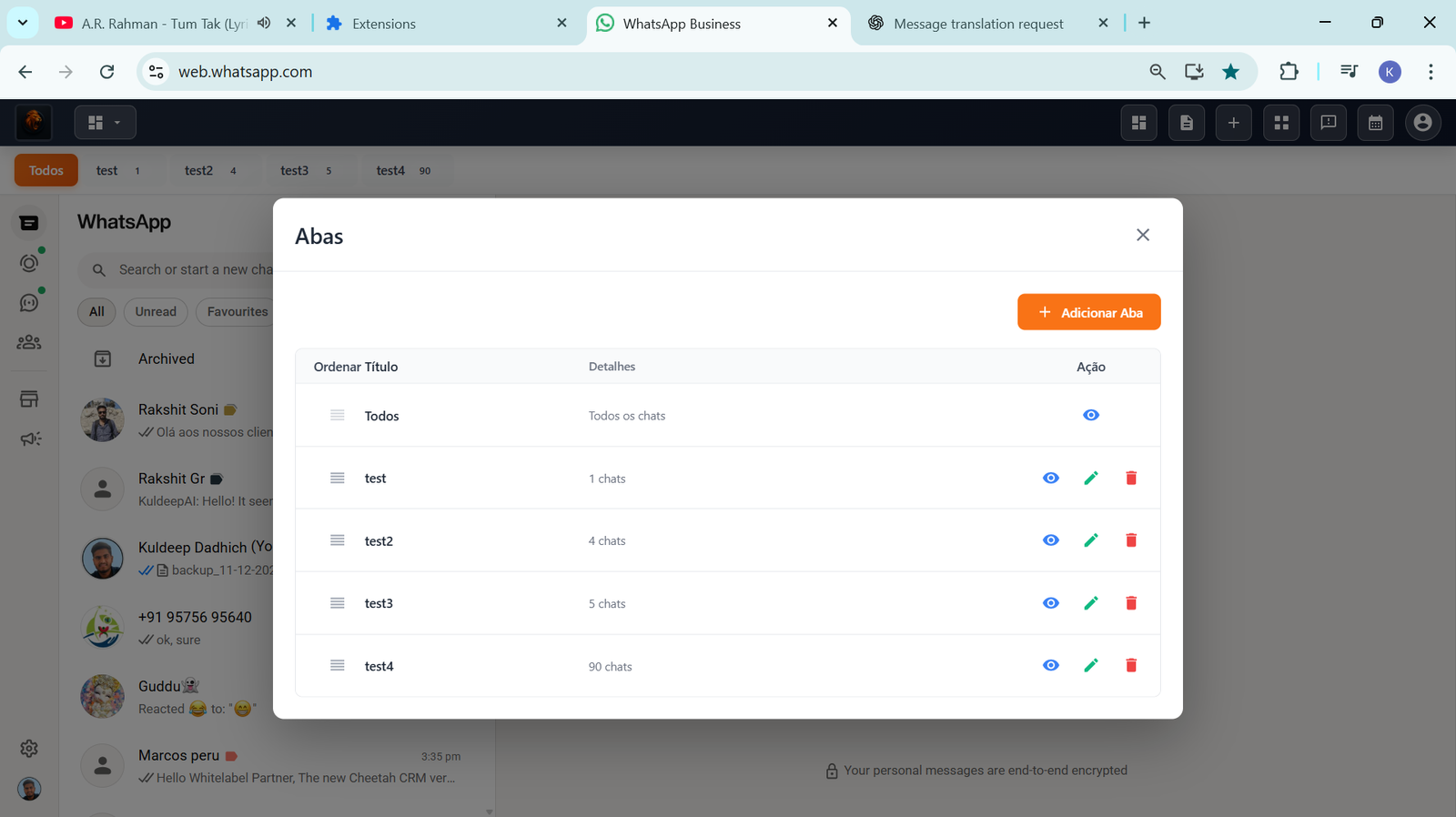
Unlimited Tabs
Organize freely
Message Templates
Save your best messages as reusable templates — with dynamic variables, rich media, and multi-step sequences. Use them instantly in bulk messaging, quick replies, and AI Bot responses.
Explore Templates
Click a tab or use ◀ ▶ arrows to explore
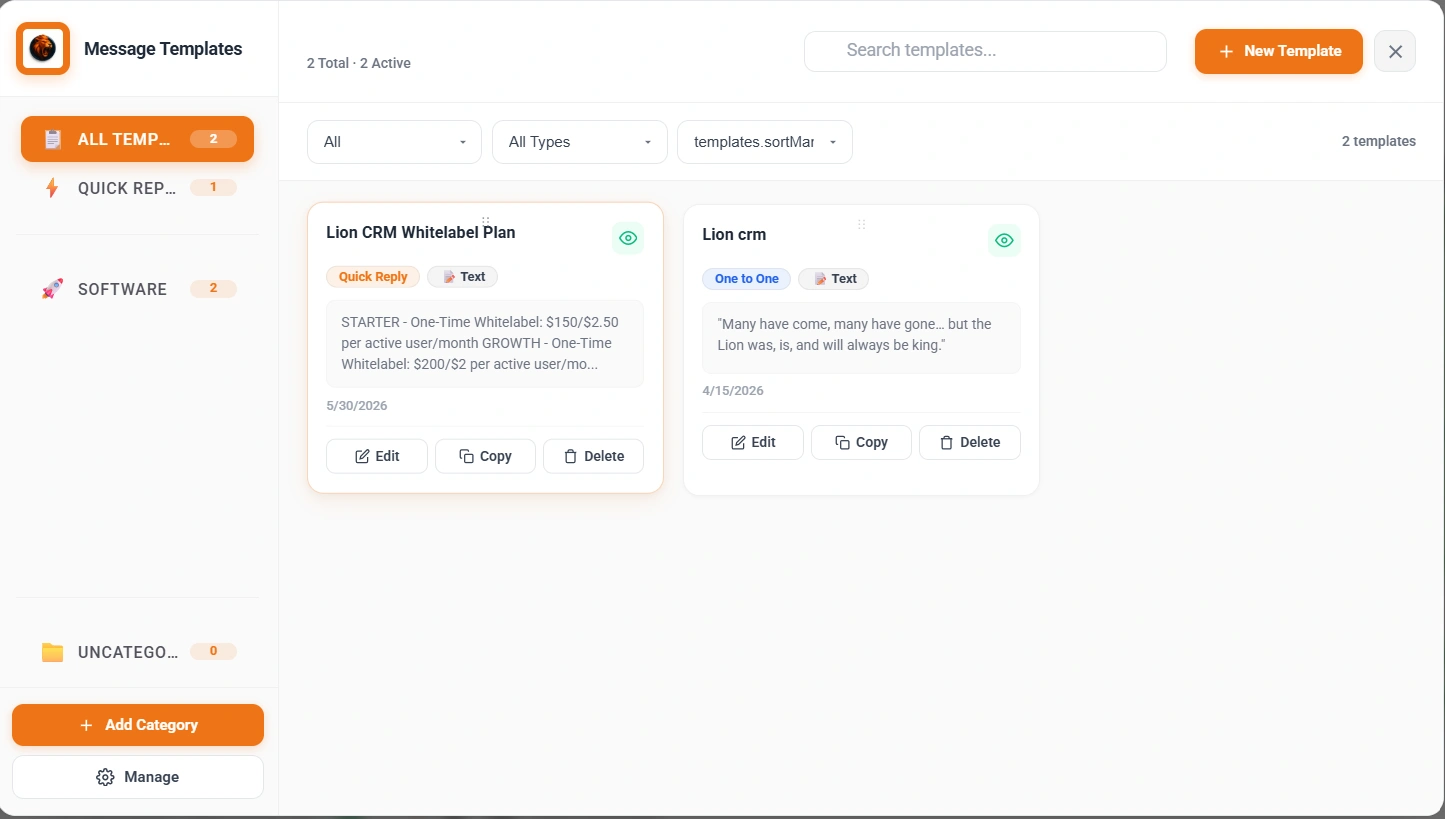
- Two template types: Templates (used in Bulk Campaigns, AI Bot, Reminders) and Quick Reply (instant response inside any chat)
- Left sidebar shows your custom categories — e.g. SOFTWARE, QUICK REP... are categories you create to organise your templates
- Add templates to any category by clicking + Add Category — choose a name, icon, and color
- Filter by Status, Type (One to One, Tab, Group, Label, Kanban, Quick Reply), Sort — and Edit, Copy, Delete each template
1 / 4
Quick Reply
Respond to customers in seconds — right from the bottom of every WhatsApp Web chat. Create templates with multiple media types, post actions, and edit-before-send control. No switching screens, no delays — one click and it's sent.
How Quick Reply Works
4 steps to set up and use — click a tab or use ◀ ▶ arrows
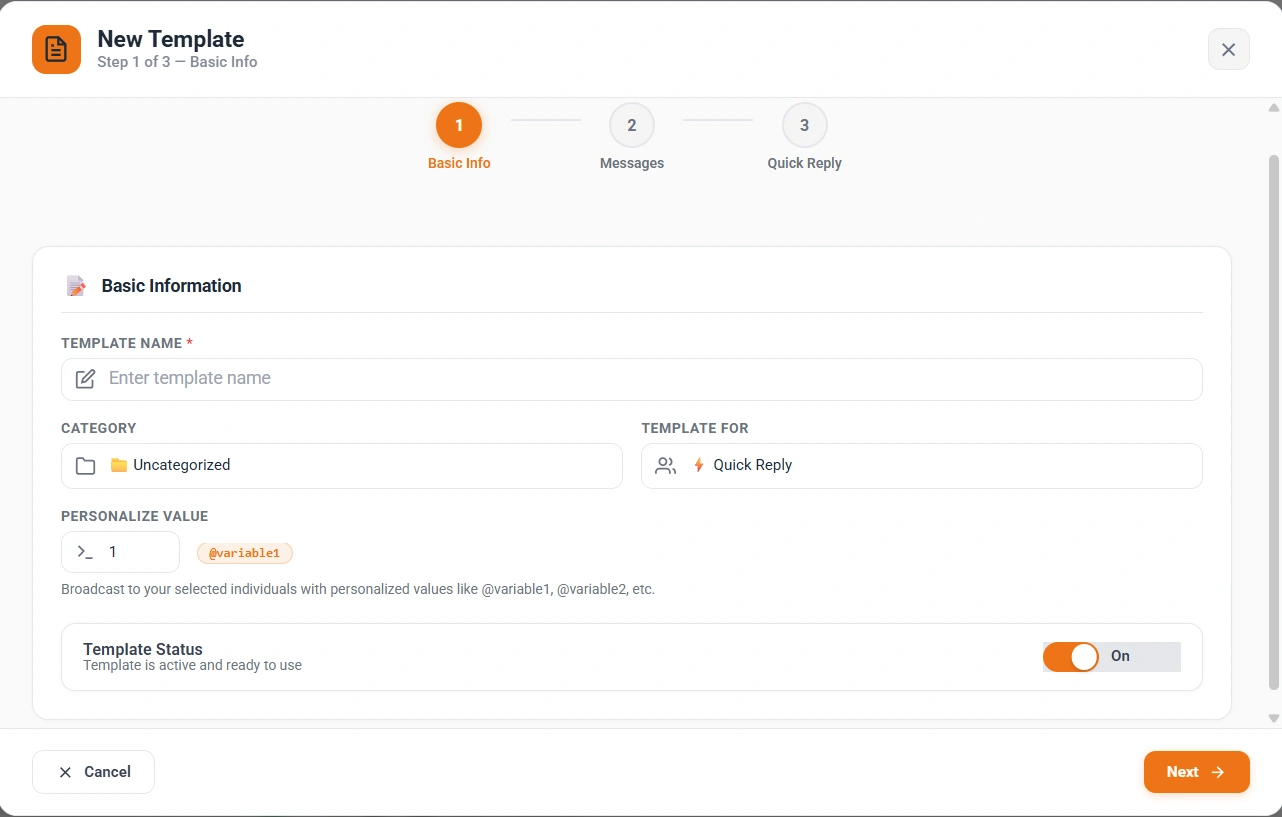
- Set Template For: Quick Reply — this makes the template available in the in-chat Quick Reply toolbar
- Enter a Template Name and assign a Category with custom icon and color for easy filtering
- Add Personalize Values (@variable1, @variable2...) to send customized messages per contact
- Toggle Template Status On/Off — inactive templates are hidden from the Quick Reply bar
1 / 4
Kanban Board
Visualize your entire sales pipeline in one view. Lion CRM's Kanban Board shows every WhatsApp contact as a card — drag between stages, take action directly from the card, and manage multiple CRM boards for different pipelines.
Explore Kanban Features
Click a tab or use ◀ ▶ arrows to explore
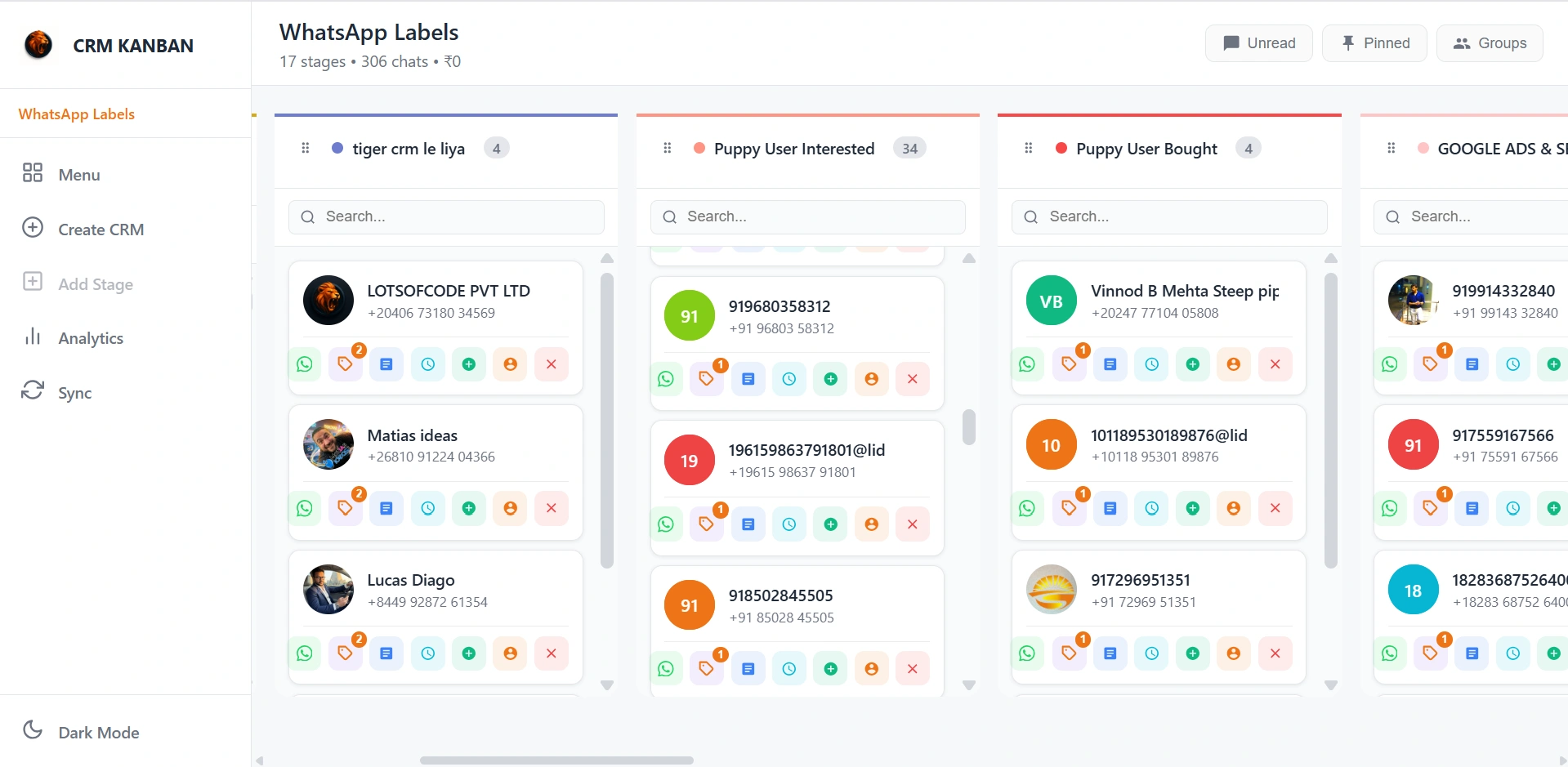
- Each chat card has inline action icons: Open Chat, Update Labels, Add Note, Schedule Message, Add Income, Open CRM Profile, Remove from Stage
- Drag and drop contacts between stages to move them through your sales pipeline step by step
- Add custom stages with + Add Stage — filter cards by Unread, Pinned, or Groups
- Toggle Dark / Light Mode from the sidebar menu — works across all your CRM boards
1 / 3
Smart Calendar
The ultimate WhatsApp appointment booking and task management solution. Schedule meetings, track appointments, manage to-do lists, and never miss a follow-up — all from one powerful WhatsApp task manager!
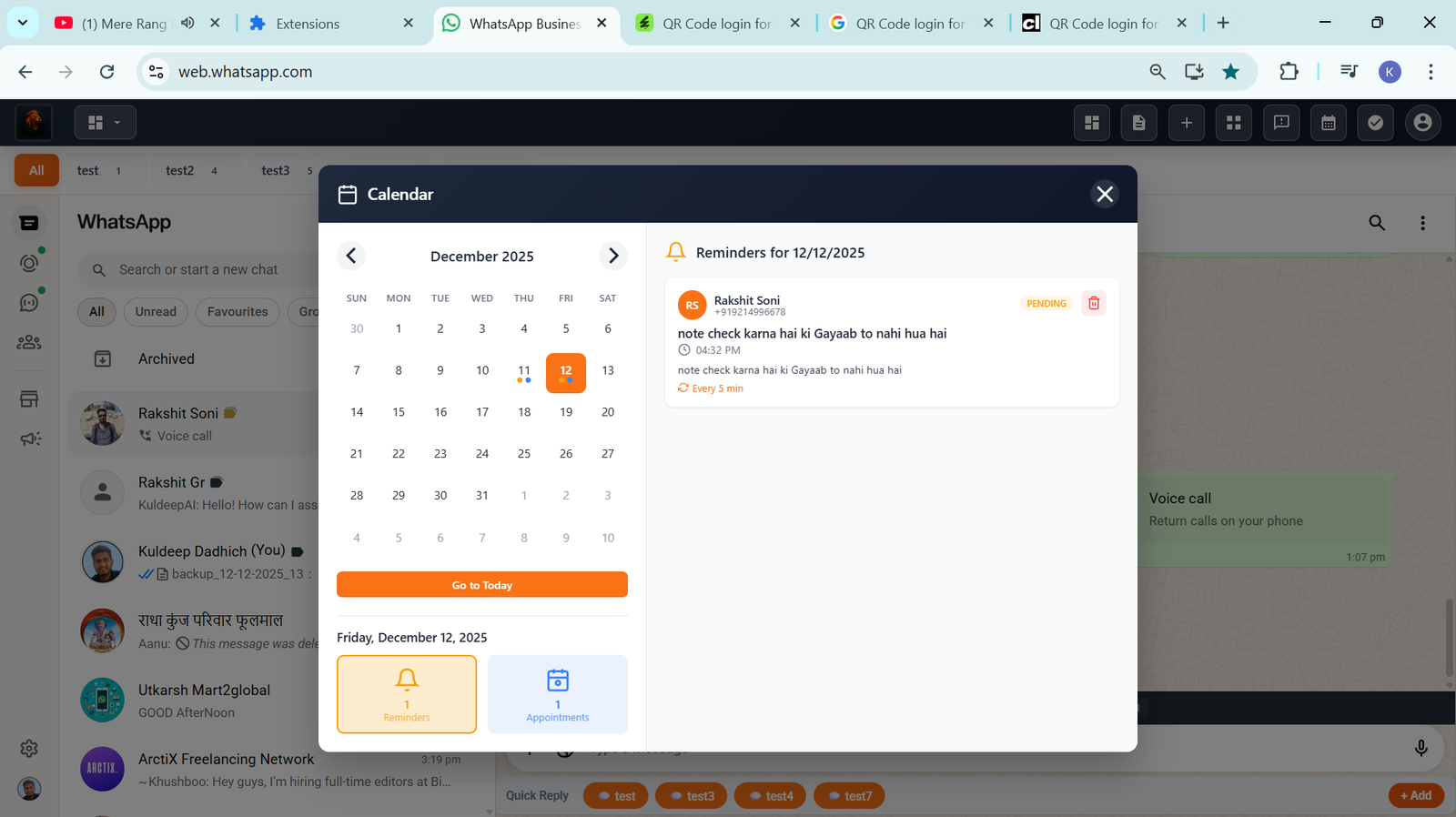
Visual Calendar
View and manage your complete appointment list in one place. Track schedules using the visual calendar and stay on top of tasks with smart reminders. Organize your day, week, or month effortlessly.
To-Do Task List
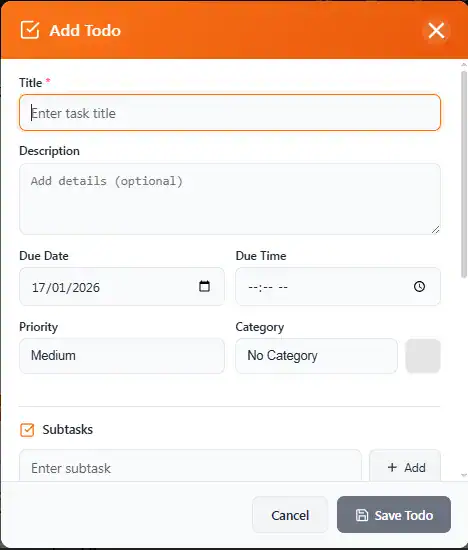
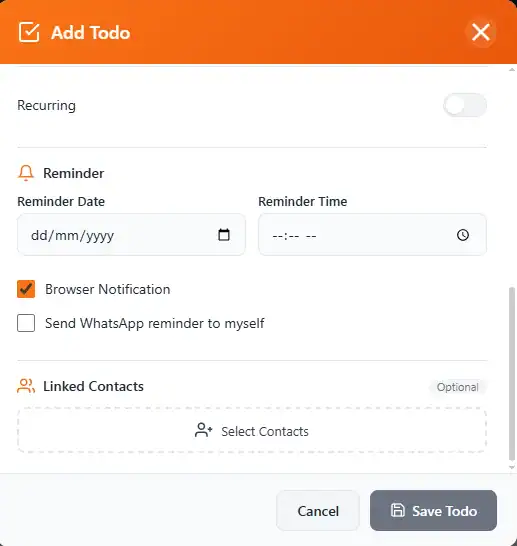
Introducing the all-new WhatsApp to do list feature! Create tasks with titles, descriptions, due dates, priorities, and categories. Add sub-tasks, set recurring schedules, and get reminders via browser notification or WhatsApp.
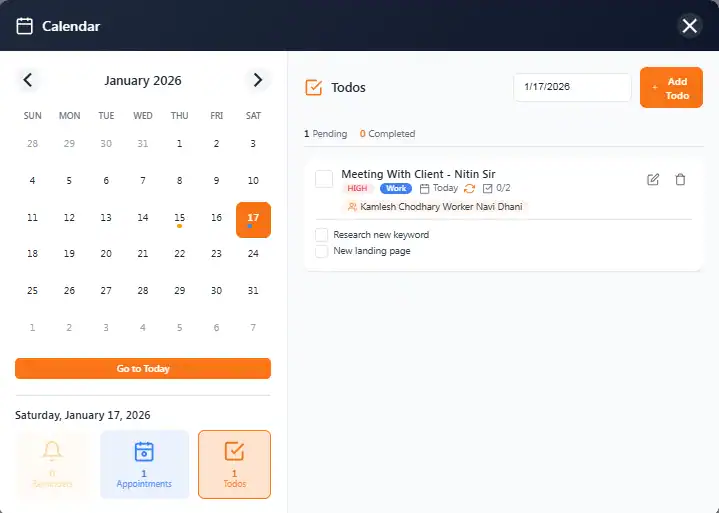
Complete Task Management
Everything you need to manage tasks, set priorities, and stay productive with the most powerful WhatsApp task manager available.
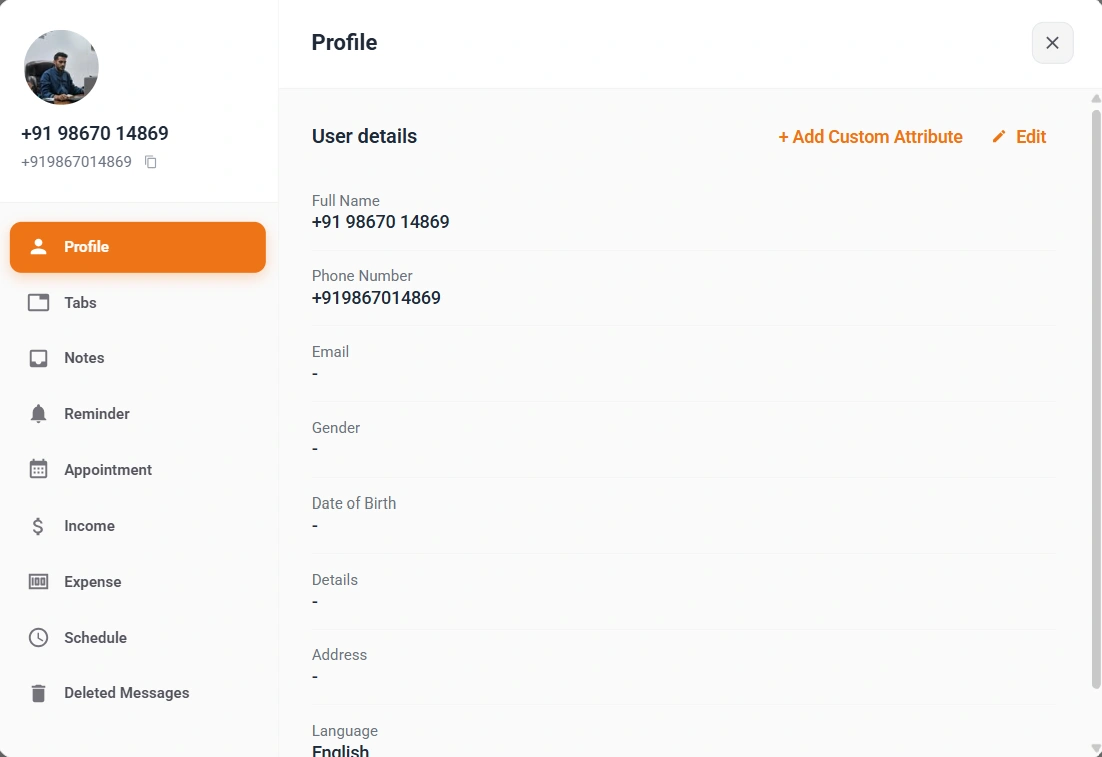
CRM Panel
Click the CRM button next to any contact's name in WhatsApp and a powerful sidebar opens instantly — giving you 9 sections in one place: Profile to view and edit full contact details, Tabs to assign them to groups, Notes to save deal insights, Reminder to never miss a follow-up, Appointment to schedule meetings, Income to track payments received, Expense to log costs, Schedule to manage timed messages, and Deleted Messages to recover anything the sender tried to erase.

Chat Toolbar
Communicate smarter with Lion CRM's powerful Chat Toolbar available at the bottom of every conversation. Set your preferred Tone and Language once—then type in your native language and instantly Translate messages with one click. Use Summarize to condense long messages, Enlarge to expand brief texts, switch to Friendly tone for casual chats, or go Formal for professional communication. Transform how you write—faster, smarter, and in any language.
- Auto Translate
- Tone Switcher
- Summarize/Enlarge
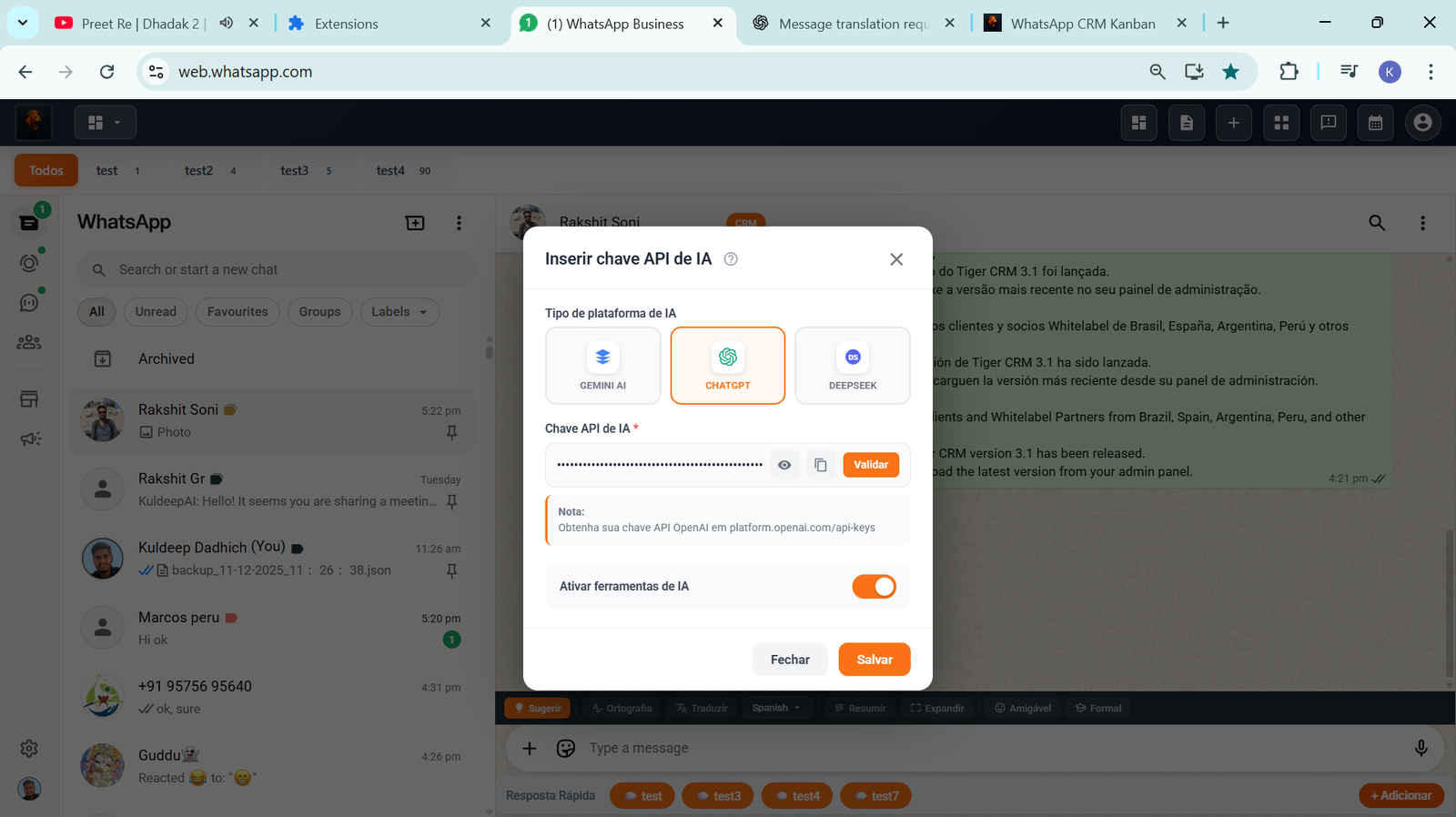
To enable this toolbar: Go to Settings → AI Integration, add your API key, then turn on the AI Tools Enable toggle — the toolbar will appear instantly at the bottom of every chat.
API Status
Validated ✓

Bulk Number Validator
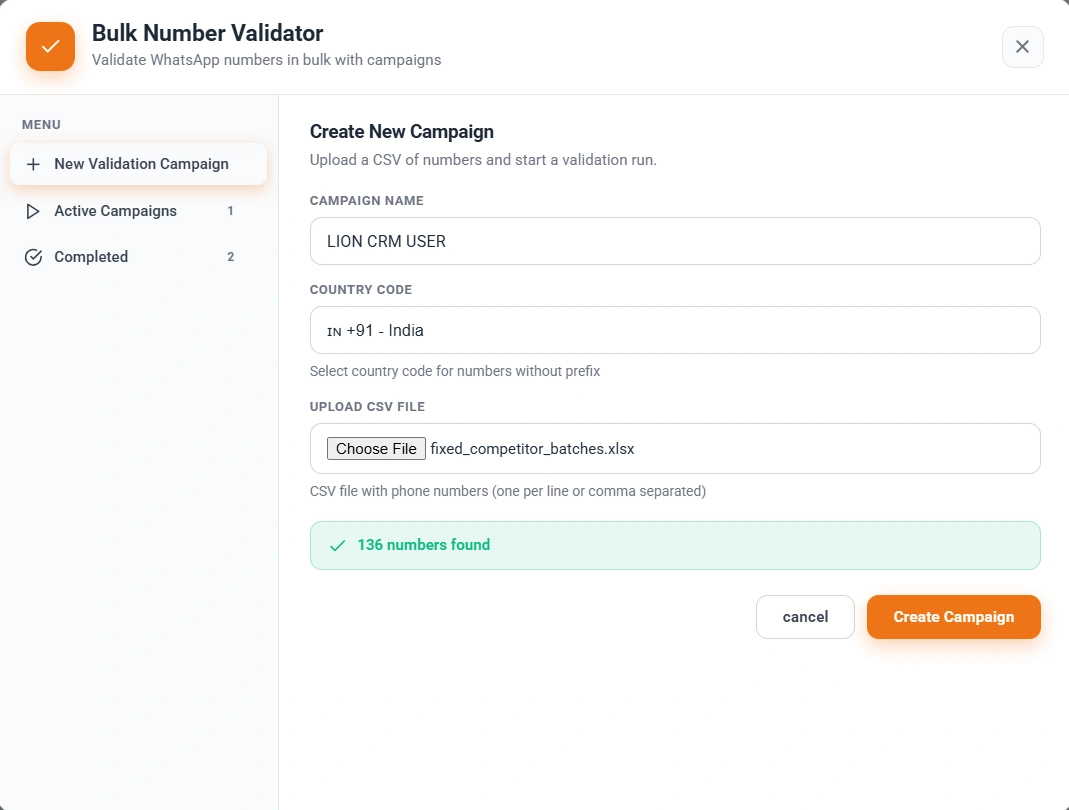
Stop wasting messages on invalid numbers! Upload a CSV list of phone numbers, select your country code (e.g. IN +91), and Lion CRM checks each number to find which are active on WhatsApp. Watch validation happen in real time — pause and resume anytime — then download Valid, Invalid, or All results as separate CSV files.
Campaign
Live
& Export
Click each step to preview
CSV Upload + Country Code
Upload your number list as CSV and select country code (e.g. IN +91) — numbers without prefix are handled automatically
Real-time Progress Tracking
Live progress bar shows Valid / Invalid / Pending counts as validation runs — see exactly how many are processed
Pause & Resume Anytime
Running a large list? Pause the campaign and continue later — your progress is always saved
Download Valid, Invalid or All
Once complete, download only Valid numbers, only Invalid numbers, or All results as separate CSV files
AI Integration
Supercharge your CRM with artificial intelligence using Lion CRM's Insert AI API Key feature. Access this option in the Profile section and easily set up AI tools by entering your API key. Unlock powerful AI-driven capabilities like smart replies, message suggestions, content generation, and more—all integrated directly into your workflow. Let intelligent automation handle the heavy lifting while you focus on closing deals.
- Smart Replies
- Content Generation
- API Integration
AI-Powered
Smart automation
9 Languages
Use Lion CRM in your preferred language with the Language Choose feature. Select from 9 global languages: English, Chinese, Spanish, Portuguese, French, Arabic, Russian, Japanese, and German. Switch the entire CRM interface to match your comfort zone—making navigation, setup, and daily operations effortless. Whether you're in Tokyo, Dubai, São Paulo, or Berlin, Lion CRM speaks your language.
- English & Chinese
- Spanish & Portuguese
- Arabic & More
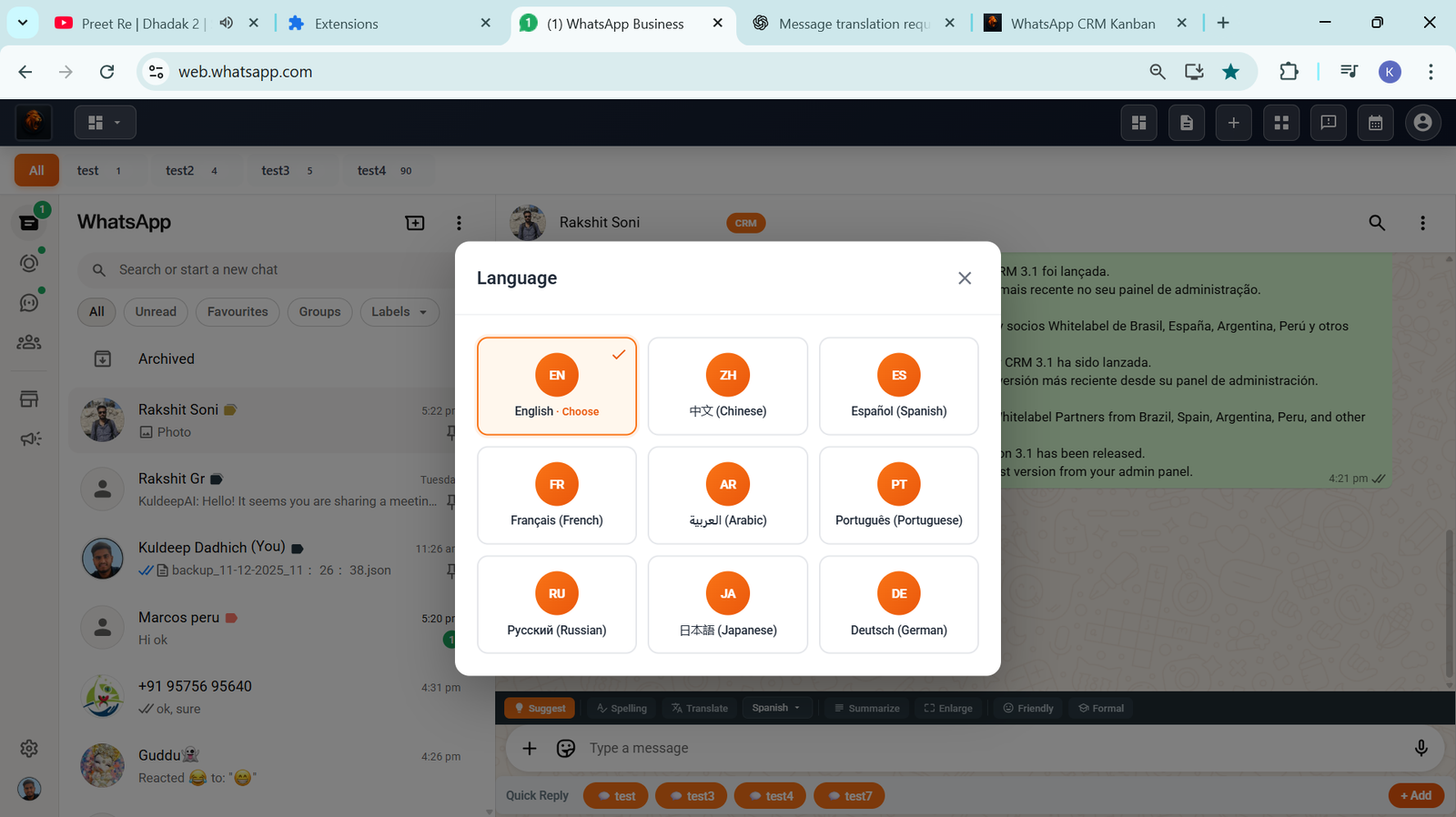
9 Languages
Global support
Backup & Restore
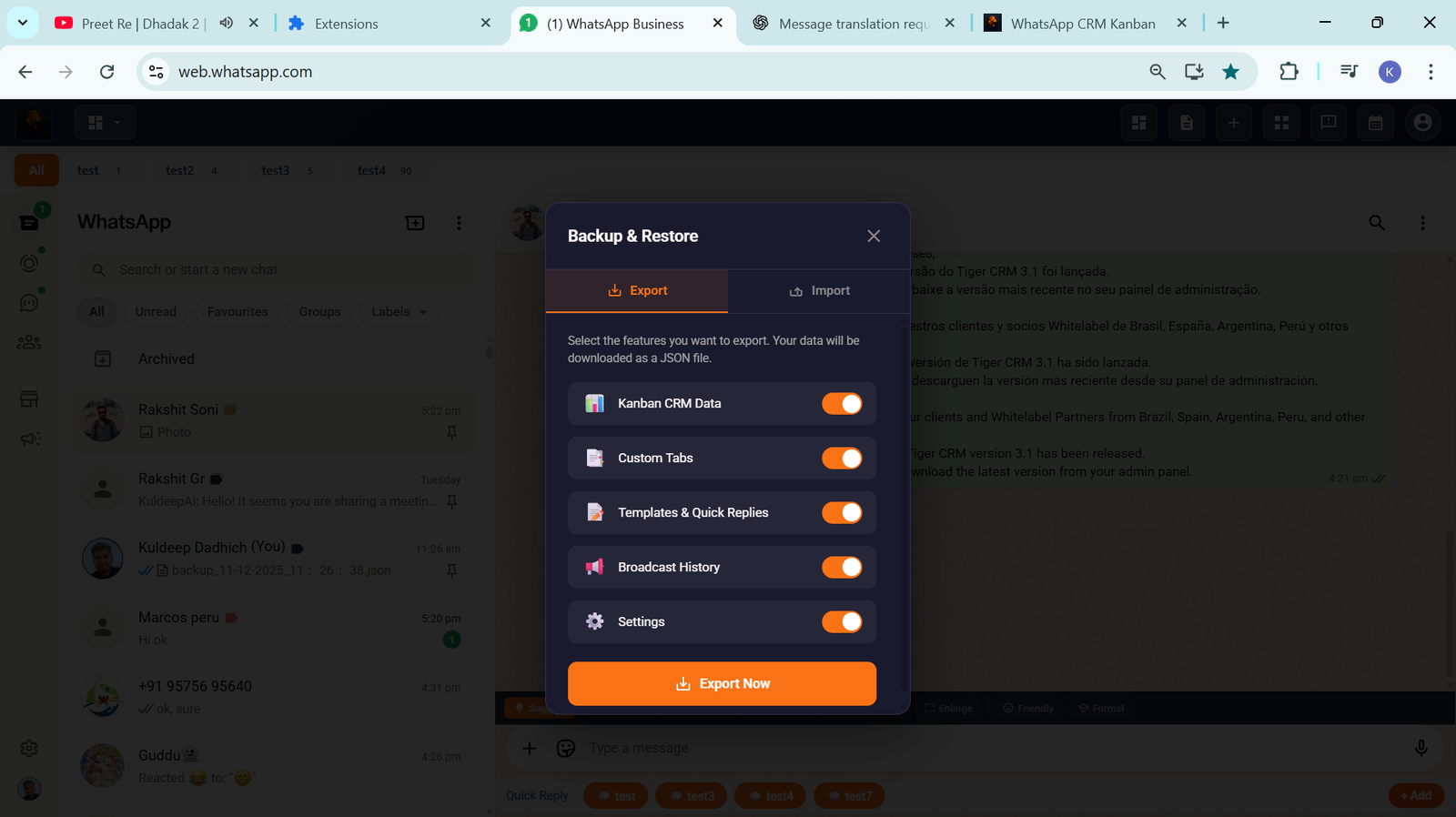
Protect your valuable CRM data with Lion CRM's Backup and Restore feature. Export backups of all your templates, labels, and custom configurations anytime. Store your backup file safely on your device or cloud storage for complete peace of mind. If your data is ever lost or you switch devices, simply import your backup and restore everything instantly. Keep your CRM settings secure, portable, and always recoverable.
- One-Click Export
- Instant Restore
- Secure Storage
100% Secure
Your data safe
Powerful WebHooks
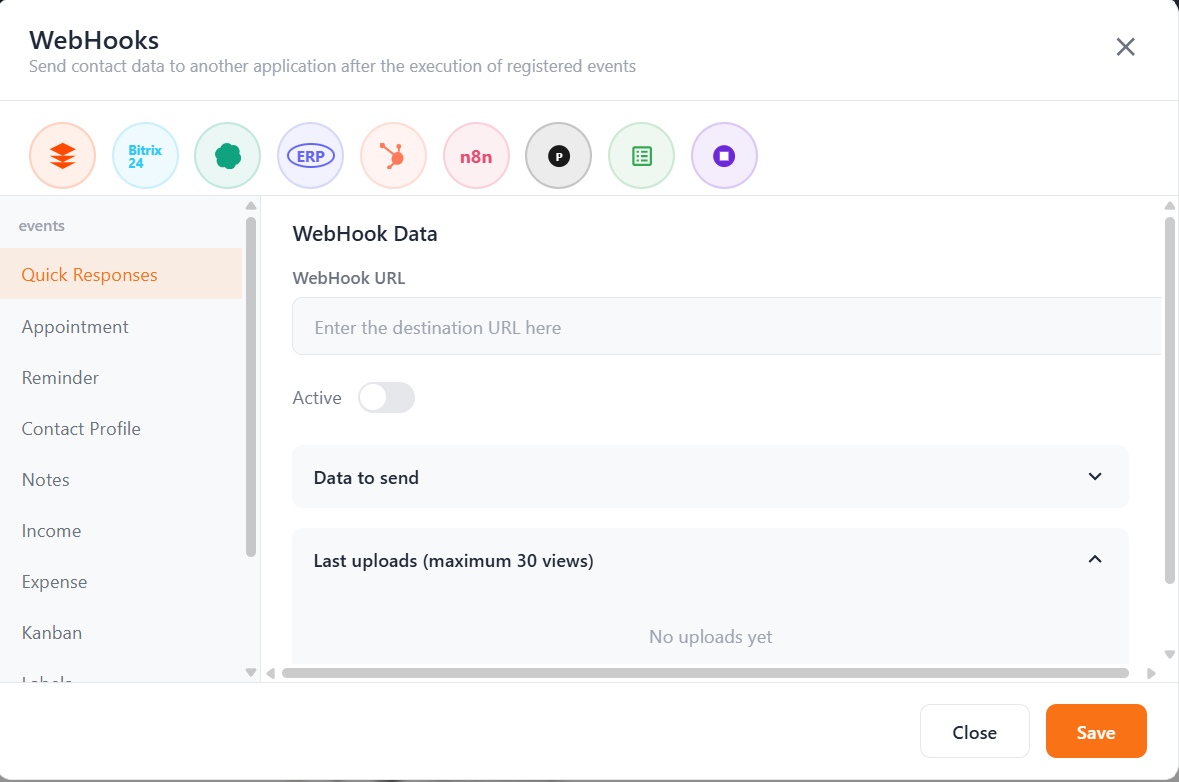
Connect Lion CRM with your favorite tools using WebHooks. Automatically send contact data to external applications like Zapier, Pabbly, n8n, Google Sheets, Bitrix24 and more whenever specific events occur. Build powerful automated workflows without writing a single line of code! WebHooks work with POST method only .
24
GPT
Spot
drive
Sheets
Real-Time Data Sync
Send data instantly when events trigger in your CRM
Multiple Event Triggers
Quick Responses, Appointments, Reminders, Notes, Income, Expense & more
Easy Configuration
Just paste your webhook URL, select events, and activate
Configure API
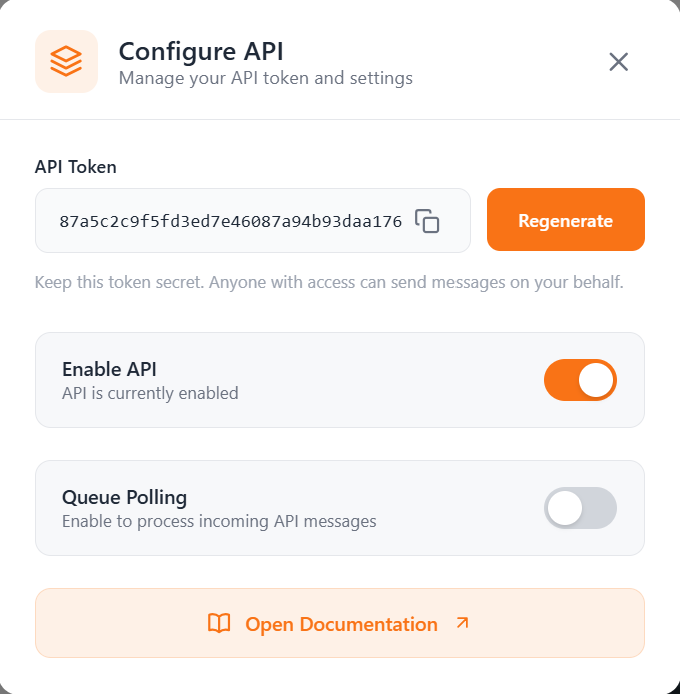
Unlock the full power of Lion CRM with our API Integration. Generate your unique API Token, enable or disable API access, and process incoming messages with Queue Polling. Perfect for developers who want to build custom integrations and automate workflows programmatically.
API Token Management
Generate, copy, and regenerate your secure API token anytime
Enable/Disable API
Control API access with a simple toggle switch
Queue Polling
Enable to process incoming API messages efficiently
Full Documentation
Access complete API docs with examples and endpoints
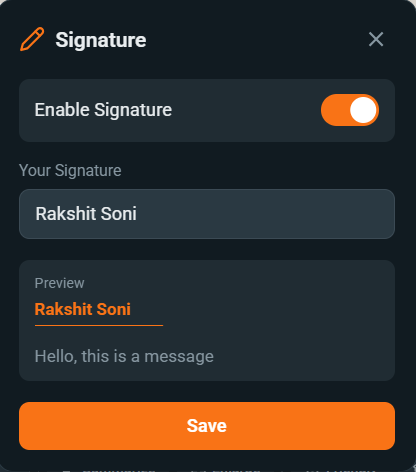
Custom Signature
Add a professional touch to every message with Lion CRM's Signature Feature. Create your custom signature text, enable or disable it anytime, and see a live preview before saving. Your signature automatically appears at the end of your messages, making your communication more personal and branded.
Enable/Disable Toggle
Turn your signature on or off with a single click
Custom Signature Text
Write your own signature - name, title, brand, or anything you want
Live Preview
See exactly how your signature will appear in messages
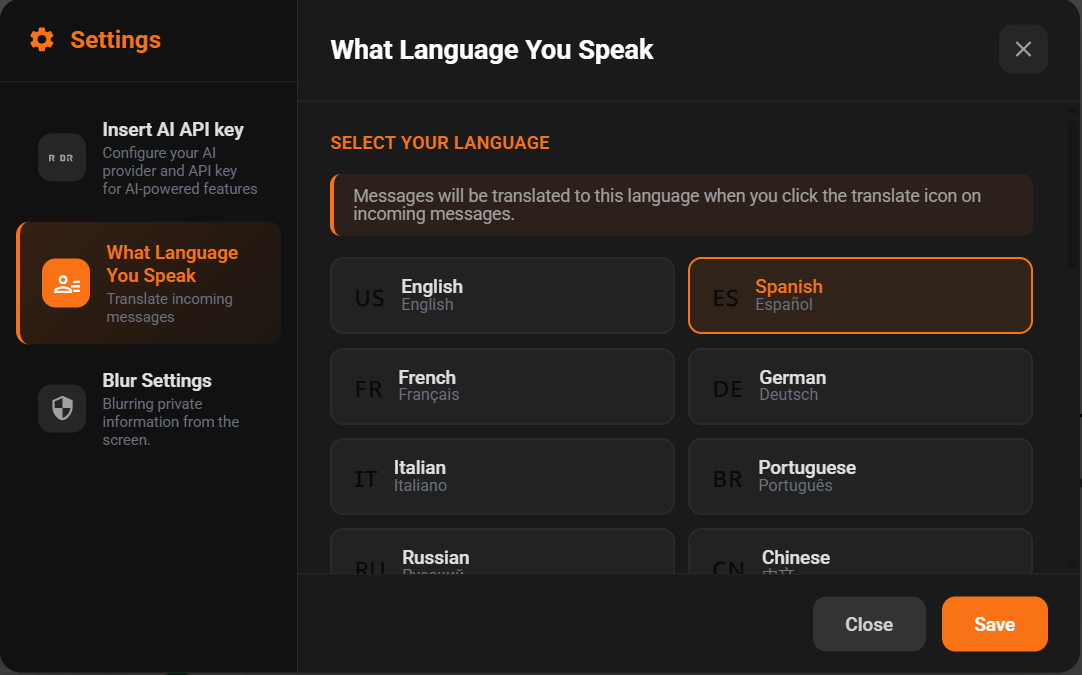
What Language You Speak
No more switching to Google Translate! Translate any message directly inside WhatsApp in the language you understand best.
Select Your Preferred Language Once
Simply go to Settings and choose the language you speak. From that moment, every incoming message can be instantly translated to your language with just one click — no copy-paste, no external apps needed!
🎯 One-Time Setup: Choose your language in settings, and Lion CRM remembers it. Every message you receive can now be translated with a single click!
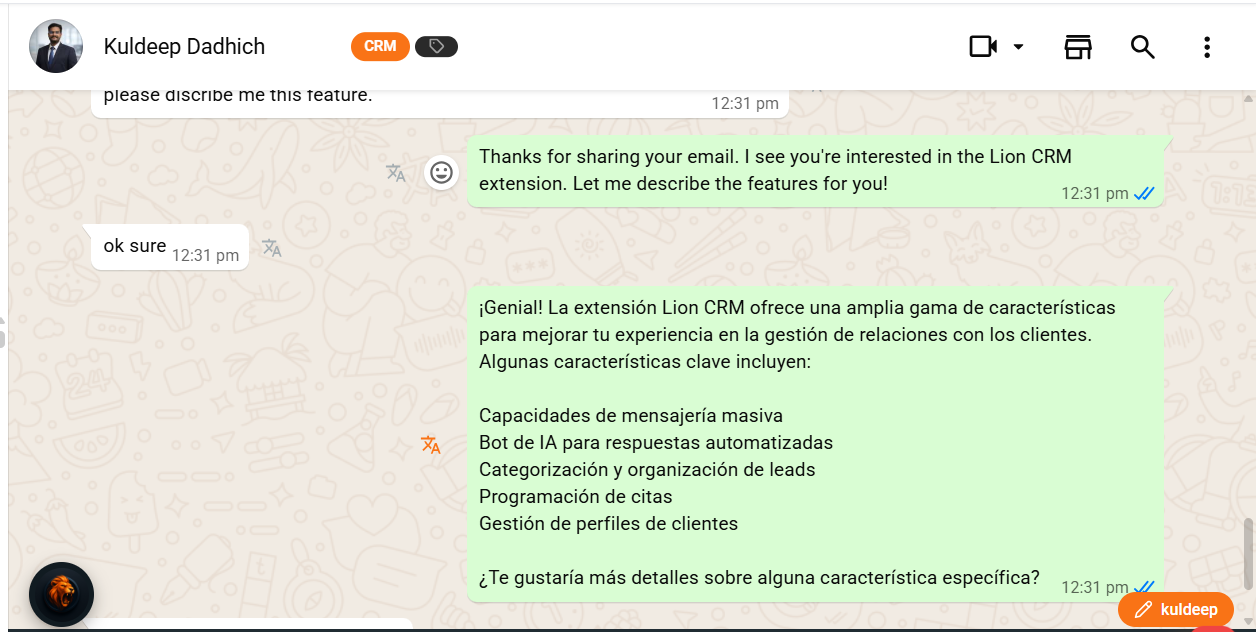
Text Message Translation
Someone sends you a message in English but you've selected Spanish as your language? Simply click the translate icon next to the message — it instantly converts to Spanish!
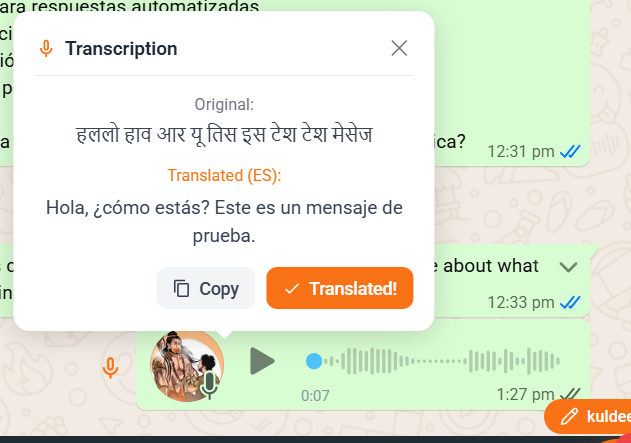
Audio Message Translation
Received a voice note in a language you don't understand? Lion CRM transcribes the audio and translates it to your preferred language — all in text format!
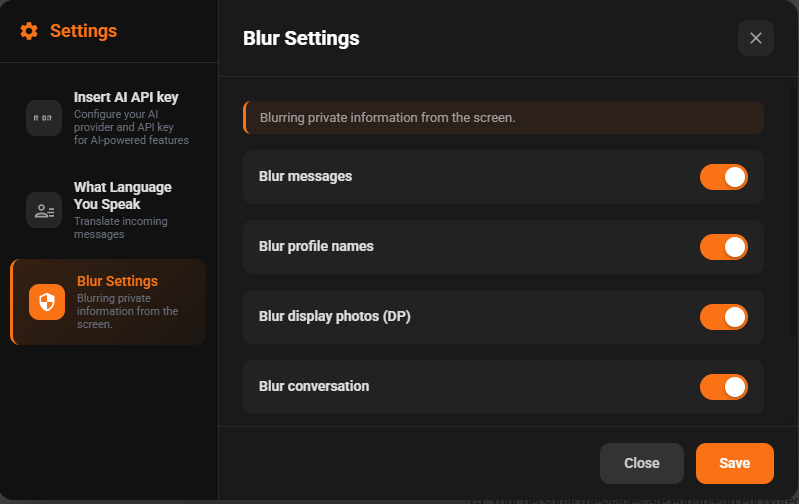
Blur Settings
Protect your privacy while using WhatsApp in public! With Blur Settings, instantly hide sensitive information from prying eyes. Perfect for working in cafes, co-working spaces, or anywhere you need privacy.
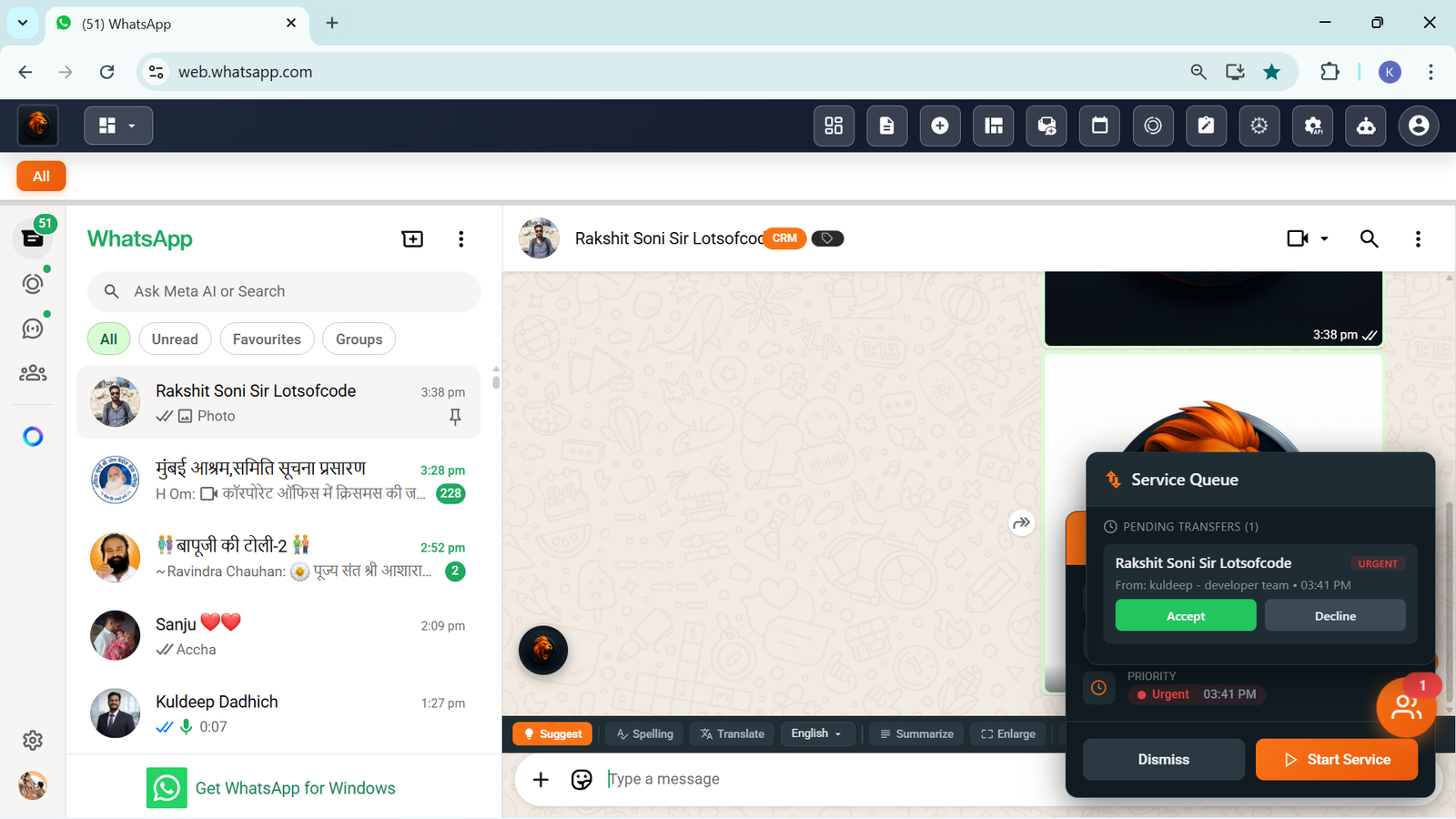
Transfer to Agent
Seamlessly hand over customer conversations to your team members. Set priority levels so urgent chats get handled first!
Hand Over Chats to Your Team Instantly
When you need another team member to handle a conversation, simply transfer the chat with one click. Add a note for context and set the priority level so your agent knows how urgent it is.
📱 Important: This feature works when the same WhatsApp number is logged in on different devices or browsers. Perfect for teams sharing one business number!
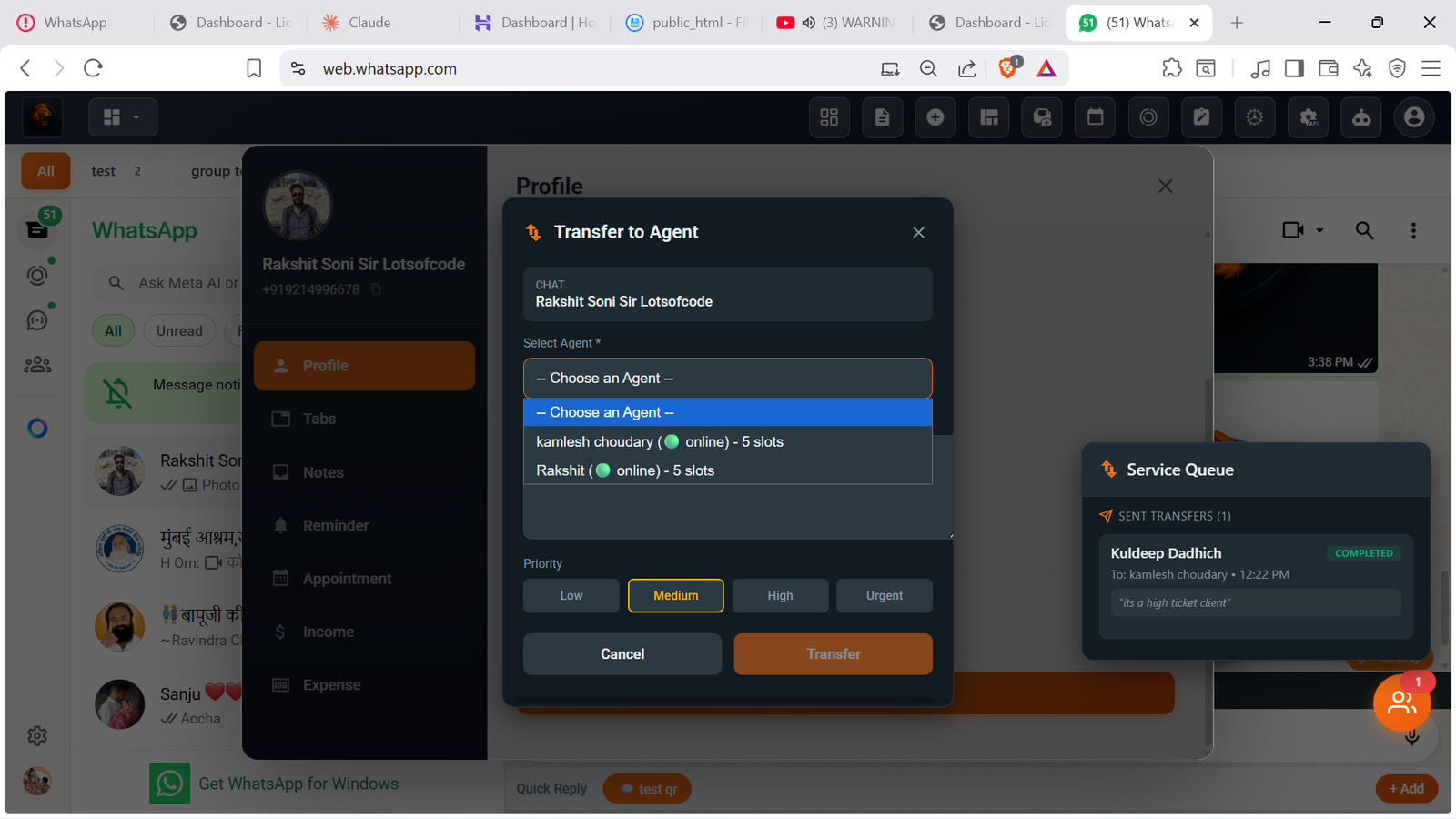
How to Set Up
The Transfer Flow
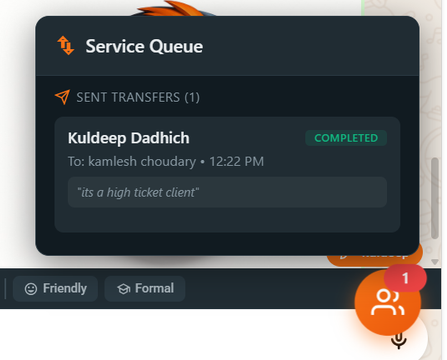
Sent Transfer
After transferring, you can track the status in your Service Queue. See if it's pending or completed.
Incoming Transfer
The receiving agent gets a notification showing who sent it, the chat details, and priority level.
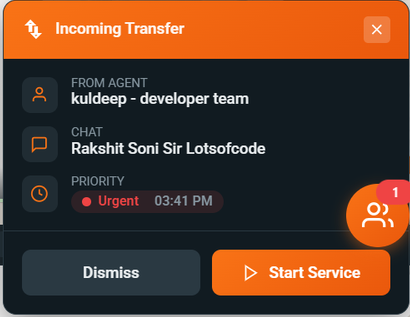
Accept & Start Service
Agent can Accept or Decline the transfer. Click "Start Service" to begin handling the conversation.
Automate Follow Ups
Never lose a lead again! Set up automated WhatsApp follow-up messages that trigger when contacts enter, leave, or stay in your funnel — with smart rules, personalized variables, and full control over timing.
Set It Once, Follow Up Forever
Create powerful WhatsApp follow-up sequences that run on autopilot. Give your follow-up a name, assign a category, then connect it to your Labels, Custom Tabs, Groups, or Kanban boards as a funnel. Choose your trigger — On Enter, On Leave, or After Time — and add personalized messages with dynamic variables like @firstname, @lastname, and @contactname. Set smart delay intervals between messages for natural, human-like delivery.
💡 Pro Tip: Use Trigger Rules to auto-cancel follow-ups when a client responds, set max times per contact, cooldown days between sequences, allow replying in groups, and customize signatures per follow-up!
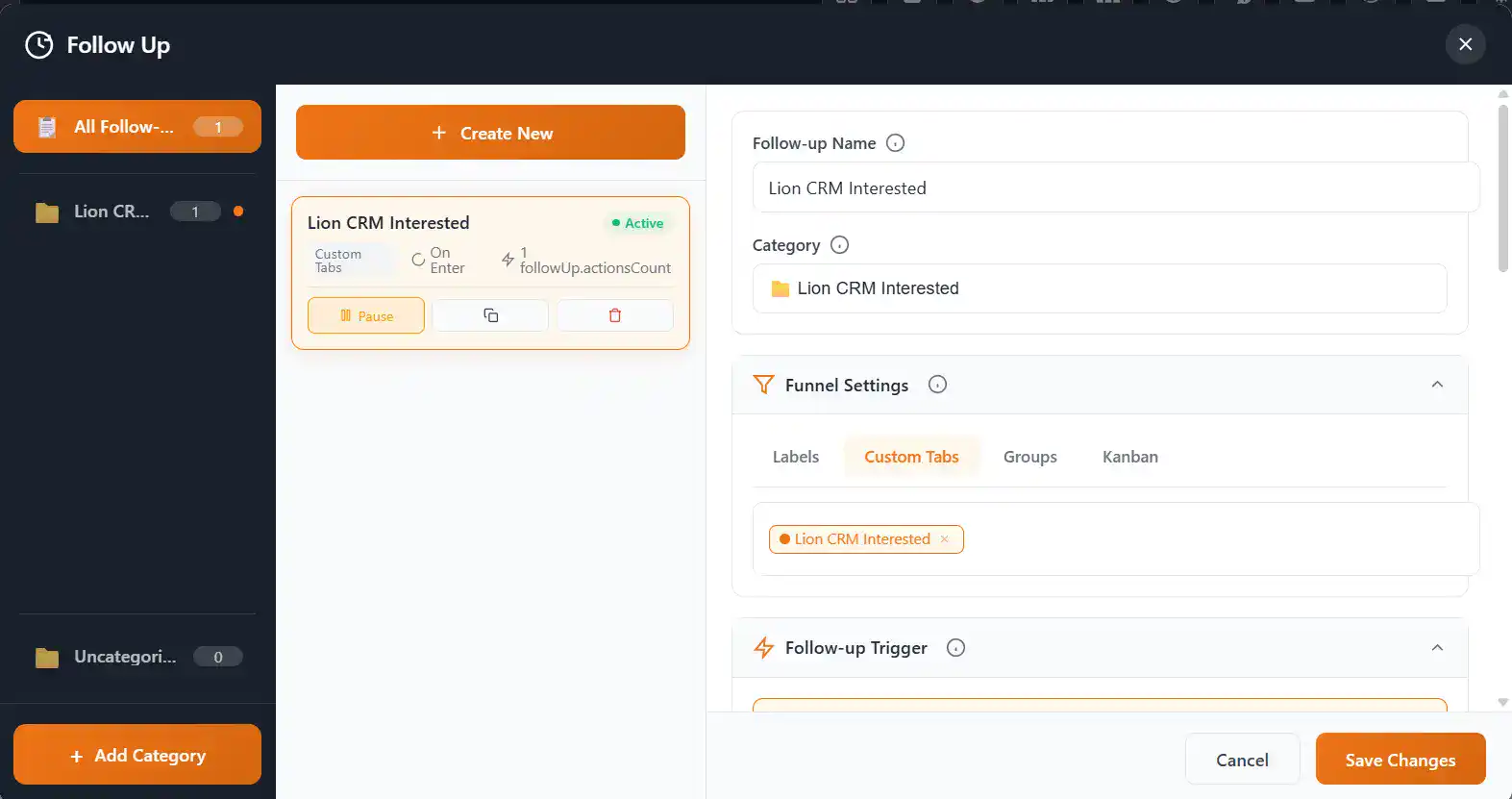
Step-by-Step Setup Guide
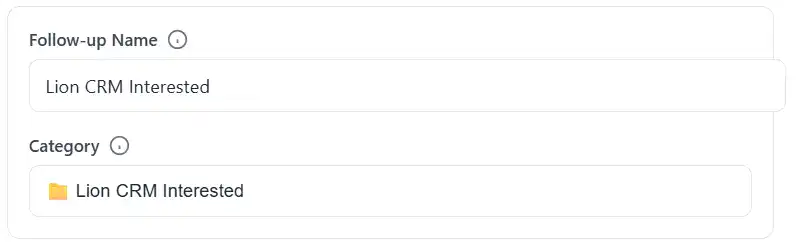
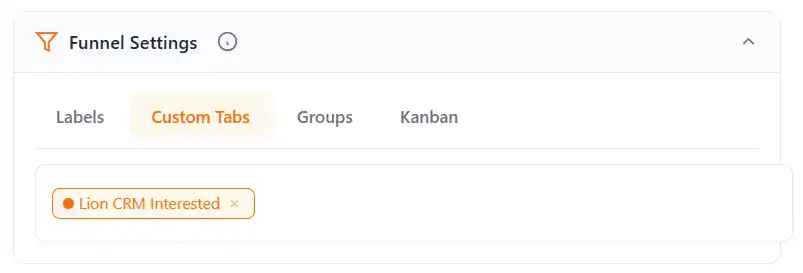
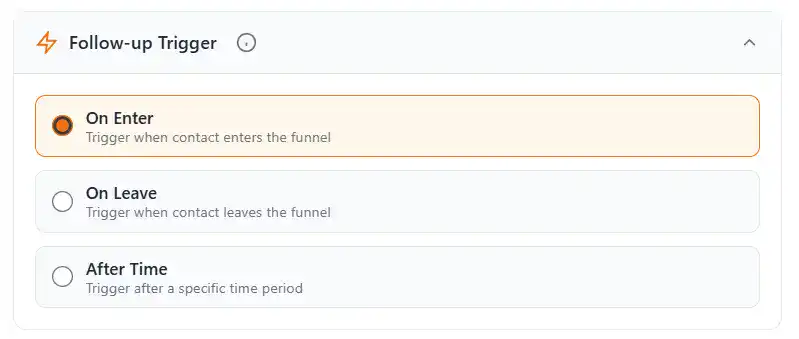
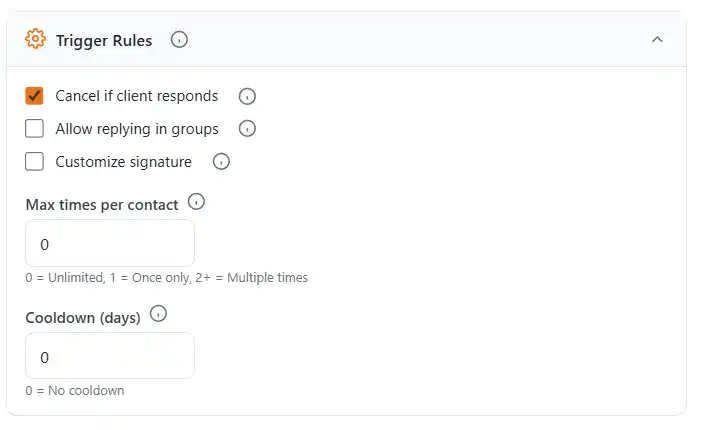
Complete Follow Up Dashboard
Follow Up Manager
Your complete WhatsApp follow-up automation control center. Create categories, manage multiple follow-up sequences, Pause, Duplicate, or Delete any follow-up. Track Active status, funnel type, trigger mode, and total actions count at a glance.
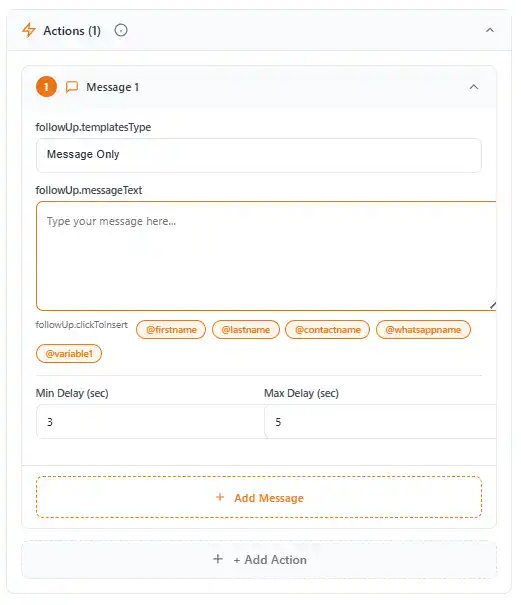
Actions & Messages
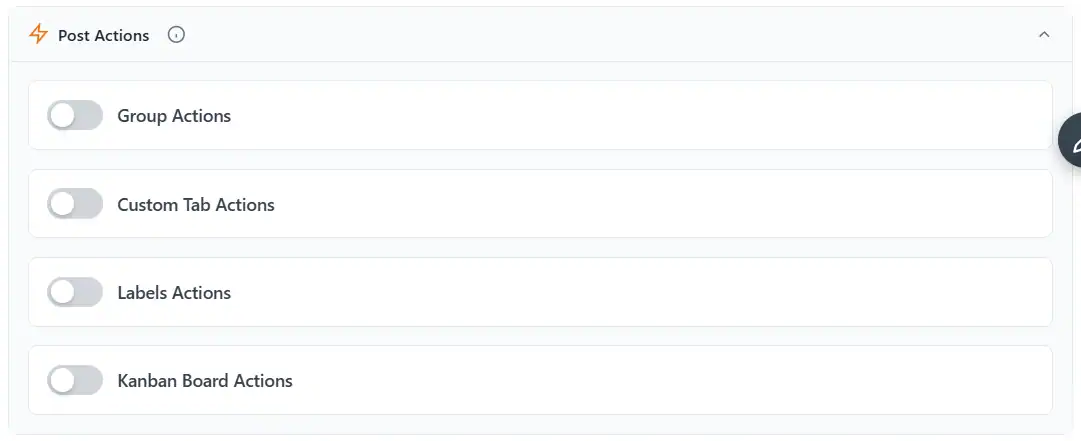
Build your automated message sequence with personalized dynamic variables — @firstname, @lastname, @contactname, @whatsappname, @variable1. Set Min & Max Delay between messages for natural delivery. Add unlimited messages per follow-up!
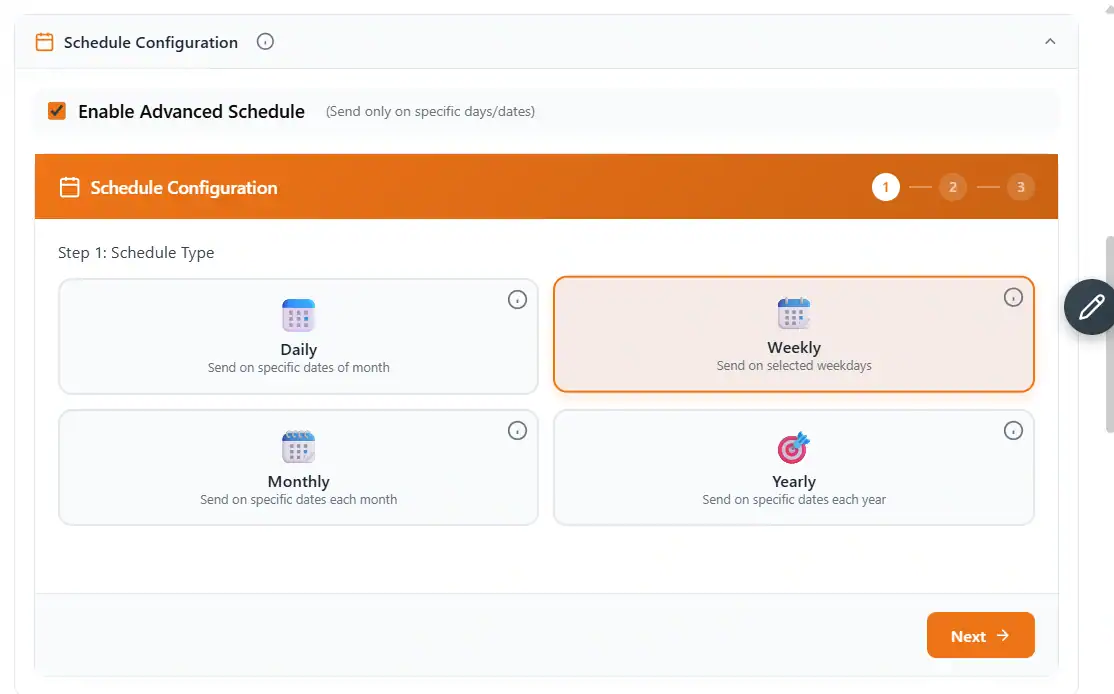
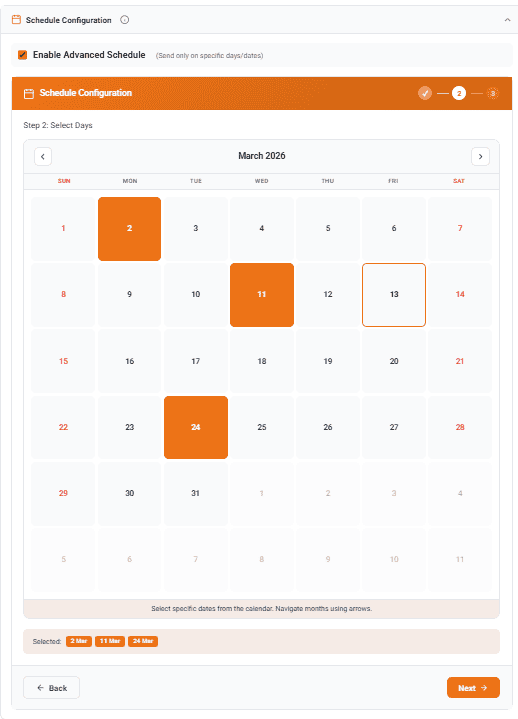
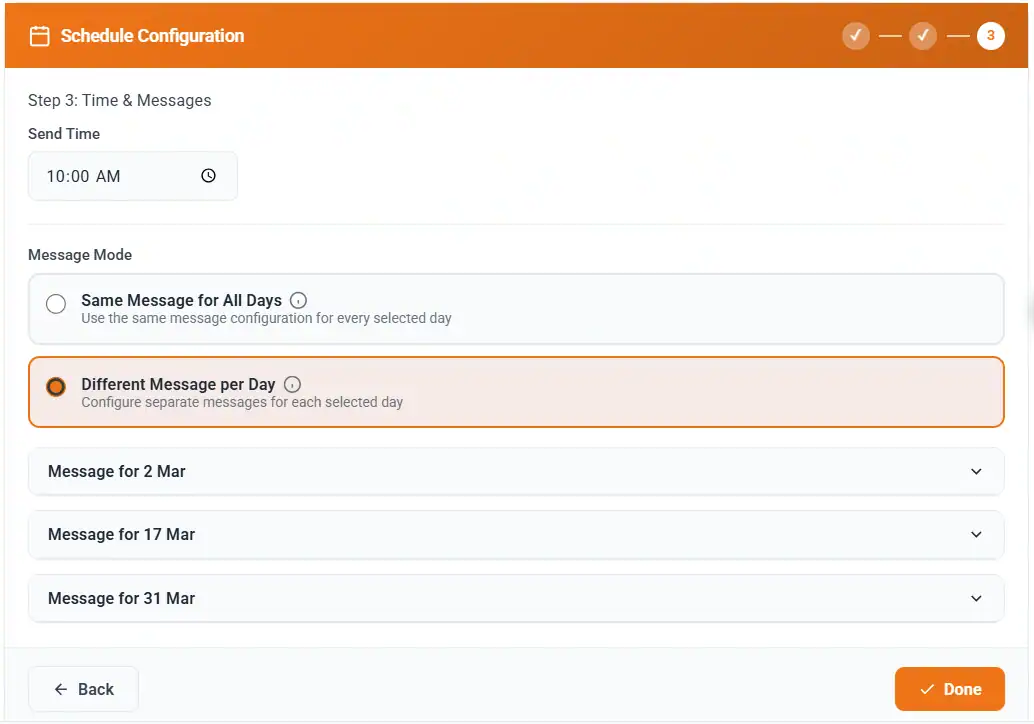
Advanced Schedule Configuration
Take full control of when your follow-ups fire — schedule WhatsApp messages on specific days, dates, or weekdays with a visual calendar picker. Set recurring messages daily, weekly, monthly, or yearly with custom send times and flexible message modes!
Dark & Light Theme
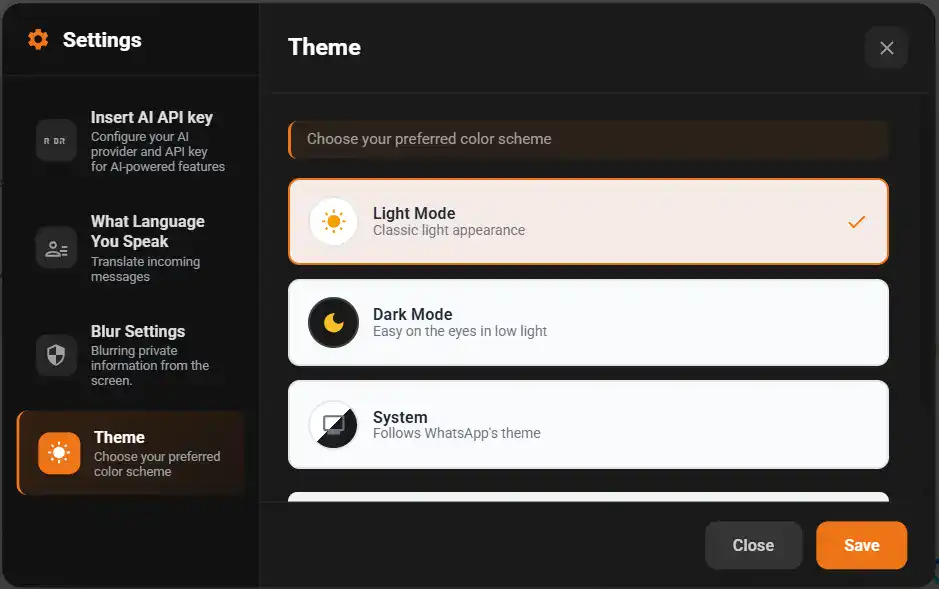
Switch between Light Mode, Dark Mode, or let it follow your WhatsApp system theme — your CRM, your preferred look!
Your Eyes, Your Theme
Working late at night? Switch to Dark Mode for a comfortable, low-glare experience. Prefer a clean, bright look? Go with Light Mode. Or choose System to auto-match your WhatsApp Web's current theme — Lion CRM adapts to your preference in one click.
How to Change Your Theme
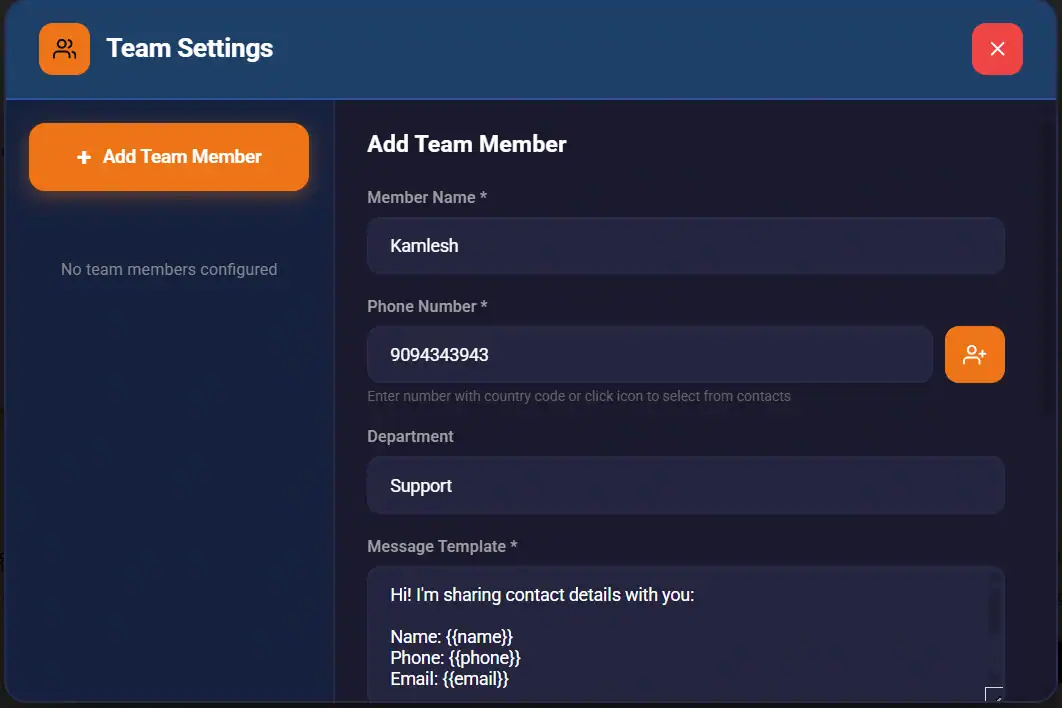
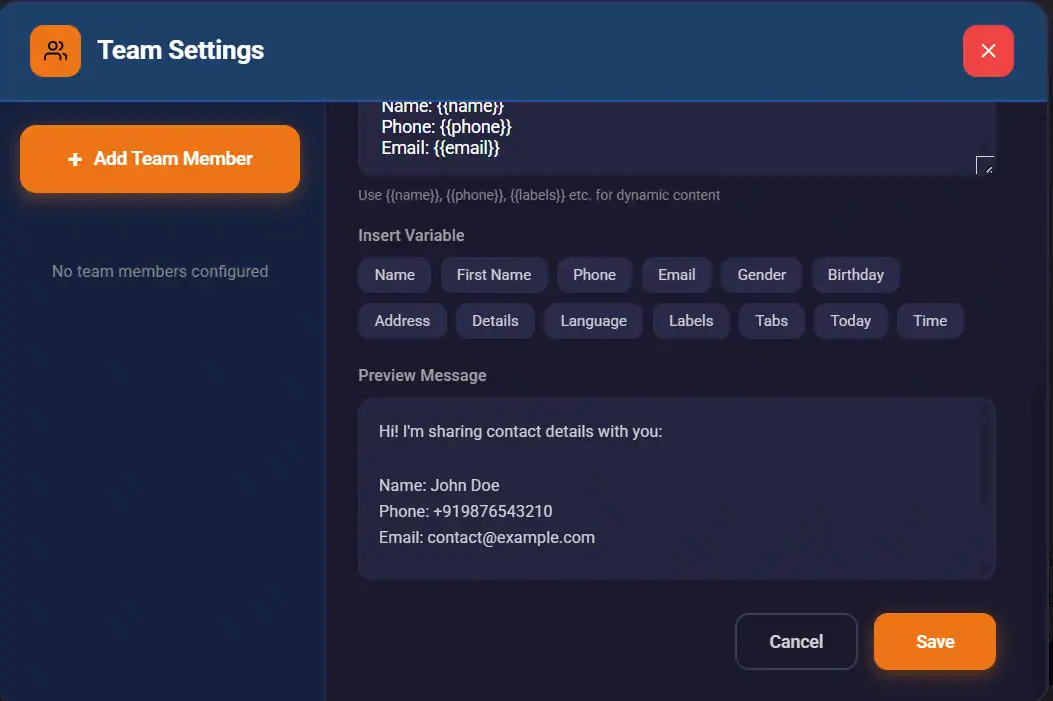
Distribute Leads to Your Team Instantly

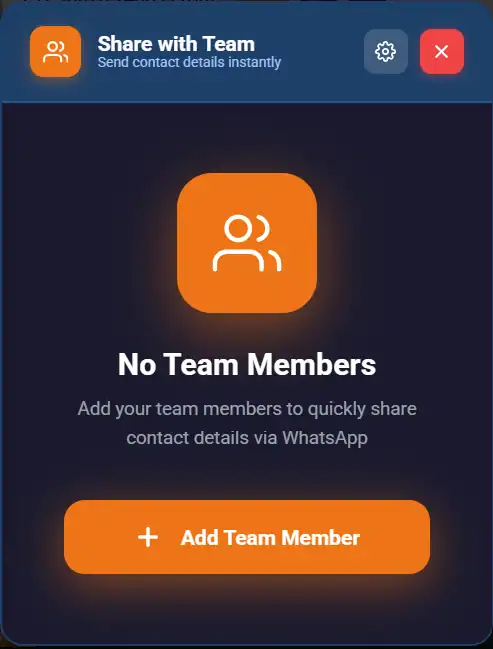
Team Settings Preview
Scheduled Messages
Schedule WhatsApp messages to any contact or group — send once at a specific date & time, or set up recurring messages that repeat every minute, hour, day, week, month, or year. Never miss a follow-up again!
Send at the Perfect Time
Need to send a WhatsApp message at a specific time? With Scheduled Messages, pick any contact or group, set the exact date & time, write your message with dynamic variables like @firstname, @lastname, @contactname — and Lion CRM sends it automatically. Choose Once for one-time messages or Repeated for recurring schedules with full control over frequency, time windows, and end conditions.
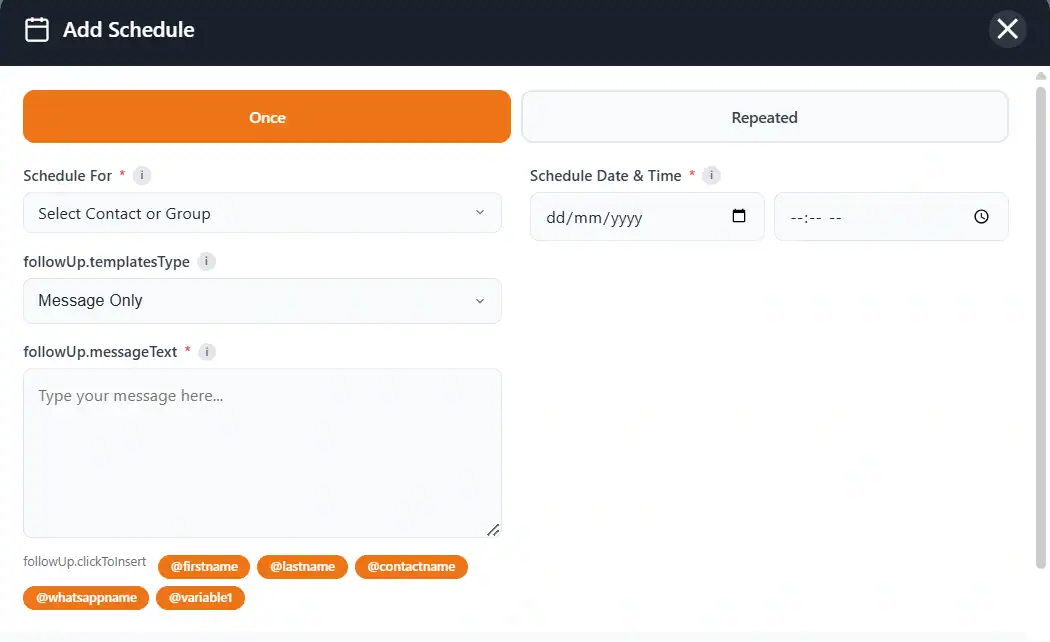
Once & Repeated Modes
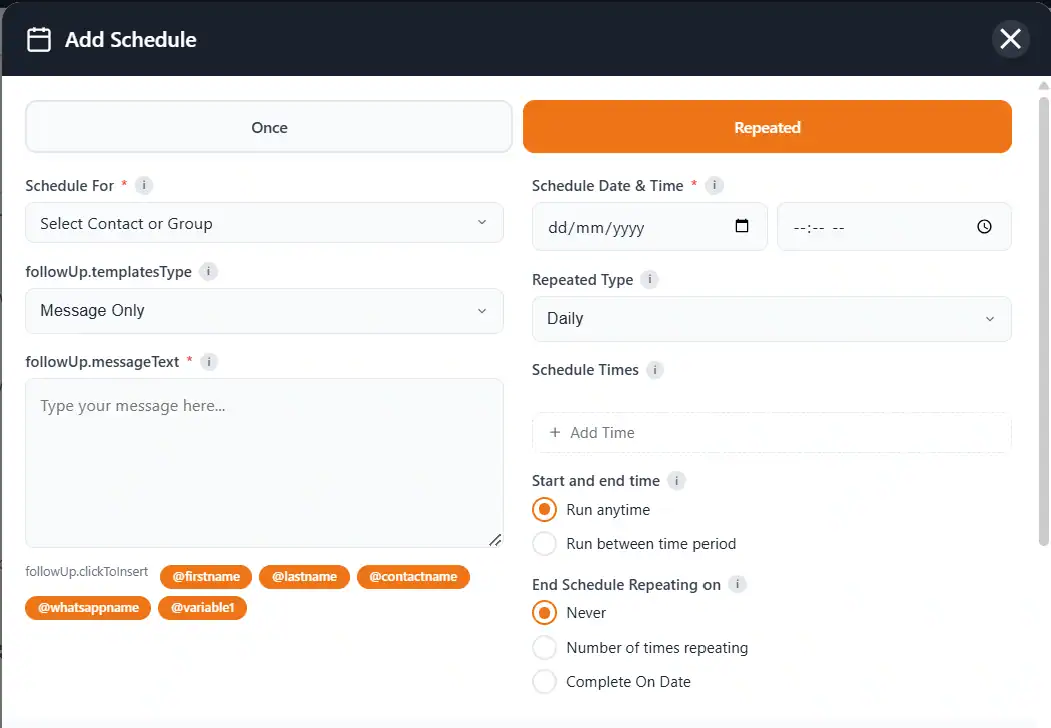
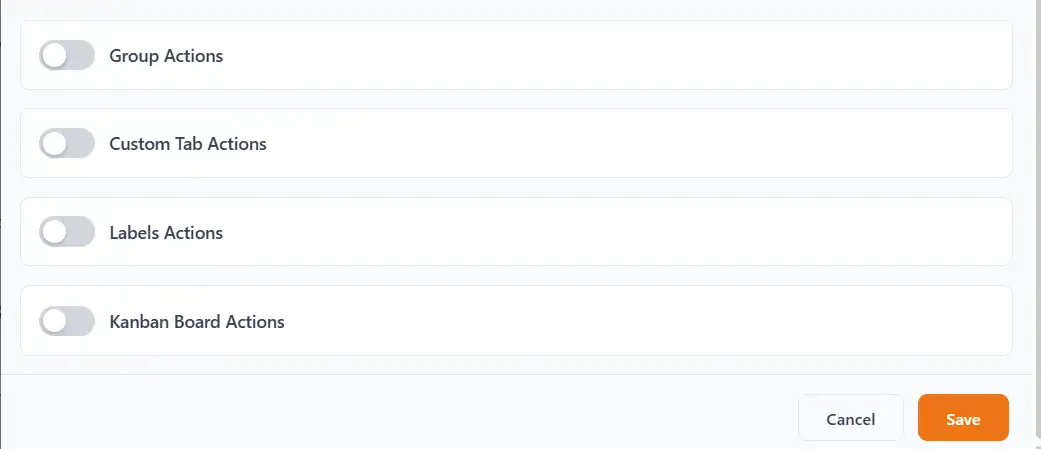
How to Schedule a Message
G Map Extractor
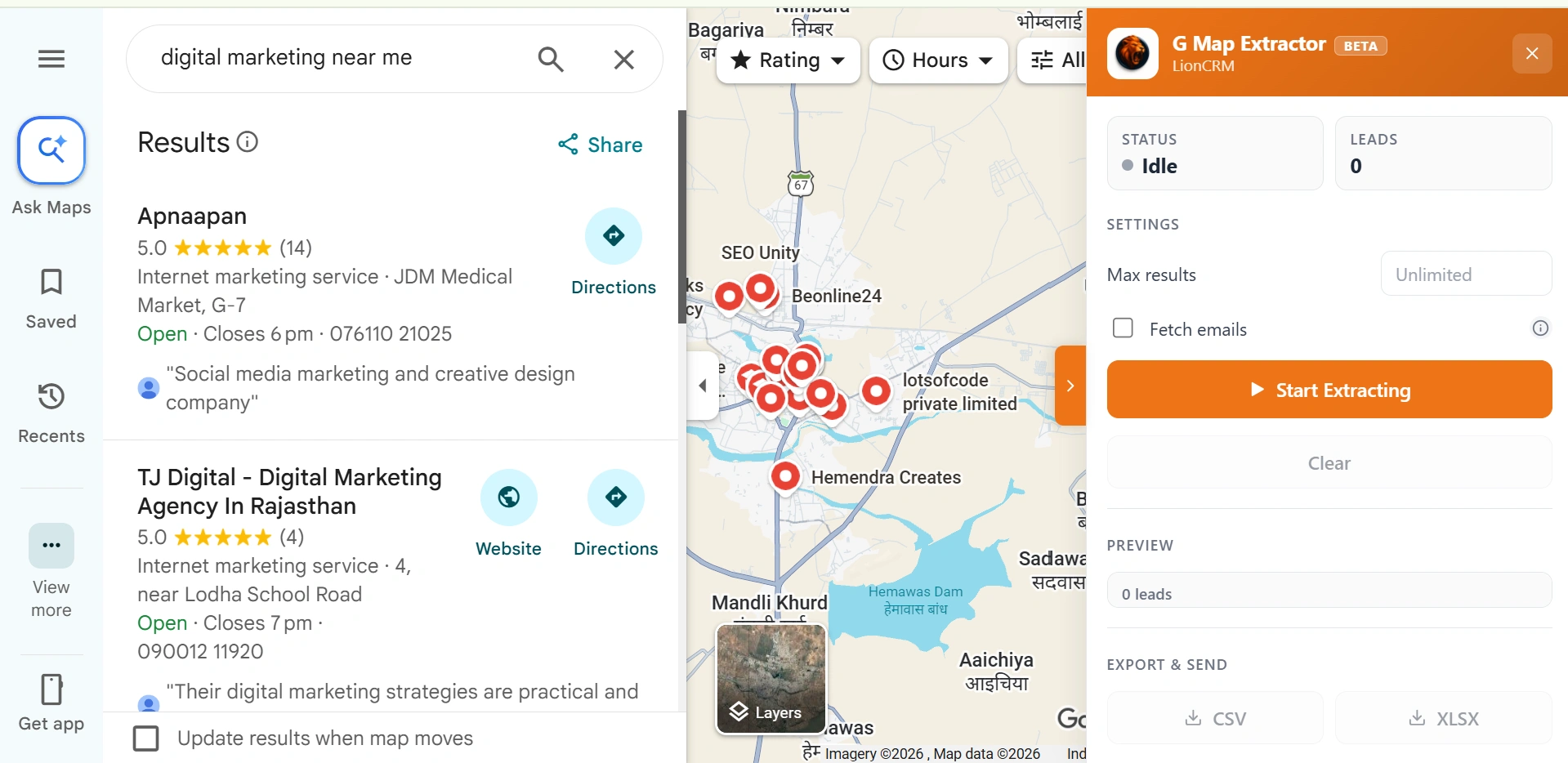
Extract unlimited business leads from Google Maps in one click — get Business Name, Phone, Category, Rating, Address, Website, and even Email. Export to CSV or XLSX and start your outreach instantly.
Turn Google Maps into a Lead Machine
Search any business on Google Maps — restaurants, agencies, hospitals, schools — and G Map Extractor automatically collects every listing's Name, Phone, Category, Rating, Address, and Website. Enable Fetch Emails to have the extractor silently open each business website in the background and pull the first email it finds. Set results to Unlimited and extract hundreds of leads in minutes.
Data You Extract
7 data points per lead — everything you need to qualify and contact any business.