
Every business on WhatsApp faces the same problem: customers message at all hours, expect instant replies, and move to a competitor if they don't hear back quickly. Setting up WhatsApp auto reply is no longer optional — it's essential for any business that handles customer conversations on WhatsApp. But the default WhatsApp Business app gives you a greeting message and an away message — that's it. For anything beyond basic WhatsApp auto reply, every guide on the internet tells you the same thing: "Get the WhatsApp Business API."
That advice is not wrong so much as expensive, and most pages repeating it are describing a product that no longer exists. Meta stopped charging per 24-hour conversation on 1 July 2025; billing is per delivered message now, by category. The 1,000 free conversations a month went with it. And the one thing that made auto reply cheap on the API — free-form replies inside the 24-hour window costing nothing — stops being free on 1 October 2026. Auto reply is the message type that change hits hardest, because a reply to an inbound message inside the window is the exact definition of a service message. We work through the numbers further down, and in full in the WhatsApp Business API guide.
The API route also means business verification, a provider platform fee on top of Meta's rate, and developer-level setup before a single message goes out. For a small business, freelancer, or agency that just wants a working WhatsApp auto reply bot answering today, that is a lot of process to buy a feature.
There's a third option nobody talks about. You can set up full WhatsApp auto reply flows — with keyword triggers, branching conversations, smart delays, and input validation — using a Chrome extension that works directly on WhatsApp Web. No API. No coding. No per-message cost.
That tool is Lion CRM's Chatbot Flow Builder (internally called Fluxo). In this WhatsApp auto reply guide, you'll learn exactly how it works, step by step — from setting your first keyword trigger to building complete chatbot conversation flows.
Who is this guide for? Small business owners, freelancers, digital marketing agencies, real estate agents, coaching institutes, e-commerce sellers, and anyone who handles customer conversations on WhatsApp and wants to automate replies without the complexity and cost of the WhatsApp Business API. Also known as resposta automática WhatsApp in Brazil and Latin America — this guide covers the same concept for a global audience.
In this guide
- 3 ways to set up WhatsApp auto reply — compared
- Your trigger decides your route, not your budget
- What a browser extension cannot do
- What is the Chatbot Flow Builder (Fluxo)?
- Setting it up, step by step
- Wait for Input and validation
- Real use cases
- What auto reply actually costs in 2026
- 1 October 2026 reprices auto reply harder than anything else
- Meta's AI replies are billed per token
- Cut your October exposure before the rate card lands
- Auto reply and account risk
- Deciding in thirty minutes
- Frequently asked questions
3 Ways to Set Up WhatsApp Auto Reply — Compared
Before jumping into the setup, it helps to understand the three WhatsApp auto reply approaches available today and where each one falls short or excels.
| Feature | WhatsApp Business App | WhatsApp Business API | Lion CRM (Chrome Extension) |
|---|---|---|---|
| Auto Reply Type | Greeting + Away message only | Full chatbot flows, keyword triggers | Full chatbot flows, keyword triggers |
| Keyword-Based Replies | ✗ Not available | ✓ Available | ✓ Available |
| Branching Conversations | ✗ Not available | ✓ Available | ✓ Drag-and-drop builder |
| Input Validation | ✗ Not available | Depends on provider | ✓ Phone, Email, URL, Date, Number |
| Per-Message Cost | ✓ Free | ✗ Billed per message — service replies ₹0.115 in India from 1 Oct 2026 | ✓ Zero — no message charges |
| Monthly Subscription | ✓ Free | ✗ $49–$200+/month | ✓ ₹1,500–₹3,000 user license |
| Meta Business Verification | Not required | ✗ Required | ✓ Not required |
| Coding Required | No | Yes — needs developer or paid platform ($49–$200+/mo) | ✓ No — visual drag-and-drop builder |
| Works On | Mobile app | Cloud-hosted servers | Any Chromium browser (Chrome, Brave, Edge) + WhatsApp Web |
| Green Tick Badge | ✗ No | ✓ Yes (verified businesses) | ✗ No |
The honest picture: If you're a large enterprise that needs the green tick badge, deep CRM integrations at scale, and 24/7 cloud availability, the WhatsApp Business API is the right choice for WhatsApp auto reply. But if you're a small-to-medium business that wants powerful WhatsApp auto reply flows without paying per-message fees and without any technical setup — Lion CRM's Chatbot Flow Builder gives you API-level automation at a fraction of the cost.
Important: Lion CRM is a Chrome extension. The Chatbot Flow Builder works when your computer is ON, WhatsApp Web is open in your browser, and the Lion CRM extension is enabled. It works on any Chromium-based browser — Chrome, Brave, Edge, and others. This is not a cloud-based service — it's a key difference from API solutions. For businesses that operate during fixed hours, this works perfectly. For 24/7 availability, you'd need a dedicated device running.
Your Trigger Decides Your Route, Not Your Budget
Almost every WhatsApp auto reply guide sorts the options by price, then by feature count. That ordering produces the wrong answer often enough to be worth correcting, because the first question is mechanical rather than commercial: what has to happen for the reply to fire?
A browser extension runs inside your browser session. It can only act while that session is open and connected. That single fact settles most of the decision before cost enters it. If the reply is triggered by something a customer does while you are working — a keyword, a menu choice, the first message of the day — an extension does it perfectly well. If the reply has to fire at 3am, on a schedule, from a server event, or while every machine in your office is switched off, no extension can do it at any price.
Read the table by row: find the job you actually need done, and read off the route.
| What fires the reply | Example | Route that can do it |
|---|---|---|
| Customer sends any message | Away message outside business hours | Business app, extension, or API |
| Customer sends a keyword | "PRICE" returns the rate card | Extension or API |
| Customer picks a menu option | 1 = Sales, 2 = Support, 3 = Billing | Extension or API |
| Customer supplies data you must validate | Capture and check an email before booking | Extension or API |
| A clock | Reminder 24 hours before an appointment | API only |
| Another system | Shopify marks an order shipped | API only |
| Nobody, at 3am | Overnight lead capture with the office closed | API only |
| Volume beyond one number's session | Thousands of concurrent conversations | API only |
The rows split cleanly, and they split on the trigger rather than on sophistication. The first four are reactive — a human already started the conversation and something in your browser can answer it. The last four are initiated, by a clock, a system or a queue, and initiated messages need something that is always running. That is what you are buying with the API: not better replies, an always-on sender.
The honest test. Write down the three replies you most want to automate. If all three are answers to a message a customer just sent, an extension covers you and the API is an expensive way to buy nothing. If even one has to fire on a schedule or from another system, you need the API for that one — and you can still run the other two on the extension. These routes are not mutually exclusive, and most businesses that end up on both did not plan it that way.
What a Browser Extension Cannot Do
This is a Lion CRM guide, so it is worth being blunt about where our own route stops. A page that will not name its limits is a brochure.
- It cannot send while the browser is closed. WhatsApp Web is a session. Close the tab, sleep the laptop, lose the wifi, and the flows stop until it is back. Businesses that need overnight coverage either leave a dedicated machine running or use the API.
- It cannot be triggered by an external system. There is no webhook that reaches into your browser. Order-shipped, payment-received and appointment-tomorrow messages are API jobs.
- It cannot exceed what one number and one session can carry. A team can share the pipeline, but the sending capacity is that of a phone number being used normally — which is the point, and also the ceiling.
- It does not give you a green tick or an official-business identity. Verified display names, template approval and Meta's messaging tiers belong to the API.
- It does not exempt you from WhatsApp's rules. Enforcement tracks behaviour, not tool shape — see account risk below.
What it does do, it does in about fifteen minutes, at zero per-message cost, with no verification queue between you and a working auto reply. For the reactive half of the table above, that is the entire job.
Running this on a real pipeline? Auto reply is one block of a working WhatsApp desk — the rest is shared inboxes, labels, notes and a pipeline your team can actually see. That is the layer Lion CRM adds on top of the number you already use. See the platform.
What is the Chatbot Flow Builder (Fluxo)?
Fluxo is Lion CRM's rule-based chatbot flow builder — the engine behind WhatsApp auto reply without API. Think of it as a visual canvas where you drag-and-drop conversation blocks, connect them with lines, and set conditions for when and how the WhatsApp auto reply bot responds to customers.
Unlike AI chatbots that require an API key from ChatGPT or Gemini, Fluxo is entirely rule-based. You define exactly what happens when a customer sends a specific keyword, selects a list option, or provides input. The WhatsApp auto reply messages are predictable, consistent, and require no AI provider key — making it the most reliable way to automate WhatsApp responses for business.
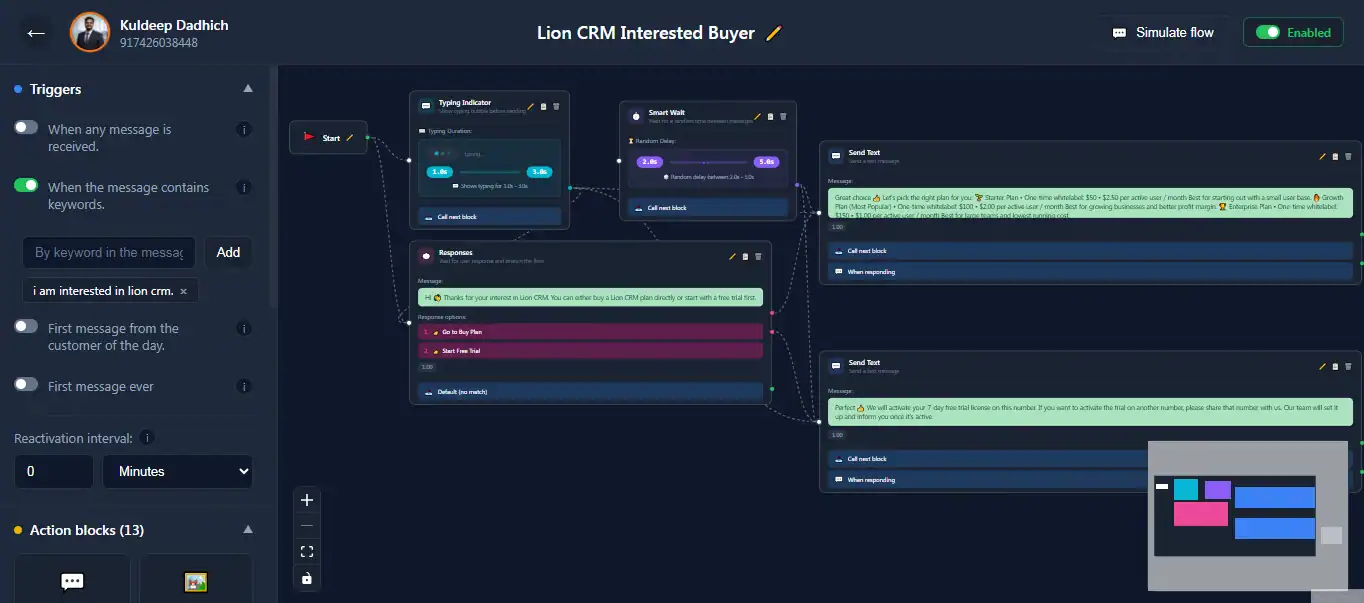
The Fluxo canvas — drag action blocks, connect them, and build conversation flows visually
Here's what you can build with Fluxo:
- Welcome flows — Greet new customers with a menu of options (services, pricing, support) the moment they message you
- FAQ auto replies — Trigger specific answers when customers type keywords like "pricing", "hours", or "location"
- Lead qualification — Ask customers for their name, phone number, and requirement, then auto-assign them to a CRM stage or label
- Product catalogs — Send list-based menus where customers choose from your products or services
- Appointment booking flows — Collect date, time, and contact details through validated input fields
- Support routing — Automatically move conversations to specific tabs or labels based on customer selections
This is the feature known as chatbot WhatsApp sem API (chatbot without API) in Brazil and bot de WhatsApp sin API in Spanish-speaking markets — a growing demand from businesses worldwide that want automation without the API overhead.
How to Set Up WhatsApp Auto Reply with Lion CRM — Step by Step
Follow these steps to create your first WhatsApp auto reply chatbot flow. The entire setup process takes under 15 minutes — and by the end, you'll have a fully working WhatsApp auto reply bot responding to customers based on keywords.
Install Lion CRM and Activate
Download the Lion CRM Chrome extension from the Chrome Web Store and add it to your browser. Open WhatsApp Web — you'll see the Lion CRM interface load automatically. Enter your license key to activate all features. The Chatbot Flow Builder (Fluxo) is built inside Lion CRM — there's no separate installation. All features (auto reply, bulk messaging, Kanban, follow-ups, and more) come bundled in a single extension.
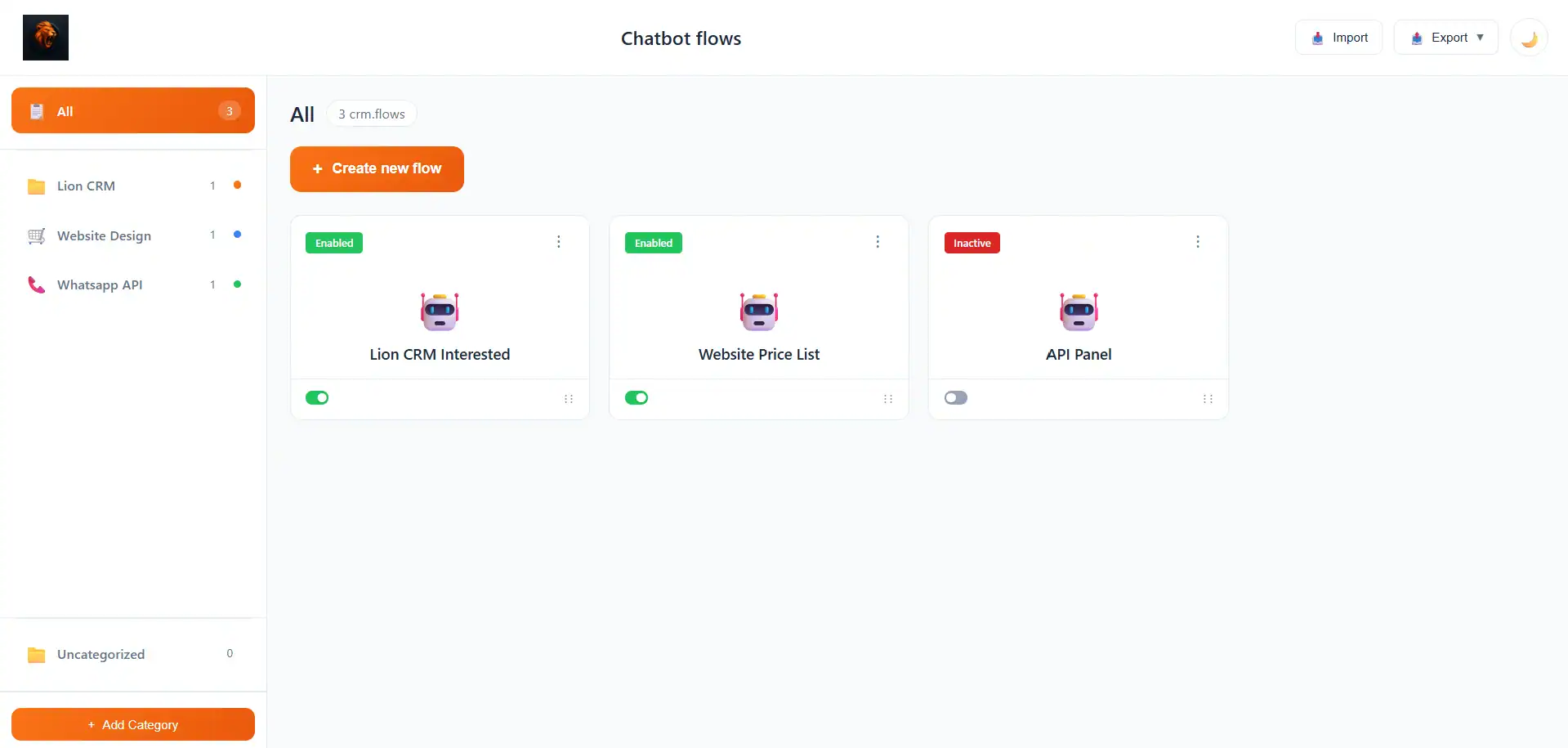
In the Lion CRM header bar, click on "Chatbot Flow Builder" (the Fluxo icon). You'll see the Chatbot Flows dashboard — this is where all your flows are listed, organized by categories. Click the orange "+ Create new flow" button to start building.
Choose Your Trigger
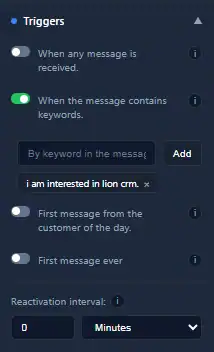
Every WhatsApp auto reply flow starts with a trigger — the condition that activates the chatbot. Lion CRM gives you four trigger options for your WhatsApp auto reply setup:
- When any message is received — the flow activates on every incoming message
- When the message contains keywords — you define specific keywords (like "hello", "pricing", "support") and the flow only activates when a customer types one of them
- First message from the customer of the day — triggers once per day per customer, great for daily greetings
- First message ever — triggers only the very first time a customer messages you, ideal for onboarding flows
For most businesses, keyword-based triggers are the most powerful because they let you create multiple flows for different purposes — one for "pricing", another for "support", another for "catalog".
You can also set a Reactivation Interval — this controls how long to wait before the same flow can trigger again for the same contact (in minutes).
Add Action Blocks to Build the Conversation
This is where the magic happens — where you build the actual WhatsApp auto reply conversation. On the left side panel, you'll see 15 action blocks that you can drag onto the canvas and connect to your trigger. Each block performs a different action in your WhatsApp auto reply flow:
Here's how you'd use them to build a typical welcome flow:
- Drag a Typing Indicator block and connect it to the Start node — this shows the typing animation so the auto reply looks human-like, not robotic
- Add a Smart Wait block with a random delay of 2–5 seconds — this adds a natural pause before the message appears
- Drag a Send List block — create a menu with options like "Our Services", "Get Pricing", "Talk to Support"
- For each option, drag a Send Text block with the relevant response and connect it to the corresponding list item
- Optionally add a Tab Action or Label Action to automatically categorize the customer based on their selection
The Add Fluxo block is especially powerful — it lets you chain multiple flows together. For example, your welcome flow can redirect to a separate "Product Inquiry" flow or a "Support Ticket" flow, keeping each flow clean and organized.
Configure Rules
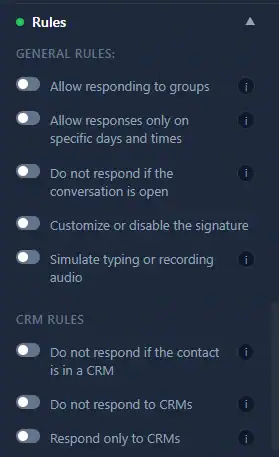
Rules control when and for whom the WhatsApp auto reply flow should respond. This is what separates a professional WhatsApp auto reply setup from a basic one — you can target specific customer segments, exclude contacts already being helped, and set business hours. Lion CRM provides four categories of rules:
General Rules
- Allow responding to groups — enable if you want the chatbot to reply in WhatsApp group chats
- Allow responses only on specific days and times — set business hours so the bot only replies during your working schedule (e.g., Monday–Saturday, 9 AM–7 PM)
- Do not respond if the conversation is open — if you're actively chatting with a customer, the bot stays silent and doesn't interrupt
- Simulate typing or recording audio — makes the auto reply appear as if a human is typing, creating a natural experience
- Customize or disable the signature — control whether your WhatsApp signature appears with bot replies
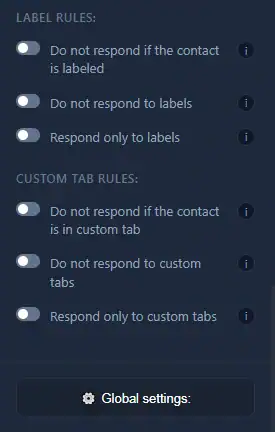
CRM, Label, and Custom Tab Rules
These rules let you target or exclude specific contacts based on their CRM stage, label, or custom tab:
- Do not respond if the contact is in a CRM / labeled / in custom tab — exclude contacts who are already being handled by your team
- Respond only to specific CRMs / labels / tabs — target auto replies to specific customer segments only
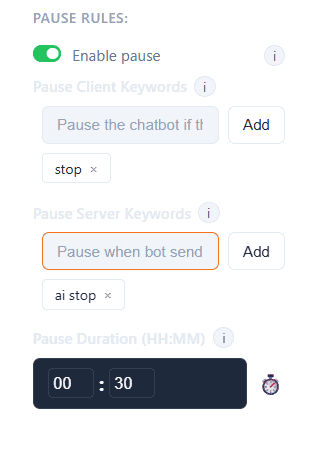
Pause Rules
Pause rules let customers and agents control when the chatbot should stop replying:
- Pause Client Keywords — if a customer types a word like "stop" or "human", the chatbot pauses for that conversation
- Pause Server Keywords — when a team member sends a keyword like "ai stop" from the business side, the bot pauses
- Pause Duration — set how long the pause lasts (e.g., 30 minutes) before the chatbot reactivates
Set Global Settings
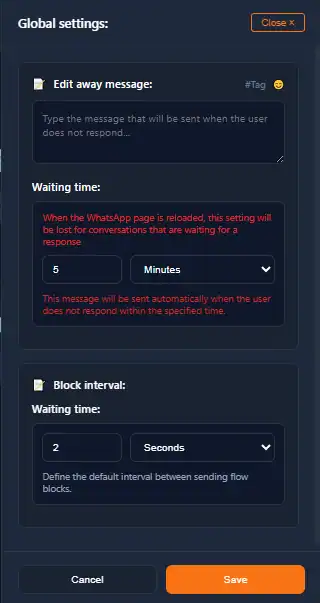
Global settings apply to all your chatbot flows and control two important behaviors:
- Away Message — a fallback message sent when a customer doesn't respond within the specified waiting time. For example: "We haven't heard from you. Feel free to message us anytime!"
- Block Interval — the default delay between sending consecutive action blocks. Setting this to 2 seconds creates a natural conversation pace.
Test with Chat Simulator
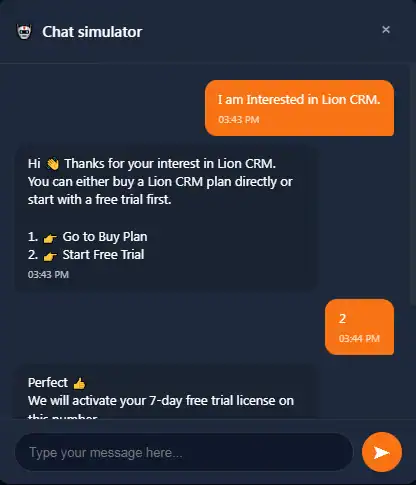
Before going live, always test your auto reply flow using the built-in Chat Simulator. Click "Simulate Flow" in the top-right corner of the flow builder. Type a test message or keyword and watch the entire conversation play out exactly as a real customer would experience it.
This lets you catch errors in branching, fix typos in messages, and verify that all action blocks are connected correctly — before any real customer sees it.
Activate the Flow
Toggle the Active/Inactive switch in the top-right corner of the flow editor. Once active, the flow will start responding to customers based on the trigger you configured. You can create multiple flows for different keywords and they'll work simultaneously.
To organize your flows, use the Categories feature on the dashboard — drag flows into categories like "Welcome", "Support", "Sales" to keep everything tidy as you build more automations.
Wait for Input — Smart Conversations with Validation
With Lion CRM v3.1, the Chatbot Flow Builder introduced the Wait for Input action block — the feature that transforms simple WhatsApp auto reply messages into actual two-way conversational flows.
Here's how it works: the WhatsApp auto reply bot sends a question (like "Please enter your phone number"), then waits for the customer to respond. Once the customer replies, the input is validated against the format you specified. If the input is invalid, an error message is sent and the customer is asked to try again. If valid, the reply is saved to a variable and used in the next WhatsApp auto reply message.
6 Validation Types Available
- Text — accepts any text input
- Phone Number — validates phone number format
- Number — accepts only numeric values
- Email — validates email address format
- URL — validates website URL format
- Date & Time — validates date/time entries
Example: You create a lead qualification flow. The chatbot asks "What's your phone number?" → waits for input → validates it's a real phone number → if invalid, sends "Invalid input, please try again" → if valid, sends "Thanks for sharing your phone number {phone_number}! Our team will contact you shortly." The variable {phone_number} dynamically inserts whatever the customer typed.
You can also set a timeout — if the customer doesn't respond within a specified time (e.g., 5 minutes), a timeout message is sent automatically.
Real Use Cases for WhatsApp Auto Reply Without API
Here are practical examples of how different businesses use Lion CRM's WhatsApp auto reply features to handle customer conversations automatically:
Real Estate Agents
When a prospect messages "property" or "flat", the chatbot sends a list of available locations. When they select a location, it sends property details with images. Then the Wait for Input block asks for their phone number, and the contact is auto-labeled as "Interested Lead" using the Label Action block.
Coaching Institutes
Students message "courses" and get a list of available programs. Each selection sends a brochure (using Send Document). The flow asks for the student's name and phone number, adds them to a "New Inquiry" custom tab, and sends a follow-up message with the next batch schedule.
E-Commerce Stores
Customers type "order" to check order status. The bot asks for their order ID (validated as a number), sends the tracking information, and offers a menu: "Need help with something else?" — routing to refund, exchange, or support flows using the Add Fluxo block to chain flows together.
Digital Marketing Agencies
Agencies managing multiple clients use Fluxo to create separate welcome flows for each client. When a lead messages the client's WhatsApp number, they get a branded welcome message with service options. The CRM Action block assigns leads to the correct pipeline stage. Agencies can even whitelabel Lion CRM with their own branding.
Freelancers and Consultants
A simple keyword flow: "hi" triggers a welcome message with working hours and a service menu. "Pricing" triggers a detailed service breakdown. "Book" triggers a date/time collection flow using Wait for Input. All automated, all running while you're focused on client work.
Managing Your Chatbot Flows
As your WhatsApp auto reply setup grows with more flows for different keywords and use cases, Lion CRM gives you tools to keep everything organized:
- Categories — create folders (like "Welcome", "Support", "Sales") and drag-and-drop flows into them
- Import/Export — export any flow as a backup file, import it on another device, or share it with a team member
- Multiple Simultaneous Flows — run different flows for different keywords at the same time; there's no limit on how many flows you can create
- Active/Inactive Toggle — quickly enable or disable flows without deleting them
Video Tutorials — Watch It in Action
Complete Chatbot Flow Builder Tutorial
This step-by-step video walks you through creating your first WhatsApp auto reply flow from scratch — setting keyword triggers, adding action blocks, configuring rules, testing with the simulator, and activating your WhatsApp auto reply bot.
Wait for Input, Smart Validation & Custom Menu (v3.1 Update)
See the Wait for Input action in action — asking for phone numbers, validating input, handling errors, and using variables in personalized replies.
Fluxo vs AI Chatbot — What's the Difference?
Lion CRM actually has two separate chatbot features — and understanding the difference is critical for choosing the right WhatsApp auto reply approach for your business:
| Aspect | Fluxo (Chatbot Flow Builder) | AI Chatbot (Smart Bar) |
|---|---|---|
| Type | Rule-based, drag-and-drop | AI-powered (ChatGPT, Gemini, DeepSeek) |
| API Key Needed? | ✓ No API key needed | Requires your own AI provider API key |
| Response Style | Predefined, consistent, predictable | Dynamic, contextual, natural language |
| Best For | Menus, FAQs, lead qualification, routing | Open-ended questions, natural conversations |
| Running Cost | Zero per-message | AI provider charges per API call |
| Setup Difficulty | Drag-and-drop, no coding | API key + prompt configuration |
You can use both together — Fluxo handles structured conversations (menus, forms, routing) while the AI Chatbot handles open-ended questions that need natural language understanding. Read the full AI Chatbot setup guide here.
What WhatsApp Auto Reply Actually Costs in 2026
Cost comparisons in this category age badly because Meta has changed the commercial terms of the platform four times in two years. Here is where each route stands in August 2026, with the dates attached so you can tell when this page has gone stale.
| Route | Cost per reply | Fixed cost | Changes on 1 Oct 2026? |
|---|---|---|---|
| WhatsApp Business app | Zero | Free | No — the free apps are unaffected |
| Chrome extension (Lion CRM) | Zero — no per-message metering | User licence, ₹1,500–₹3,000 | No — you are not on the Platform |
| Official API, in-window reply | Free today | Provider platform fee, ₹999–₹17,000/mo | Yes — becomes billable |
| Official API, utility template | ₹0.115 (India, Aug 2026) | As above, plus provider markup | Loses in-window free status |
| Official API, marketing template | ₹0.8631 (India, Aug 2026) | As above | Already billable everywhere |
| Meta Business Agent (AI) reply | ~₹3.50–₹4.40 per delivered message | As above | Already live since 1 Aug 2026 |
Three things in that table deserve saying out loud. Meta now runs three different meters on one API, in three different units, and a fourth arrives in October. The gap between the cheapest and the most expensive way to send the same sentence is roughly thirty-fold. And the route most businesses reach for first — the free WhatsApp Business app — is the only one that is genuinely free, which is exactly why its two-message ceiling is the real constraint rather than its price.
1 October 2026 Reprices Auto Reply Harder Than Any Other Message Type
On 1 October 2026, free-form replies sent inside the 24-hour customer service window stop being free on the WhatsApp Business Platform. Utility templates sent inside that window lose their free status at the same time. Meta has committed to publishing exact rates by 1 September 2026, and has said service messages will be priced at the same per-message rate as utility and authentication in each country — which in India would put them at ₹0.115 unless the rate card moves.
Why this lands on auto reply specifically. A service message is a free-form reply inside the 24-hour window after a customer writes to you. That is the literal definition of what an auto reply does. Every other category — marketing, utility, authentication — was already billable, so nothing changes for them. Auto reply is the one category going from free to billed, and the businesses most exposed are the ones that automated best, because they produce the most in-window replies per conversation.
Two worked examples, using the same numbers as our API pricing breakdown:
- A 12-person D2C brand sending 8,000 marketing templates, 12,000 utility and 30,000 service replies pays about ₹21,850 a month all in today. Those 30,000 service replies at ₹0.115 plus provider markup and GST add roughly ₹3,970 — a 19% increase, arriving in a single billing cycle.
- A 40-person services firm sending 60,000 service replies and 5,000 utility templates pays about ₹21,500 today, almost all of it platform fee. October adds roughly ₹7,935 — a 37% increase on a business that currently thinks of WhatsApp as a fixed cost.
Note which firm gets hit harder. It is not the one sending marketing blasts; it is the one doing careful, high-touch support. Volume of replies is the exposure, and a well-built auto reply flow generates replies efficiently by design.
None of this touches the extension route or the free apps. Meta is repricing the Business Platform. If your auto replies fire from a browser session on your own number, your October bill is the same as your September bill. That is not a small point in a year when everyone else's goes up by a fifth.
Meta's AI Replies Are Billed Per Token — and It Changes the Maths
Since 1 August 2026, replies produced by Meta Business Agent are billed by token rather than by message: $2.60 per million tokens, bundling the AI processing and the delivery into one charge. A typical delivered message consumes roughly 20,000 to 25,000 tokens, which works out at about four to five US cents — call it ₹3.50 to ₹4.40 at August 2026 rates.
Set that against the same table above. An Indian utility template is ₹0.115. A marketing template is ₹0.8631. A Meta Business Agent reply is thirty to forty times the utility template and four to five times the marketing template. "Just put AI on it" stopped being a feature decision on 1 August and became a per-message costed one.
This is the strongest practical argument for a rule-based flow, and it is an argument from arithmetic rather than from preference. A keyword that returns your rate card does not need a language model. Neither does a menu that routes to the right department, nor a form that collects a name, a phone number and a preferred slot. Those are deterministic jobs, they are the majority of what auto reply is asked to do, and a rule-based flow does them for free at the point of sending. Save the model for the conversations that genuinely need one, and know what each of those replies costs.
One clarification worth having in writing. Meta's token meter applies to Meta Business Agent. A bot built on your provider's platform, or on your own model behind the API, is billed by that provider or that model vendor — though the underlying message still runs through meter one or meter two. Some of those arrangements are much cheaper. Ask for the per-resolved-conversation number, not the per-message one, and get it in writing before September, when everybody is asking.
Rule-based first, model second. Lion CRM's flow builder handles the deterministic majority at zero per-message cost, and hands off only what needs a human or a model. See how it works.
Cut Your October Exposure Before the Rate Card Lands
If you are on the API, you have roughly six weeks in which the fix is cheap. The metric to start tracking today is messages per resolved conversation. It is your October exposure expressed as one number, and almost nobody measures it because until now the in-window messages were free and therefore invisible.
- Find the padding. "Sure!", "One moment", "Let me check for you", the standalone "Anything else?" — each of those is free today and ₹0.115 in October. On 20,000 conversations a month, cutting two padding messages per conversation is about ₹4,600 a month. That is a flow edit, not a project.
- Compress the flows. A menu that takes four messages to reach an answer can usually reach it in two. Every branch you remove is billed volume you never send, and it is a faster experience besides.
- Front-load the useful reply. Answer in the first message rather than acknowledging in the first and answering in the third. Readers prefer it and the meter agrees.
- Get your provider's answer in writing. Ask specifically: will service messages be passed through at Meta's rate, or marked up like templates? Some will absorb it in the platform fee. Anyone without an answer in August has not planned.
- Reprice your AI. If a model is answering messages that a rule could answer, that is now the most expensive line on the bill. Move the deterministic ones to rules.
A business that does those five things enters October with a bill it has already modelled. Most will not, and will find out in the first week of November.
Auto Reply and Account Risk: What Actually Gets You Limited
Every WhatsApp automation page eventually gets asked whether automating replies risks the number. The answer is the same on every route, and it is not the one the tool vendors give.
Enforcement tracks sending behaviour, not tool shape. Meta does not restrict numbers for using a chatbot; it restricts them for what recipients do in response. Blocks and spam reports pull hardest. Being ignored also counts — a message nobody replies to reads as unwanted. On the API this is visible as two dials you do not control:
- Messaging limit — how many unique people you may start a conversation with in a rolling 24 hours. New numbers begin at 250 and climb through 1,000, 10,000 and 100,000 to unlimited. Replies inside an open window do not count against it; the cap is on conversations you initiate.
- Quality rating — a rolling green/yellow/red signal per number, derived from recipient behaviour. Red generally precedes a limit reduction.
Auto reply sits on the safe side of this by construction, because it answers people who messaged you first. The risk in an auto reply setup is almost never the replying — it is what else the same number is doing. Cold outbound to people who never contacted you, identical bodies sent at speed, and near-zero reply rates are what move the dials, and they move them the same way whether the sending tool is an API, an extension, or a person with fast thumbs.
Which is also why "we guarantee no bans" should end a sales call. None of these dials belongs to a reseller or a provider. They belong to Meta, they are adjusted on your account, and nobody selling you software controls them. We go through the full picture in the guide to sending at volume safely.
Deciding in Thirty Minutes
In order, and it really is short:
- List the three replies you most want automated. Not features — actual sentences you are tired of typing.
- For each one, write down what fires it. A customer message, a clock, or another system. Use the trigger table.
- If all three are customer-triggered, install the extension and build them this afternoon. There is no verification queue and no per-message meter to model.
- If any is clock- or system-triggered, that one needs the API — and it needs an October cost model, because it will land inside the 24-hour window more often than you expect.
- Either way, count your messages per resolved conversation once the flow is live. On the API it is your October exposure. On the extension it is still the number that tells you whether the flow is any good.
Start with the reactive half. Lion CRM runs auto reply flows, a shared pipeline, labels and follow-ups on your own WhatsApp number, from a Chrome extension — running this afternoon, no verification queue, no per-message fee. See the platform.
Tips for Better WhatsApp Auto Reply Flows
Building a WhatsApp auto reply flow is easy — building one that feels professional and converts customers is where these tips come in:
- Keep messages short — WhatsApp is a chat platform, not email. Limit each WhatsApp auto reply message to 2–3 lines maximum.
- Use the Typing Indicator — always add a Typing Indicator block before responses. It makes the WhatsApp auto reply look human, not robotic.
- Add Smart Wait delays — a 2–5 second random delay between messages mimics natural conversation pace. Without it, instant multi-message replies feel automated.
- Set business hours — use the "specific days and times" rule to only run auto replies during your working hours. Off-hours messages can go to a separate "away message" flow.
- Enable pause keywords — always configure "stop" or "human" as a pause keyword so customers can opt out of the chatbot when they need a real person.
- Test before going live — use the Chat Simulator every single time before activating. A broken flow is worse than no flow at all.
- Organize with categories — as you create more flows, use categories to keep them manageable. Name flows clearly: "Welcome Flow", "Pricing FAQ", "Support Routing".
More Lion CRM Guides
- How to Schedule WhatsApp Messages — No Per-Message Cost, No API
- How to Send Bulk WhatsApp Messages Without Getting Banned
- Best WhatsApp CRM Extensions for Chrome — Which One Can You Rebrand & Sell?
Frequently Asked Questions
Yes. Lion CRM's Chatbot Flow Builder (Fluxo) works directly on WhatsApp Web as a Chrome extension. You can create keyword-triggered auto reply flows, branching conversations, list menus, and input validation — all without the WhatsApp Business API. No Meta verification, no per-message charges, no developer setup required.
No. Fluxo is a rule-based chatbot builder — you define exactly what the bot says using drag-and-drop blocks. No ChatGPT, Gemini, or any AI API key is needed. Lion CRM does have a separate AI Chatbot feature that requires an API key, but Fluxo works independently without any external API.
Lion CRM is a Chrome extension, not a cloud service. The chatbot works when your computer is ON, WhatsApp Web is open in your browser, and the Lion CRM extension is enabled. It works on any Chromium-based browser (Chrome, Brave, Edge). For businesses with fixed hours, this is not an issue. If you need 24/7 coverage, you can run it on a dedicated device that stays on around the clock.
Yes. You can create unlimited chatbot flows, each triggered by different keywords. For example, one flow for "pricing", another for "support", another for "catalog" — all running simultaneously. You can organize them into categories for easy management.
Yes. There's a specific rule called "Allow responding to groups" that you can enable. When turned on, the chatbot will respond to keyword triggers in group chats as well.
You can set up Pause Client Keywords (like "stop" or "human"). When a customer types that keyword, the chatbot automatically pauses for a set duration (e.g., 30 minutes), and the conversation is handed over to a human agent. You can also use the "Do not respond if the conversation is open" rule so the bot stays silent when you're actively chatting.
Lion CRM is a powerful WhatsApp CRM tool with a 7-day free trial. We offer both User License and Whitelabel License options to suit your business needs.
For latest plans and detailed pricing, please visit Lion CRM Pricing.
Yes. Lion CRM lets you export any chatbot flow as a backup file and import it on another device or share it with team members. This is especially useful for agencies managing multiple clients — you can create a template flow and deploy it across all client accounts.
Only if your auto replies go through the WhatsApp Business Platform (the official API). From 1 October 2026 free-form replies sent inside the 24-hour customer service window become billable at the same per-message rate as utility and authentication templates in each country — which in India would be ₹0.115 unless the rate card changes. Meta has committed to publishing exact rates by 1 September 2026. Auto reply is the category most affected, because an in-window reply to an inbound message is precisely what a service message is. The free WhatsApp app, the WhatsApp Business app and Chrome-extension routes such as Lion CRM are not on the Platform and are not affected.
It depends entirely on the route. The WhatsApp Business app is free but limited to a greeting and an away message. A Chrome extension such as Lion CRM has no per-message metering at all — you pay a user licence, commonly ₹1,500–₹3,000. On the official API you pay a provider platform fee (commonly ₹999–₹17,000 a month) plus Meta's per-message rate: in India, as of August 2026, ₹0.115 for utility and authentication templates and ₹0.8631 for marketing. In-window replies are free until 1 October 2026, after which they are billed too.
Sometimes, but it is now a per-message costed decision rather than a feature toggle. Since 1 August 2026 Meta Business Agent replies are billed at $2.60 per million tokens, and a typical delivered message consumes 20,000–25,000 tokens — roughly ₹3.50 to ₹4.40 each. That is thirty to forty times an Indian utility template. Deterministic jobs such as returning a price list, routing a menu choice or collecting a name and phone number do not need a language model, and a rule-based flow does them at no per-message cost. Reserve the model for conversations that genuinely need one.
No. A browser extension runs inside your WhatsApp Web session, so it works while that session is open and connected and stops when it is not. If your reply is triggered by a customer message during your working hours, that is not a limitation you will feel. If it has to fire at 3am, on a schedule, or from another system such as an order-shipped event, you need the official API for that specific job — though you can still run the customer-triggered flows on the extension alongside it.
Replying to people who messaged you first is the safest thing you can do on WhatsApp, on any route. Enforcement tracks sending behaviour, not the shape of your tool: blocks, spam reports, cold outbound to people who never contacted you, identical message bodies sent at speed, and near-zero reply rates. On the official API this shows up as a falling quality rating and a reduced messaging limit. Neither dial is controlled by your software vendor or reseller, which is why a supplier promising 'no bans' is promising something that is not theirs to give.
Ready to Set Up WhatsApp Auto Reply?
Install Lion CRM, build your first WhatsApp auto reply flow in under 15 minutes, and start responding to customers automatically — no API, no coding, no per-message charges.
Start 7-Day Free Trial on WhatsAppJoin Our WhatsApp Channel
Get tips, feature updates, and WhatsApp automation tricks — directly on WhatsApp.
Follow Lion CRM on WhatsApp